
Someone asks what GPU you have. A game tells you it needs 16GB of VRAM. You want to know if your PC can handle Halo: Campaign Evolved. You’re about to buy a new component and want to confirm compatibility. All of these moments lead to the same question , what’s actually inside this machine?
Windows 11 has the answer. So do three free tools that give you more detail than Windows ever will. Here’s exactly where to look for every component and what the numbers actually mean.
Method 1: Windows Settings (quickest, good for basics)
Press the Windows key and type About your PC. Click the first result. You’ll land on the System → About page showing:
Device name, Processor (your CPU name and clock speed), Installed RAM, Device ID, System type (64-bit or 32-bit), and Windows Edition.
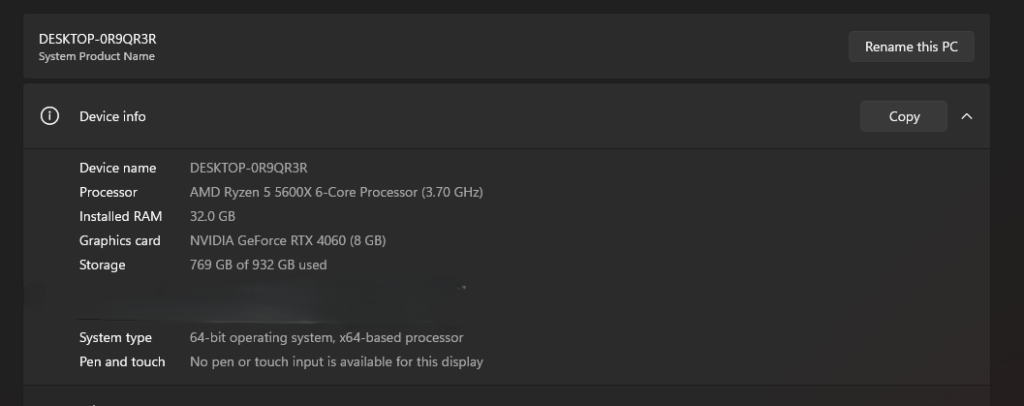
This tells you your CPU and RAM amount. It doesn’t tell you your GPU, your RAM speed, your storage, or anything useful about component performance. For a quick sanity check it’s fine. For anything more specific, use the methods below.
Method 2: Task Manager (GPU: RAM usage, CPU in real time)
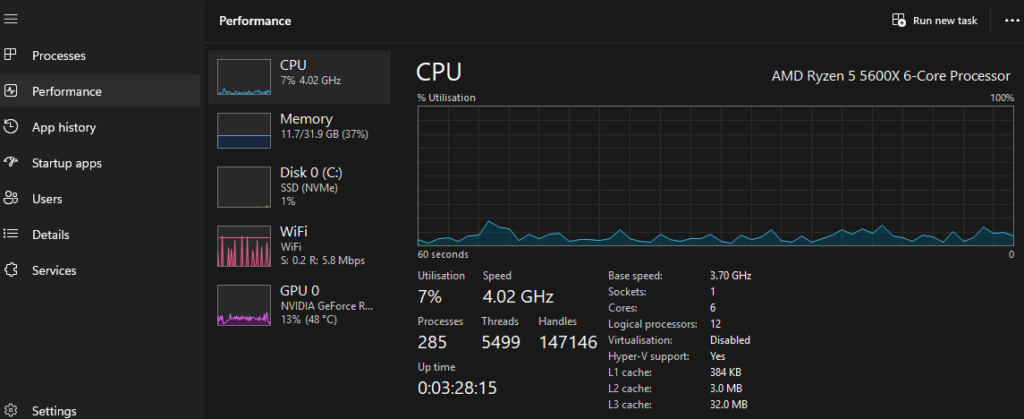
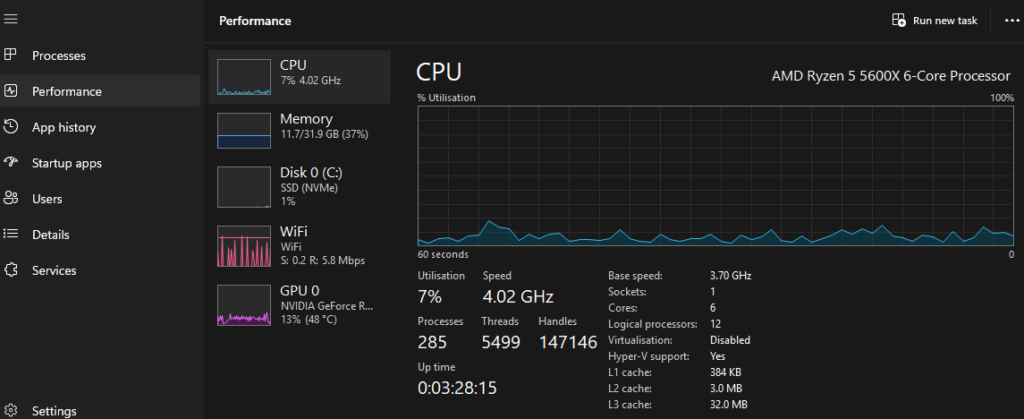
Press Ctrl + Shift + Esc to open Task Manager. Click the Performance tab in the left sidebar.
You’ll see tabs for CPU, Memory, GPU, and Disk. Click each one.
CPU tab , shows your processor name, base clock speed, number of cores and threads, cache sizes, and current utilisation. The name printed here is exact , “AMD Ryzen 7 9800X3D” or “Intel Core Ultra 7 265K” , which you can then verify against SpecClear’s CPU comparison articles.
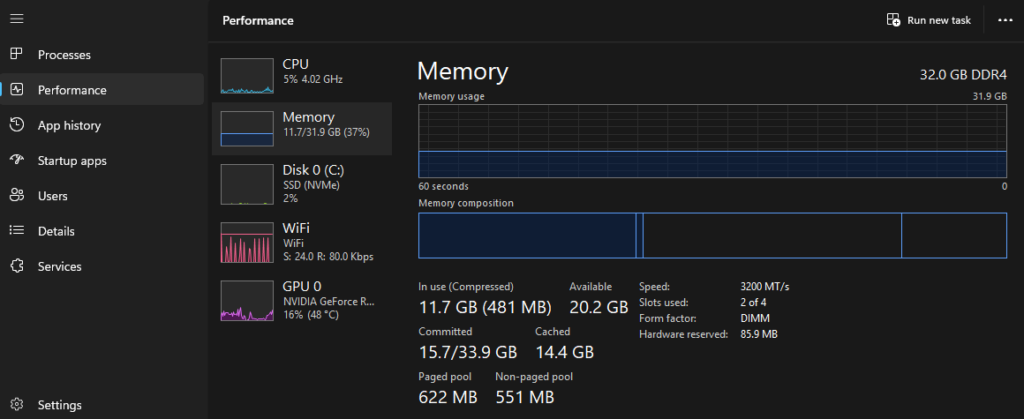
Memory tab , shows total installed RAM in GB and crucially the current speed in MHz. If you installed DDR5-6000 and enabled XMP but this shows 2400MHz, XMP didn’t apply correctly. Go back into BIOS and re-enable it. The speed shown here is the base clock , DDR5-6000 shows as 3000MHz in Task Manager because Task Manager displays the base clock, not the effective double data rate speed. 3000MHz equals DDR5-6000 running correctly.
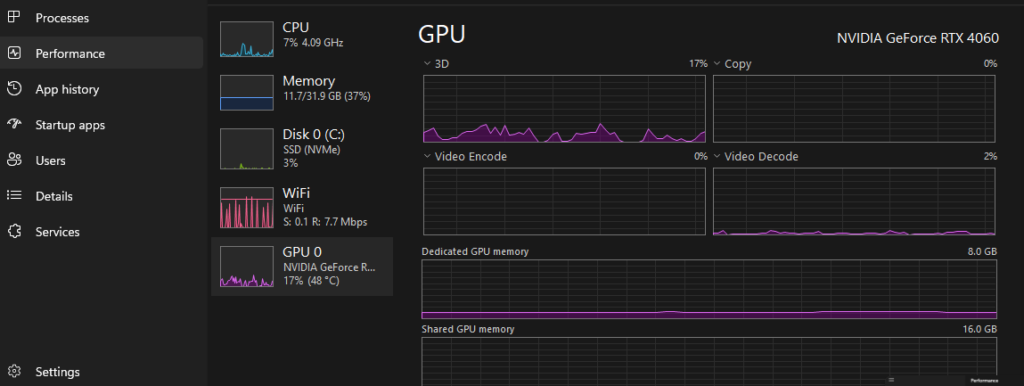
GPU tab , shows your graphics card name, dedicated GPU memory (VRAM amount), shared GPU memory (system RAM the GPU can borrow), and current utilisation across several workloads. If you have multiple GPUs , a discrete card and integrated graphics , both appear as separate GPU entries. Your discrete gaming GPU is the one with the higher dedicated memory figure.
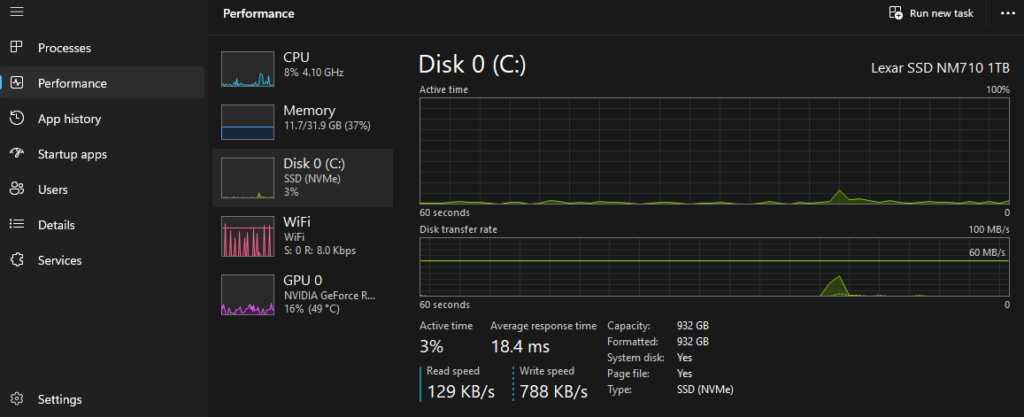
Disk tab , shows your storage device names. Look at the Model field , it will say something like “Samsung MZVL22T0HBLB-00B00” which is the Samsung 990 Pro’s product code. You can search this code to confirm the exact model if needed.
Method 3: DXDiag (the complete system report)
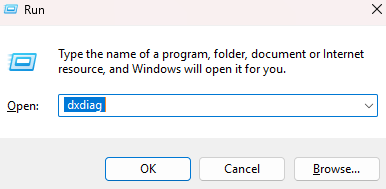
Press Windows key + R. In the Run box that appears, type dxdiag and press Enter. The DirectX Diagnostic Tool opens. Wait about ten seconds for it to finish loading.
The System tab shows your OS, Computer name, Manufacturer, BIOS version, Processor, Memory (RAM), DirectX version, and more.
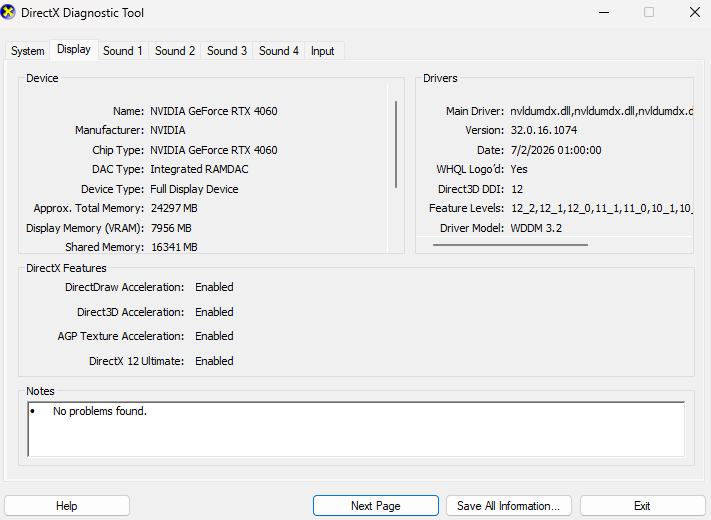
Click the Display tab. This shows your GPU name, manufacturer, chip type, approximate total memory (VRAM plus shared memory , the dedicated VRAM alone is more useful, so cross-reference with Task Manager), driver version, and driver date. The driver date tells you when your GPU drivers were last updated , if it’s more than three months old, a driver update may include performance improvements worth installing.
Click Save All Information to export everything to a text file you can share for troubleshooting. This file covers every piece of hardware Windows can identify and is what support teams and forum helpers will ask for when diagnosing problems.
Method 4: CPU-Z (most detailed CPU and RAM information)
CPU-Z is a free download from cpuid.com , search CPU-Z download and take it from the official CPUID site. Install and open it.
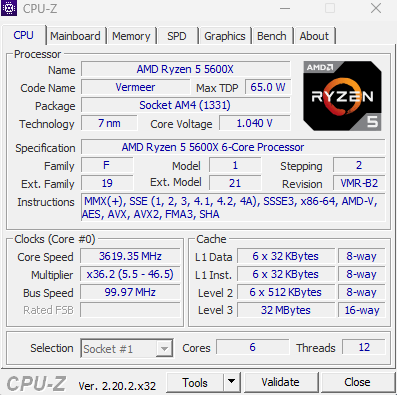
The CPU tab shows your exact processor name, code name, core stepping, socket, technology (the manufacturing process), core voltage, and cache configuration. If you want to know not just that you have a Ryzen 7 9800X3D but what revision of silicon it is, CPU-Z tells you.
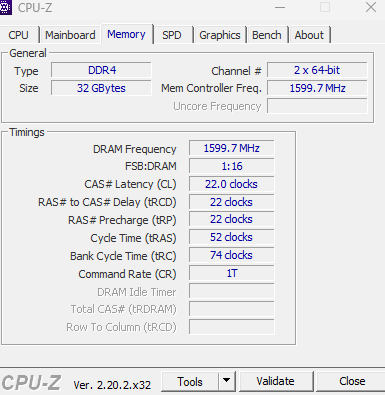
The Memory tab shows your RAM’s type (DDR5), size, channel configuration (Dual or Single , you want Dual), and the current frequency in MHz. It also shows the timing configuration , if you enabled XMP, this should match the timings listed on your RAM kit.
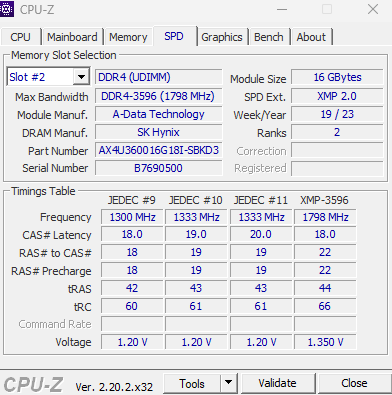
The SPD tab shows what’s programmed into each RAM stick , click the slot dropdown to see each module’s rated speeds and timings. This is how you confirm your RAM is running at its rated specification.
Method 5: GPU-Z (most detailed GPU information)
GPU-Z is a free download from techpowerup.com , search GPU-Z TechPowerUp and take it from the official page. Install and open it.
The main screen shows everything about your GPU: name, GPU chip code, die size, transistor count, release date, BIOS version, shader count, ROPs, TMUs, memory size (dedicated VRAM in MB), memory type (GDDR6, GDDR7, etc.), bus width, bandwidth, driver version, and one critically useful field , Resizable BAR.
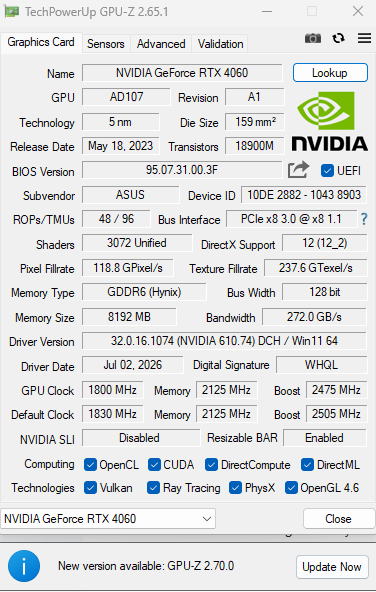
Resizable BAR shows Yes or No. If it shows No and you have a current-generation GPU, go into BIOS and enable SAM (AMD) or Resizable BAR (Intel). This is a free performance improvement covered in the SpecClear BIOS settings guide.
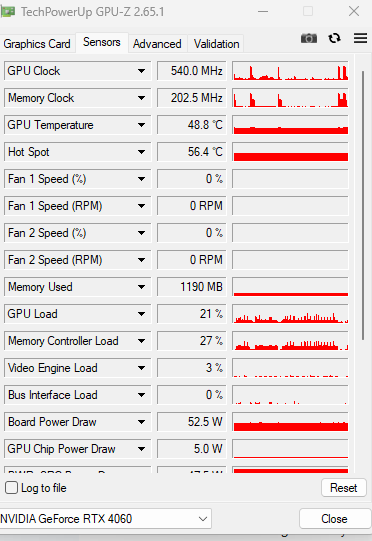
The Sensors tab in GPU-Z shows real-time GPU temperature, hotspot temperature, VRAM temperature, fan speed, GPU clock speed, and power consumption during use. Run a game and alt-tab out to check these values , or use the GPU-Z overlay if your game supports it.
What to do with the information
Once you know your specs, the next steps depend on what you found.
GPU older than RTX 30 series or RX 6000 series , the SpecClear GPU upgrade guides cover whether and when to upgrade by specific card. The RTX 30-series upgrade guide and the current GPU market update are the starting points.
RAM running below rated speed , enable XMP (Intel) or EXPO (AMD) in BIOS. The full process is in the SpecClear how to install RAM guide. Thirty seconds, free performance.
Resizable BAR disabled , enable it in BIOS following the SpecClear BIOS settings guide. Also free, also worthwhile.
GPU temperatures above 87°C under sustained load , the SpecClear GPU temperature monitoring guide and thermal throttling fix guide cover the diagnostic and repair process.
Only 16GB of RAM on a new-ish system , 32GB is the correct target for gaming in 2026. The RAM prices article covers why DDR5 costs what it does right now and when that might change.