Undervolting is one of the most misunderstood GPU optimisations available. Most people assume it means slower performance, reducing voltage reduces performance. That’s how it works on CPUs. GPUs are different. Modern GPU architectures have significant voltage headroom built into their factory configuration specifically to guarantee stability across thousands of different hardware combinations. Reducing that voltage to the minimum your specific card needs produces the same performance, lower temperatures, and quieter fans. Sometimes slightly better performance, because a cooler GPU boosts more consistently.
It takes about twenty minutes. The tools are free. Nothing about it voids your warranty any more than changing a graphics setting does, you’re adjusting operating parameters in software, not physically modifying hardware. Here’s how to do it.How to Monitor Your GPU and CPU Temperatures
What undervolting actually is
Your GPU has a voltage-frequency curve, a relationship between how much voltage it receives and the clock speed it achieves. Nvidia and AMD configure this curve conservatively. The card might be stable at 900mV at 2,400MHz, but Nvidia sets it to run at 1,000mV at 2,400MHz to ensure stability on cards that need that extra voltage. Your specific card may not need 1,000mV. Finding the minimum voltage your card needs to run stably at its target frequency is the entire process.
The result of running at lower voltage: less heat generated, fans spin slower and quieter to maintain the same temperature, and the GPU runs the same clock speed, or higher, because it’s no longer thermal throttling back from excess heat. Power consumption drops noticeably, typically 20–40W less at load for a mainstream GPU, which benefits laptop users significantly in both heat and battery life.
The tool you need
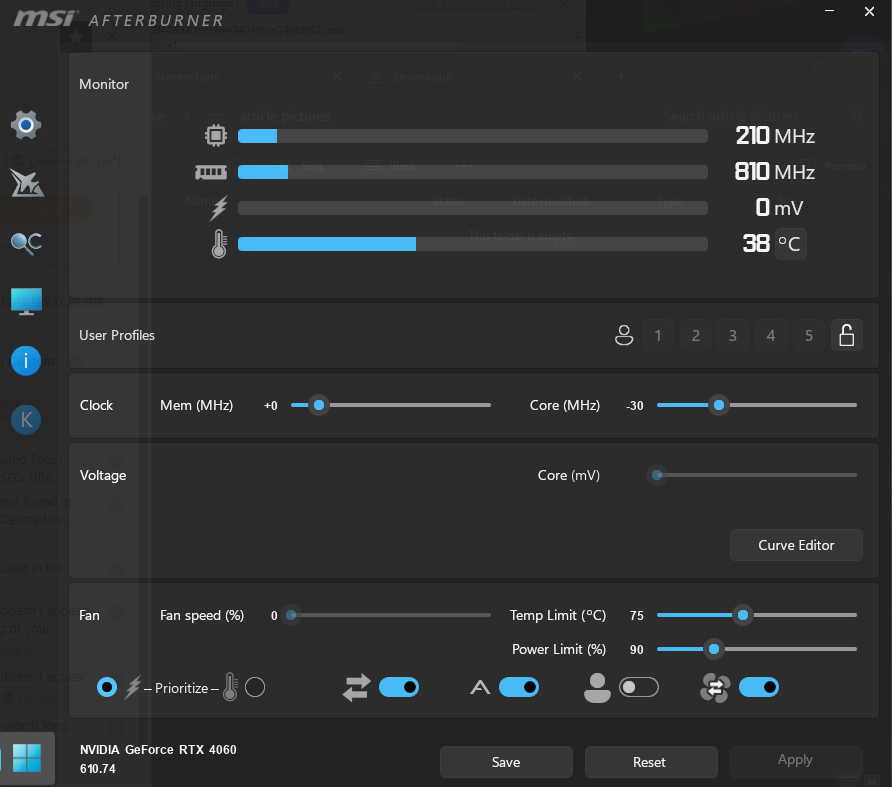
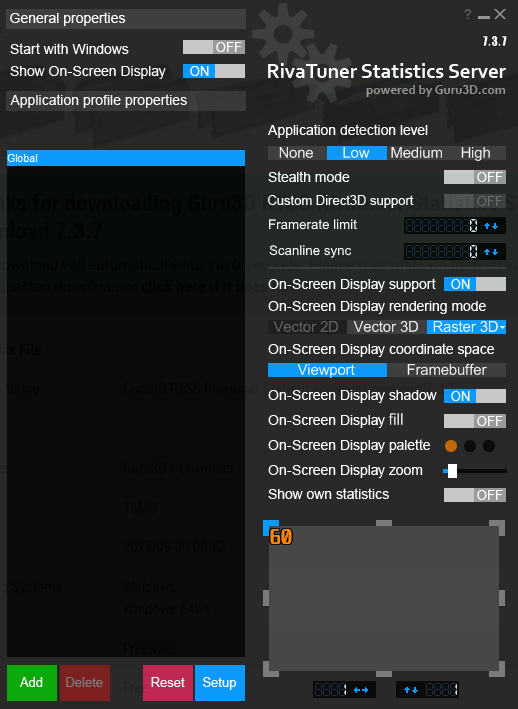
MSI Afterburner is the correct tool for GPU undervolting on Windows. It’s free, works on Nvidia, AMD, and Intel GPUs, and includes the voltage-frequency curve editor required for the process. Download it from MSI’s official site. Install it alongside RivaTuner Statistics Server when prompted, you’ll want RTSS for the in-game overlay to monitor results.What Is Thermal Throttling and How Do You Fix It
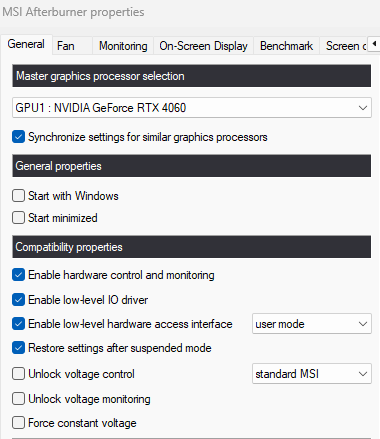
Before opening the voltage curve, enable voltage control in Afterburner. Open Afterburner → click the gear icon (Settings) → General tab → check both “Unlock voltage control” and “Unlock voltage monitoring” → click OK. Restart Afterburner.
The process: Nvidia GPUs
Nvidia’s architecture since RTX 20 series uses a different undervolting approach than older cards. You don’t set a fixed voltage. Instead you use the voltage-frequency curve to lock a specific frequency at a specific voltage, letting the card boost freely below that point.
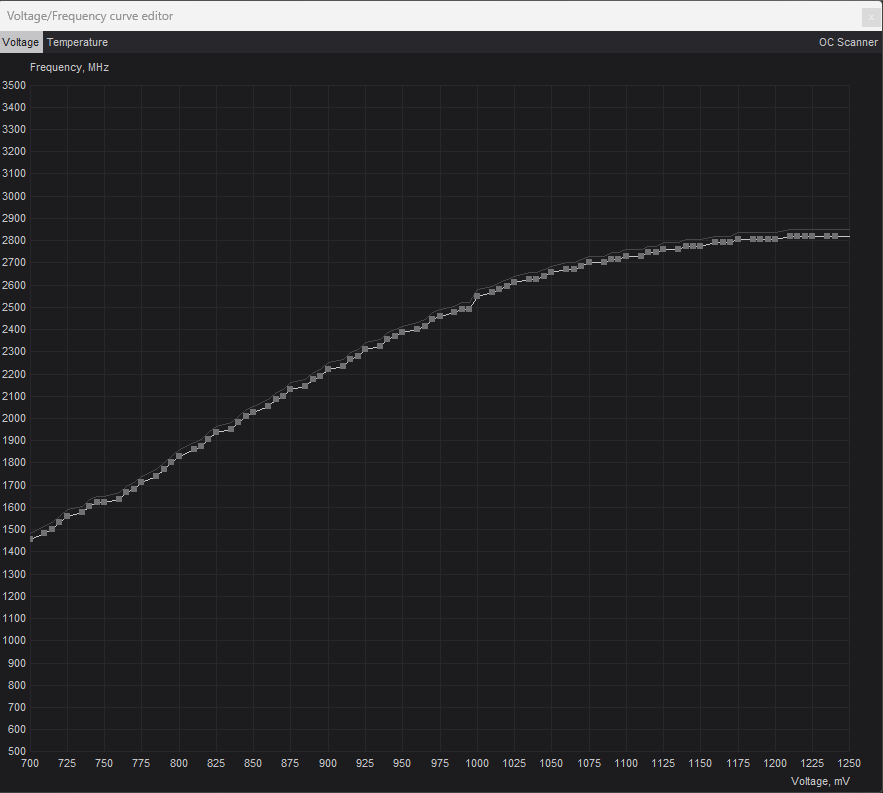
Press Ctrl+F in Afterburner to open the Voltage/Frequency Curve editor. You’ll see a graph with voltage on the X axis (measured in millivolts) and frequency on the Y axis (measured in MHz). The curve shows a series of points, each one defines a voltage-frequency operating point.
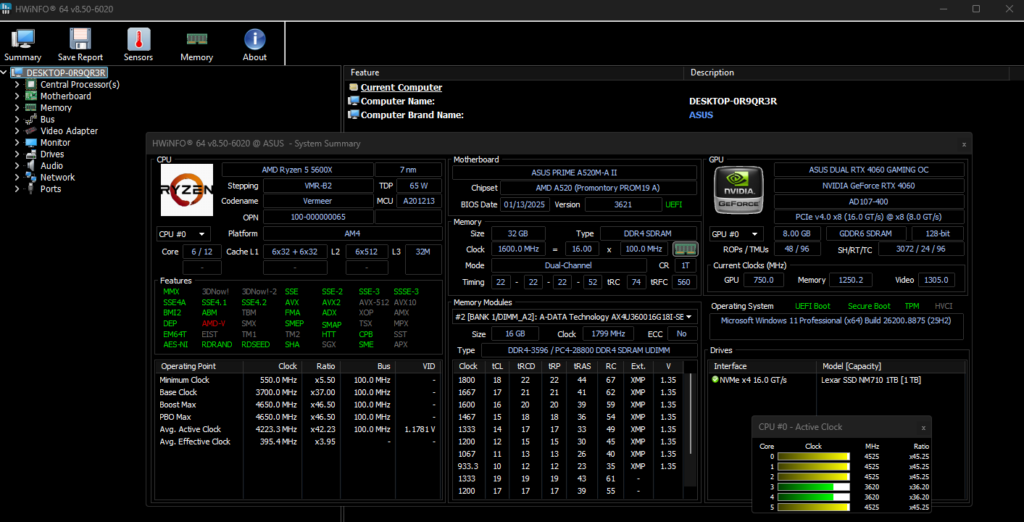
Before doing anything, note your card’s current boost clock. Run a GPU-intensive game or a benchmark for five minutes with the curve editor open and watch the highest GPU clock reading in HWiNFO64. This is your baseline boost frequency, the number you want to maintain after undervolting.
Now find the target voltage on the graph. Most current RTX cards undervolt successfully to 850–950mV, start conservatively at 900mV. Locate the point on the curve at your target voltage. Click and hold it, then drag it up to match or slightly exceed your baseline boost clock. Then select all points to the right of your target point by clicking in the empty graph area to the right and pressing Ctrl+A, or use the select function, and drag them down below your target point’s frequency. This creates a flat ceiling: the GPU can boost freely up to your target clock at your target voltage, and the higher-voltage operating points above it are inaccessible.How to Stress Test Your PC
Click Apply in the curve editor, then click Apply in the main Afterburner window. Save your profile using the save button.
The process: AMD RDNA 4 GPUs
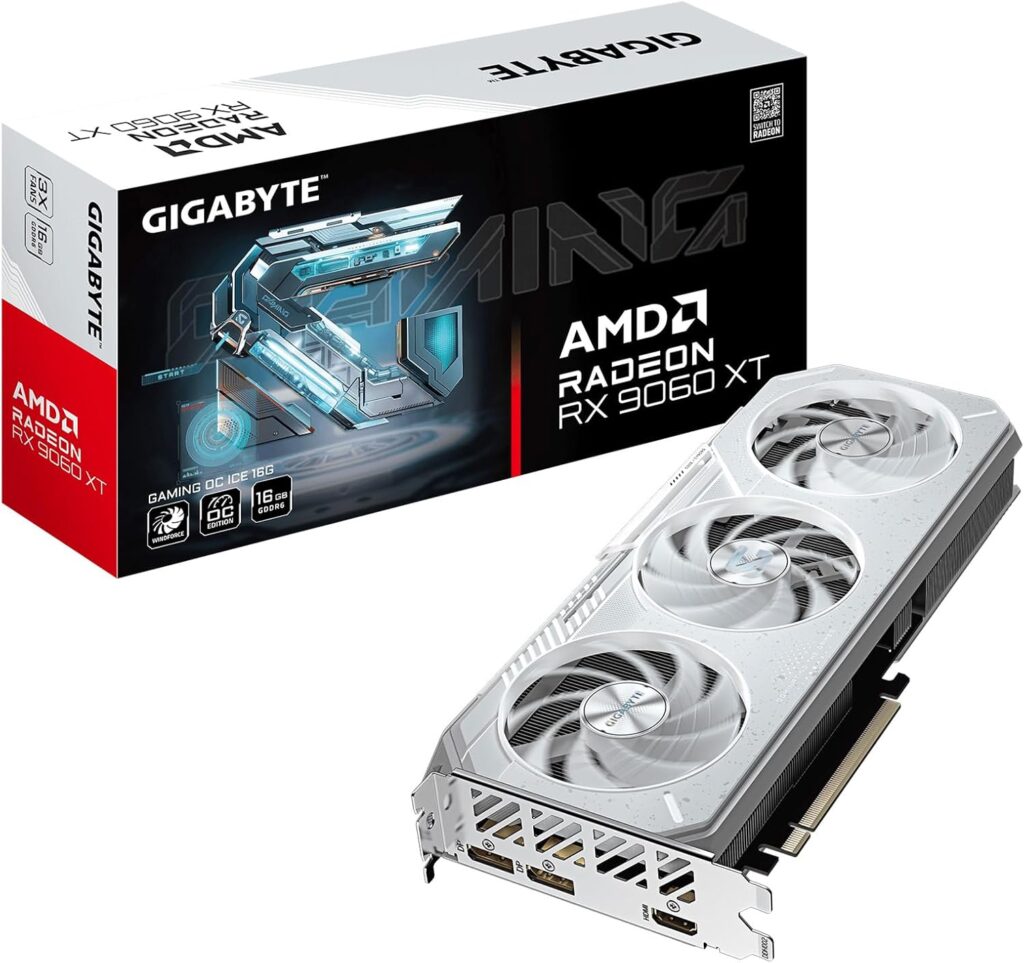
AMD’s RX 9000 series handles undervolting through AMD Software Adrenalin rather than Afterburner, though Afterburner also works for AMD cards. In AMD Software Adrenalin, open the Performance → Tuning section. Select Manual tuning. You’ll find GPU frequency and voltage sliders. Reduce the maximum voltage gradually (start by reducing it 50–75mV from the default) while keeping the maximum frequency at its current value.How to Repaste Your GPU
The principle is the same as Nvidia: you’re finding the lowest voltage at which the GPU maintains its target frequency stably. AMD’s implementation is simpler but less granular than Nvidia’s curve editor.
Testing for stability: this step is not optional
An undervolt that’s too aggressive produces crashes. They look like driver crashes: the screen goes black briefly, the game closes, and Windows reports that the display driver stopped responding and recovered. They can also produce full system crashes or black screens that require a hard reboot.
After applying your first undervolt, test it before saving it as your permanent profile. Run a demanding game for at least 30 minutes, longer is better. If the GPU crashes or the game closes unexpectedly, the undervolt is too aggressive. Increase the voltage by 25–50mV and test again.
The stress testing guide on SpecClear covers tools and methodology for sustained GPU stress testing, Furmark, Unigine Heaven, 3DMark Time Spy. Use one of these for a 30-minute stability run before calling the undervolt stable. Gaming is also a valid stress test since it exercises the card in the workload you actually care about, but synthetic stress tests push harder and catch instability that some games don’t trigger.
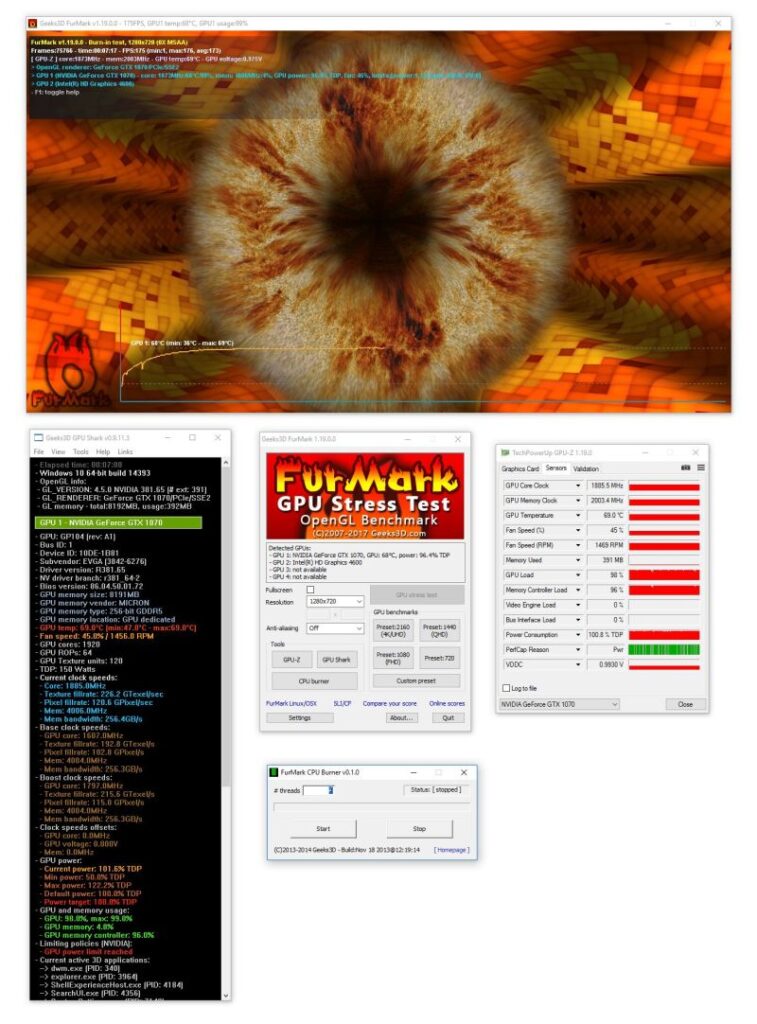
A stable undervolt produces no crashes, maintains or improves clock speeds versus the baseline, and shows lower temperatures and lower power draw in HWiNFO64.
What results to expect
The results vary significantly between GPU models and individual card samples. Two RTX 5070 Ti cards from the same AIB can need different voltages to maintain the same frequency, silicon lottery variation means one card might be stable at 875mV where another needs 925mV. Don’t compare your undervolt numbers to someone else’s and assume their settings will work for you.
Typical results on a mainstream current-generation GPU, RTX 5060 Ti, RTX 5070, RX 9060 XT:
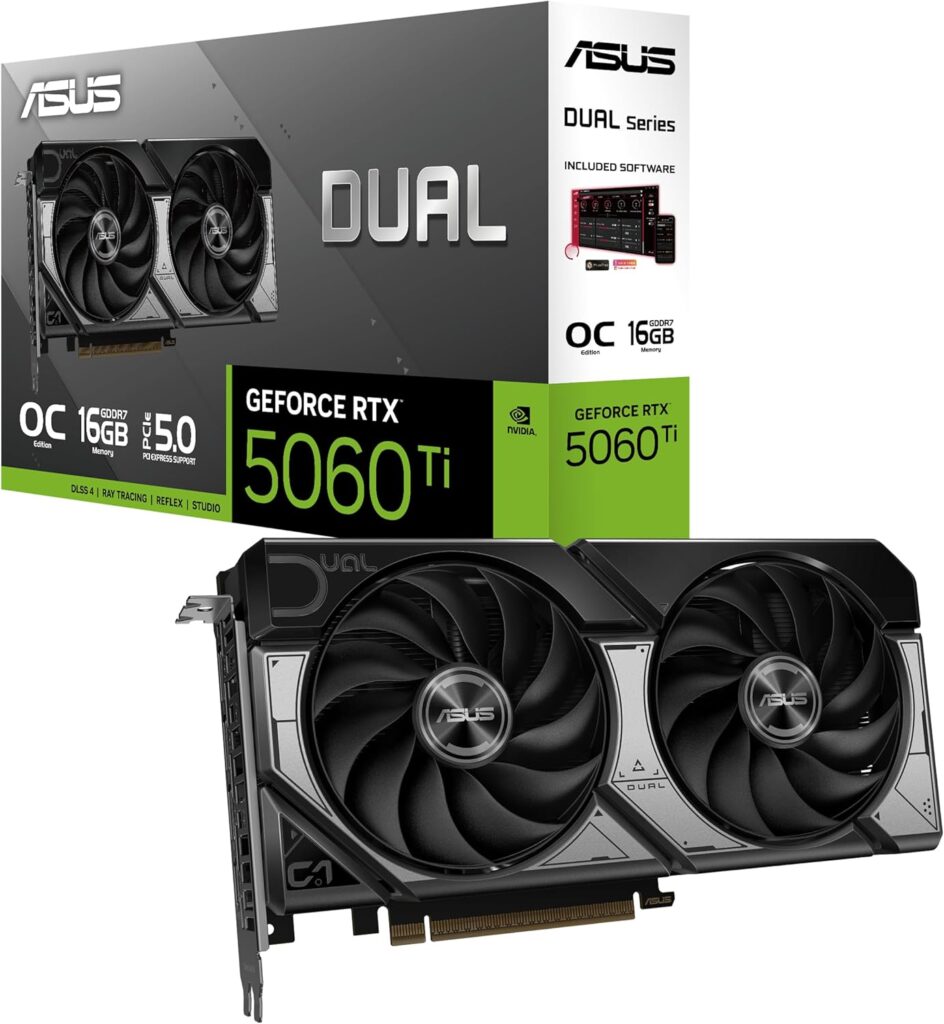
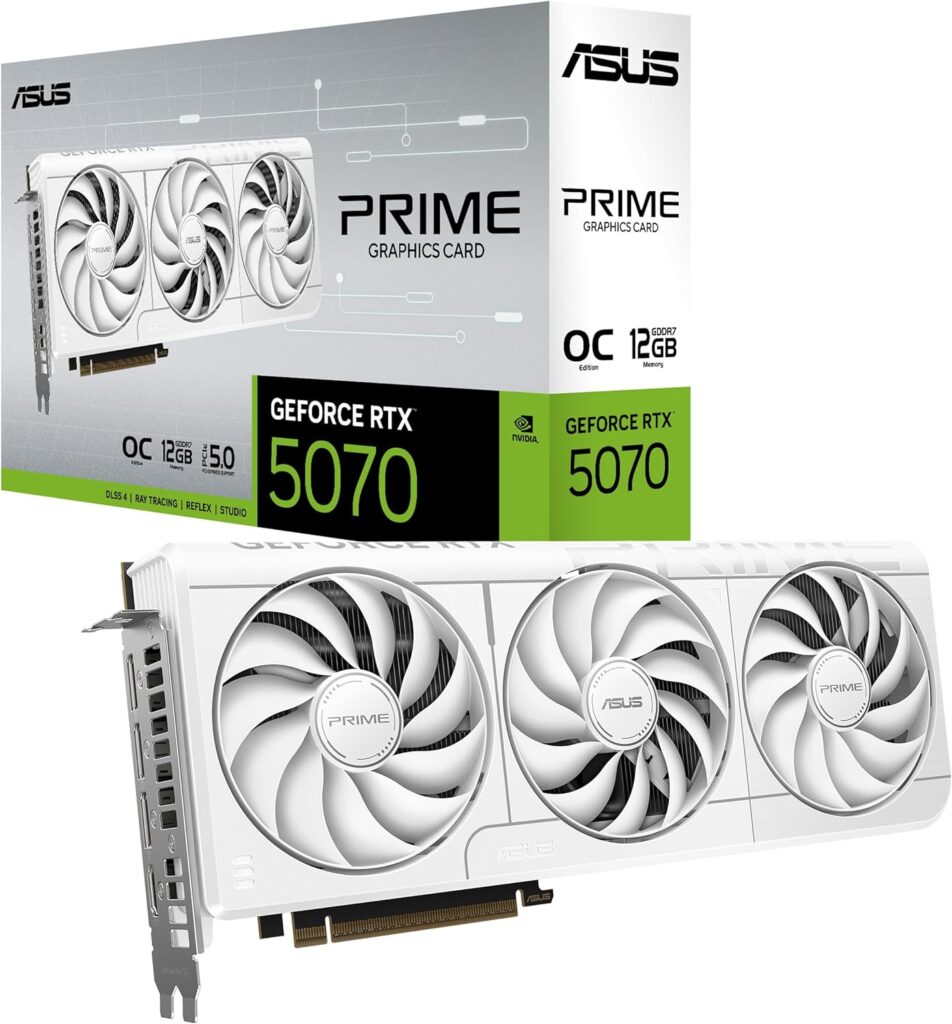
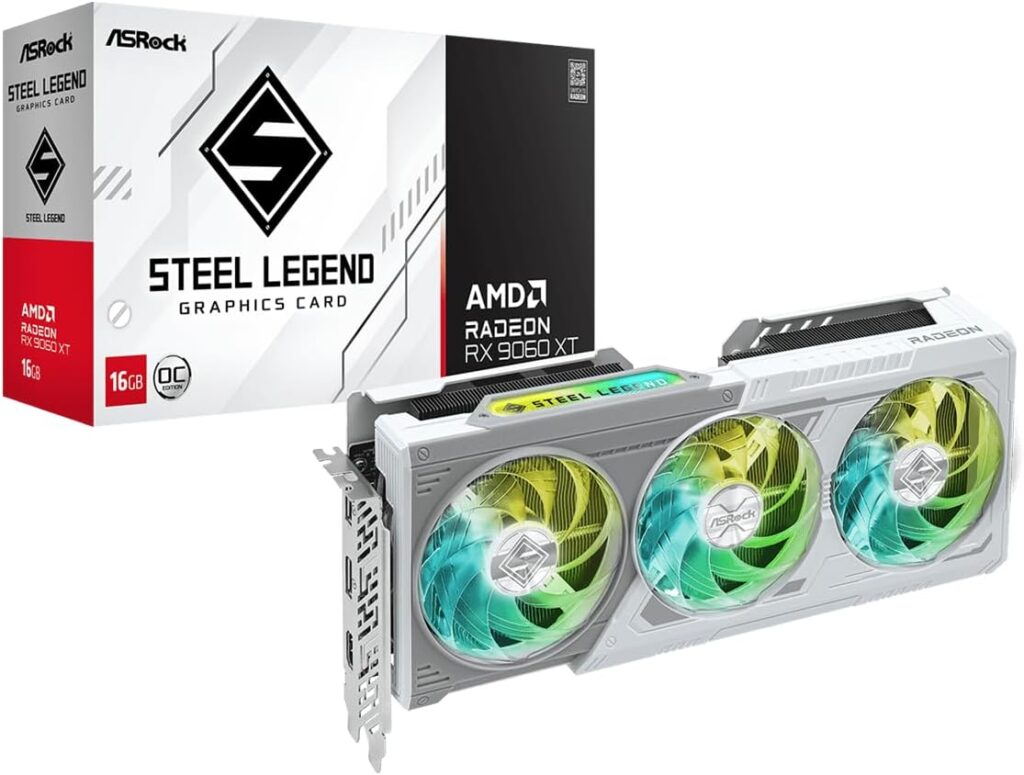
GPU temperature drops of 5–12°C under sustained load are common. Fan noise reduction is immediately audible, the GPU reaches the same cooling target with less fan effort. Power consumption drops 20–40W at full load. Performance stays identical or improves slightly because the GPU isn’t pulling back from thermal throttling.
On laptop GPUs the benefits are more pronounced. Laptop thermal solutions are more constrained, which means the GPU is more likely to be thermal throttling under full load. Reducing power consumption directly reduces heat, which reduces throttling, which sometimes produces better sustained performance than stock settings. This is the scenario where undervolting can improve benchmark scores rather than just maintaining them.
Saving and autoloading your profile
Once you’ve found a stable undervolt, save it as a profile in Afterburner. Click one of the five profile save slots (1–5 below the main sliders). Afterburner can auto-apply profiles on Windows startup, Settings → General → “Apply overclocking at system startup”, using whichever profile is currently active.
Test the profile after a restart to confirm it applies correctly. The voltage curve needs to be saved with the profile for the settings to persist, not just the slider values.Nvidia App and AMD Adrenalin Gaming Settings Guide
When to give up and leave it at stock
Some GPUs don’t undervolt cleanly. Certain AIB models ship with aggressive factory overclocks that leave little headroom for voltage reduction, the card is already running close to its stability floor. If you can’t find a stable voltage below stock after several attempts, the card isn’t going to undervolt meaningfully and the effort isn’t worth continuing.
Also: if your GPU is already running at comfortable temperatures, under 80°C average with a good case airflow setup, the undervolt’s benefit is modest. The temperature drop is real but less impactful when starting from a healthy baseline. Clean the PC, check the case airflow, and verify the fan curve is set sensibly first. An 8°C temperature reduction through undervolting is more valuable on a card that was running at 88°C than on one that was running at 72°C.