Most PC builders end up running three or four RGB apps at once without planning to. You install Armoury Crate because it came bundled with your motherboard. iCUE because you bought Corsair fans. Razer Synapse because of the keyboard. They fight each other constantly, one app resets the colours another just set, they slow down startup, and the RAM usage is absurd for software that exists purely to make LEDs blink.
This article explains what each major ARGB application actually does, where it falls short, and what to do about it.
Why RGB Software Conflicts Happen
Every RGB controller in your PC, whether it’s on your motherboard, a fan hub, or a peripheral, needs a software driver to receive instructions. When two apps both try to send instructions to the same controller simultaneously, they overwrite each other. That’s why you set a colour in iCUE and watch Armoury Crate change it back 30 seconds later. It’s not a bug. Both apps are working correctly. They’re just fighting over the same hardware.
The solution is to run one app that controls everything, or to carefully partition which app controls which hardware. The options below cover both approaches.
The Vendor Apps
Corsair iCUE 5
What it does: iCUE controls all Corsair RGB hardware, fans, AIOs, RAM, keyboards, mice, headsets, from a single interface. Beyond lighting, it handles fan curves, hardware monitoring (temperatures, fan speeds, CPU and GPU loads), macro programming, and headset EQ. The current version is iCUE 5, which runs on Windows and macOS.
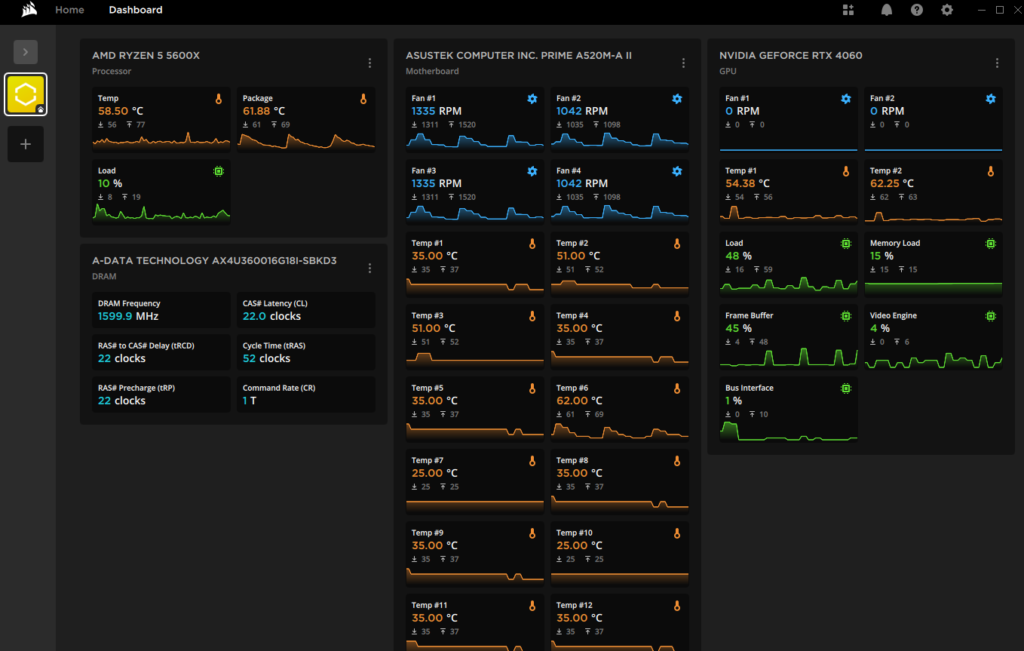
Who it’s for: Corsair-heavy builds. If your fans, AIO, RAM, and at least one peripheral are all Corsair, iCUE is the right tool. The ecosystem integration is genuine, you can set a lighting effect that shifts from blue to red as your CPU temperature rises. No other vendor app does temperature-reactive lighting this cleanly.
What it can’t do: Control non-Corsair hardware. A Razer mouse, ASUS motherboard ARGB headers, or generic ARGB fans won’t appear in iCUE. There’s a small list of partner integrations, some ASUS and Gigabyte motherboards, but outside that list, iCUE sees only Corsair.
Setup: Download from corsair.com. Install, launch, and it detects connected Corsair devices automatically. Create profiles in the Lighting Effects tab. Fan curves live in the System Monitoring section.
The honest limitation: it’s heavy. iCUE runs multiple background services and uses 200-400MB of RAM at idle. On a system with 16GB or more that’s not material, but it’s worth knowing.
ASUS Armoury Crate (Aura Sync)
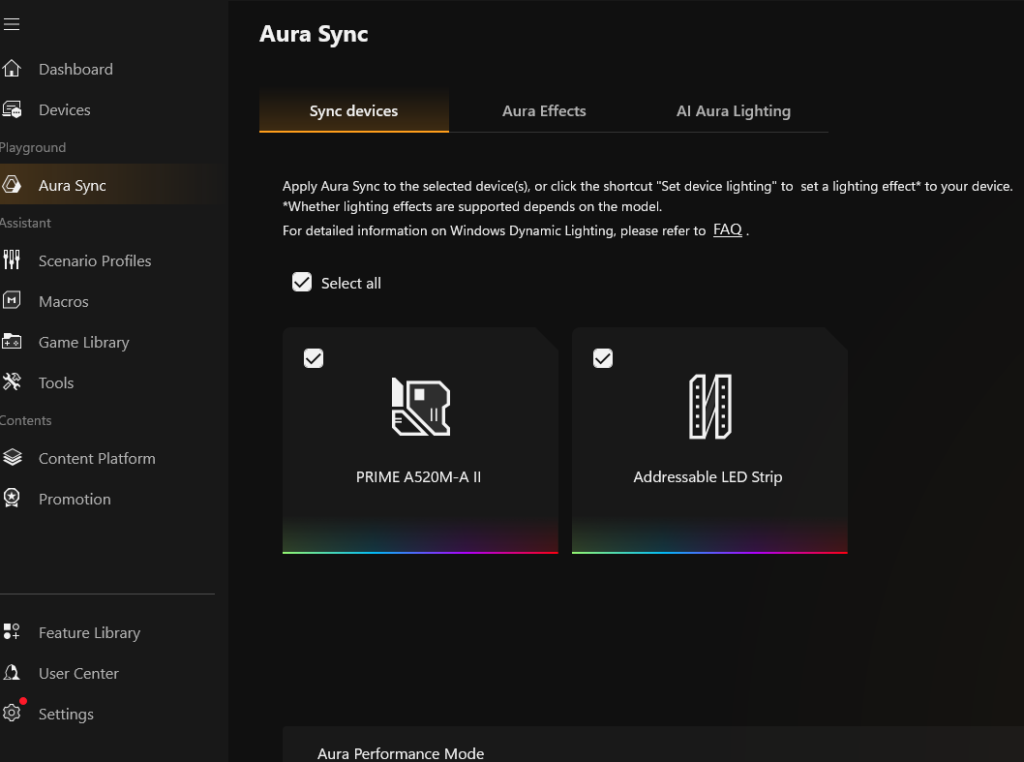
What it does: Armoury Crate is ASUS’s system management app. Aura Sync is the lighting component inside it. The app handles ASUS motherboard RGB headers, ASUS GPUs, ASUS peripherals, and a reasonably broad list of Aura Sync-certified third-party hardware, Corsair RAM, G.Skill RAM, some fan hubs, and a number of other certified partners.

Who it’s for: ASUS-based builds. If your motherboard is ASUS, Armoury Crate is what you’re expected to use. The BIOS update delivery through Armoury Crate is legitimately useful, it’s one of the most reliable ways to keep an ASUS board updated without manually checking the support page.
What it can’t do: Control Razer peripherals, most Corsair fans, and hardware outside the Aura Sync partner ecosystem. The partner list hasn’t been meaningfully expanded in years despite the hardware market moving on.
Setup: Armoury Crate installs automatically on ASUS motherboards via the included driver USB. If you’re starting fresh, download it from asus.com/support. The Aura Sync lighting controls are under the Lighting section in the left sidebar.
The honest limitation: Armoury Crate has a documented history of update instability. A Windows update or Armoury Crate update can break lighting detection and require a full reinstall. This is a known problem that ASUS has not fully resolved as of 2026. It’s stable when it’s working. When it isn’t, it’s frustrating.
MSI Center (Mystic Light)
What it does: MSI Center is MSI’s system management app. Mystic Light is the lighting component. It controls MSI motherboard headers, MSI GPUs, and MSI peripherals. The app also handles performance modes, GPU overclocking through the Gaming section, and fan control.
Who it’s for: MSI-based builds. If your motherboard is MSI, MSI Center is the vendor app you’ll use.
What it can’t do: Control non-MSI hardware outside the Mystic Light sync partner list, which is narrower than Aura Sync’s.
Setup: Download from msi.com/support. MSI Center uses a modular installation, you choose which components to install rather than getting the entire bloat stack. This is a meaningful design advantage over Armoury Crate. Install only what you need.
The honest assessment: of the three vendor apps, iCUE for full builds, Armoury Crate for ASUS, MSI Center for MSI, MSI Center is the most stable and the most sensibly designed. The modular install philosophy keeps it lighter than competitors. Mystic Light’s ecosystem is narrower than Aura Sync’s but the day-to-day experience is more predictable.
Razer Synapse 4
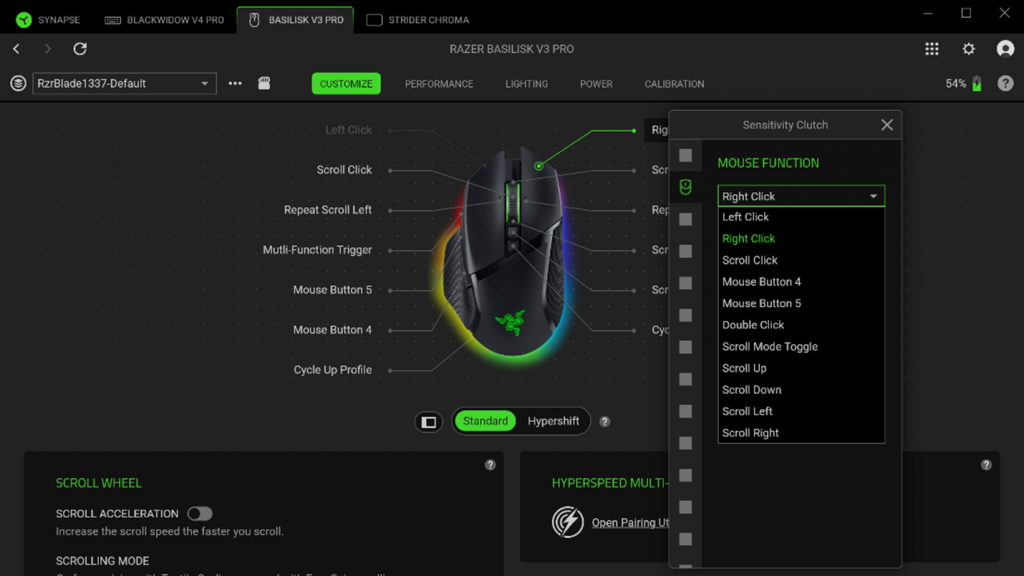
What it does: Controls Razer peripherals, keyboards, mice, headsets, and Razer’s Addressable RGB Controller if you’re using Razer’s proprietary ARGB header system. Handles DPI configurations, macros, and Razer Chroma lighting for peripheral LEDs.
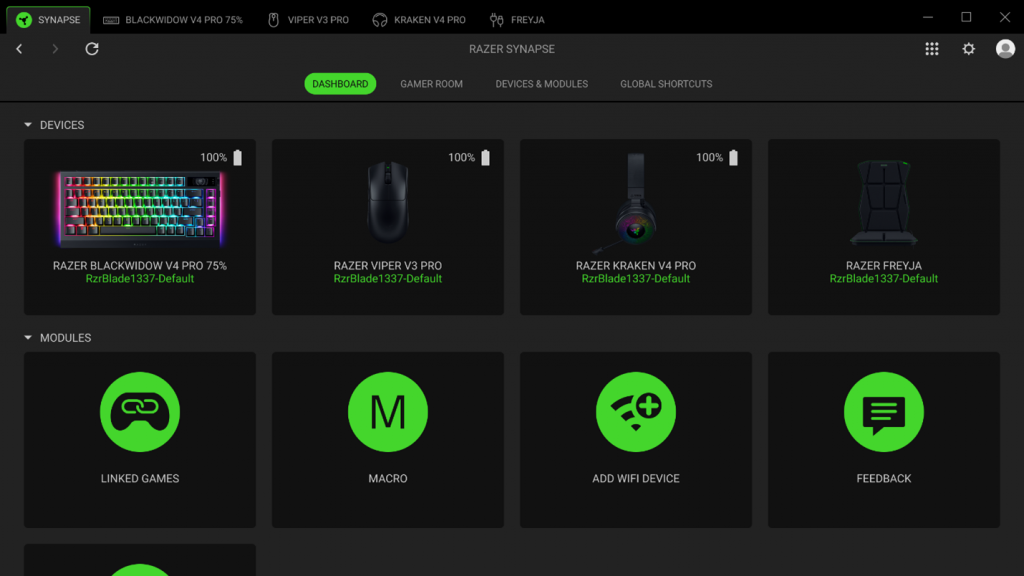
Who it’s for: Anyone with Razer peripherals. If you own a Razer keyboard or mouse, you need Synapse for DPI profiles and macro programming even if you don’t care about RGB.
What it can’t do: Control non-Razer hardware. Synapse is entirely ecosystem-scoped.
Setup: Download from razer.com. Install, sign in to a Razer account (required), and connected Razer devices appear automatically in the Devices tab.
The honest limitation: the mandatory account requirement is annoying. There’s no offline-only mode that gives full functionality without signing in.
Gigabyte RGB Fusion 2.0
What it does: Controls lighting on Gigabyte motherboards and some Gigabyte peripherals. Basic lighting profiles across the motherboard’s onboard LEDs and connected ARGB headers.

The honest assessment: RGB Fusion 2.0 is the weakest of the vendor apps. It’s unreliable on some Gigabyte boards, the interface is dated, and community testing consistently shows OpenRGB providing more stable and flexible control of Gigabyte hardware than RGB Fusion itself. If you have a Gigabyte board, OpenRGB is worth trying before committing to RGB Fusion.
The Cross-Brand Solutions
SignalRGB: Free / $35.88 per year for Pro
SignalRGB is the most practical answer to the multi-app problem for most Windows users. It supports over 3,500 products from Corsair, ASUS, Razer, MSI, Lian Li, Logitech, SteelSeries, and dozens of others, and it treats all of them as one canvas. You drag a lighting effect across the entire grid and every device follows it, regardless of brand.

The free tier is genuinely usable. You get full hardware detection, access to 100+ effects, and the canvas layout tool. For most builds, this is enough to replace every vendor app for lighting control.
Pro ($4.99/month or $35.88/year) adds game-reactive lighting, effects that change based on in-game events in supported titles, a full audio visualiser that pulses lighting to music, and screen ambience that samples your monitor colours and mirrors them across your setup.
What SignalRGB doesn’t replace: the non-lighting functions of vendor apps. It won’t handle Corsair fan curves, ASUS GPU overclocking through Scenario Profiles, or Razer DPI configurations. Keep the vendor apps installed if you need those functions; just set them to launch on demand rather than autostart.
Important: SignalRGB conflicts with vendor apps controlling the same hardware simultaneously. If your ASUS board appears in SignalRGB, disable or uninstall Armoury Crate’s LightingService before running SignalRGB for those headers. They can’t both drive the same controller.
Setup: Download from signalrgb.com. Install, launch, and the app automatically detects connected hardware. Navigate to the Devices tab to confirm detection. In the Canvas section, arrange your devices in their physical layout and apply effects across the grid.
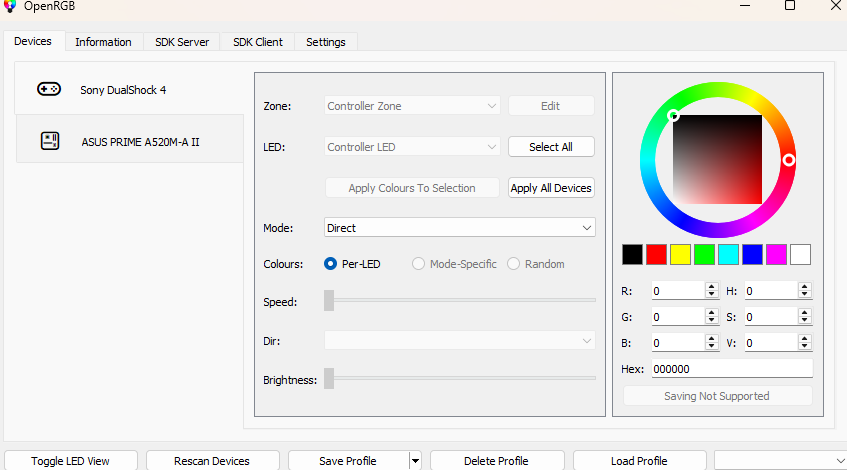
OpenRGB: Free, Open Source
OpenRGB is the entirely free, open-source alternative. It supports a similar range of hardware to SignalRGB, ASUS, MSI, Gigabyte, ASRock motherboard controllers, Corsair, Razer, and many others, through community-developed integrations.
Who it’s for: Linux users (OpenRGB is the primary viable RGB solution on Linux), privacy-conscious users who don’t want a closed-source app with cloud components, and technically comfortable users who want zero background overhead.
What it does better than SignalRGB: it’s genuinely free with no paywall on any feature, it runs lighter in the background, and it’s open source, the code is public and auditable.
What it does worse: the interface is less polished, setup requires more manual configuration for some hardware, and adding new devices requires waiting for community contributions rather than official support. For some Razer hardware in particular, OpenRGB detection is less reliable than SignalRGB.
Setup: Download from openrgb.org. Install, run as administrator on first launch (required for USB controller detection), navigate to the Devices tab. Hardware that’s detected automatically appears immediately. Hardware requiring additional configuration, some motherboard I2C controllers, may need the SMBus access guide on the OpenRGB wiki.
The Practical Decision
Run one app for lighting, not four. The constant conflict between vendor apps is the single biggest source of RGB frustration in mixed-brand builds.
If your build is mostly Corsair: keep iCUE, use it for lighting and fan control, don’t run anything else.
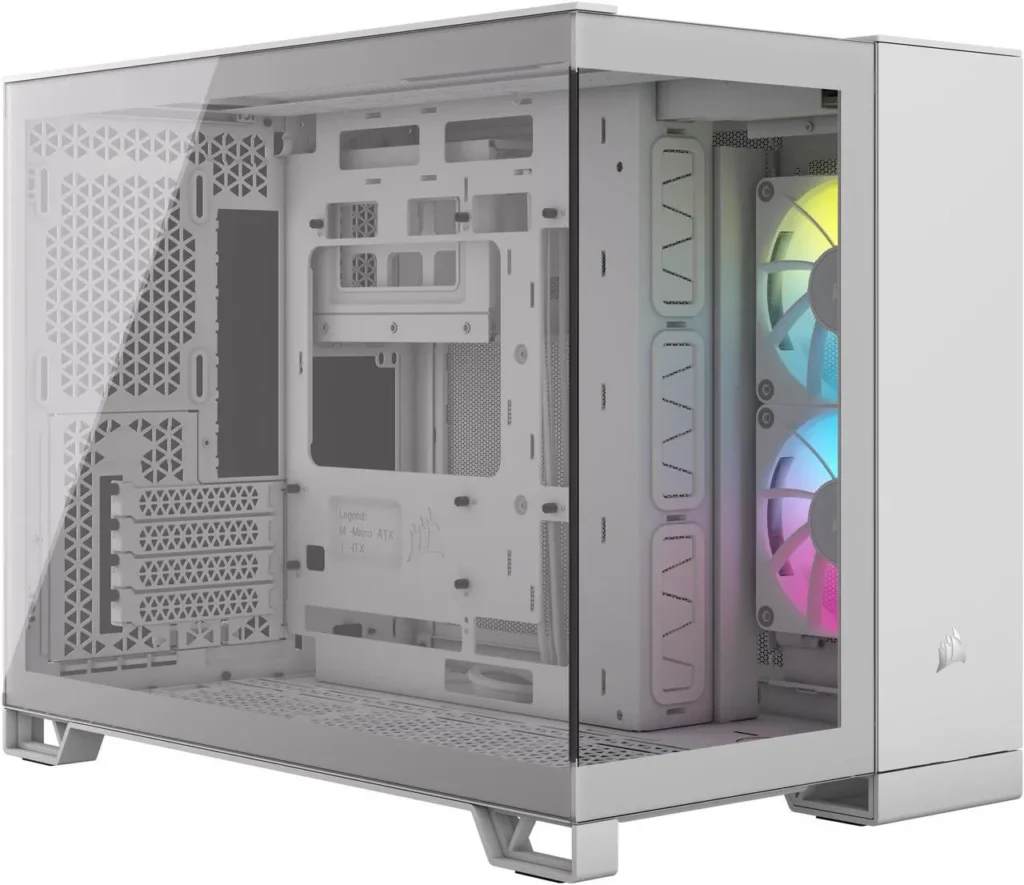
If your build spans multiple brands and you’re on Windows: use SignalRGB free tier. It’s the easiest path to unified lighting without the multi-app conflict. Keep vendor apps installed but set them to launch on demand only.
If you’re on Linux, or free and open source matters to you: use OpenRGB.
If you have an ASUS board and exclusively ASUS hardware: Armoury Crate is fine, just accept that updates occasionally break things.
One last note: none of these apps affect gaming performance in any meaningful way when they’re running in the background during a session. The resource usage is real but minor on modern hardware. The argument for consolidating to one app is purely about sanity and reliability, one less source of conflicts, one fewer thing to debug when the colours stop working at midnight before a gaming session.