Your GPU is being held back. That might be true. It’s also one of the most common things PC builders assume without actually checking. Before spending money on an upgrade that won’t fix the problem, here’s how to find out what’s actually happening.
What a Bottleneck Actually Is
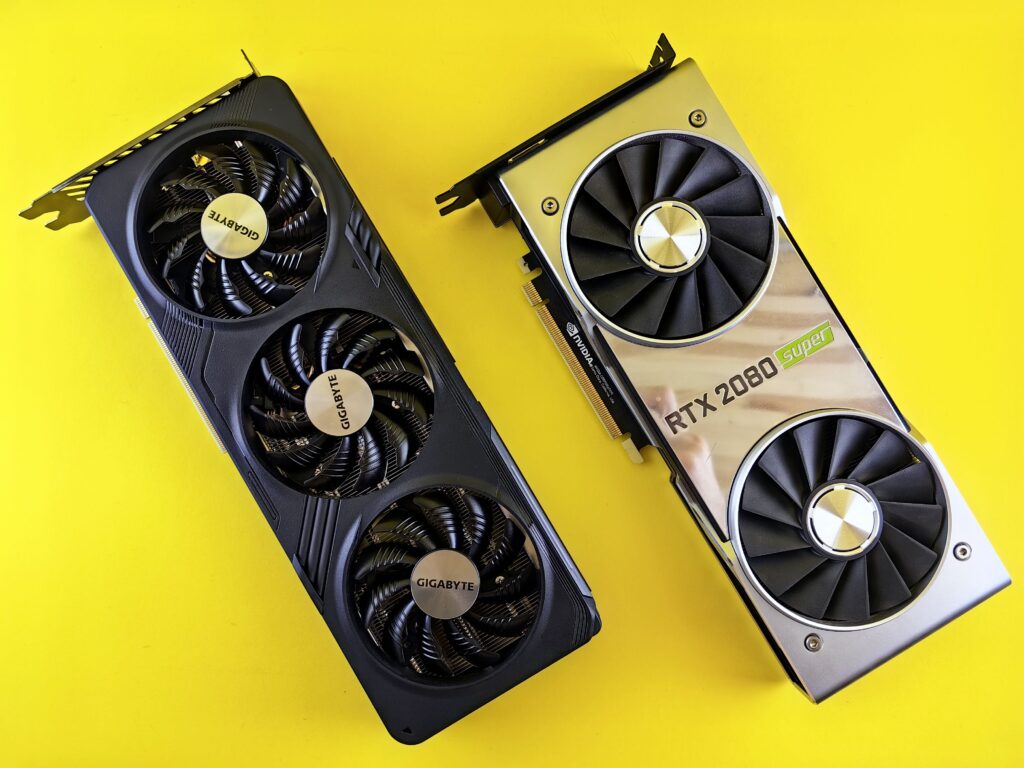

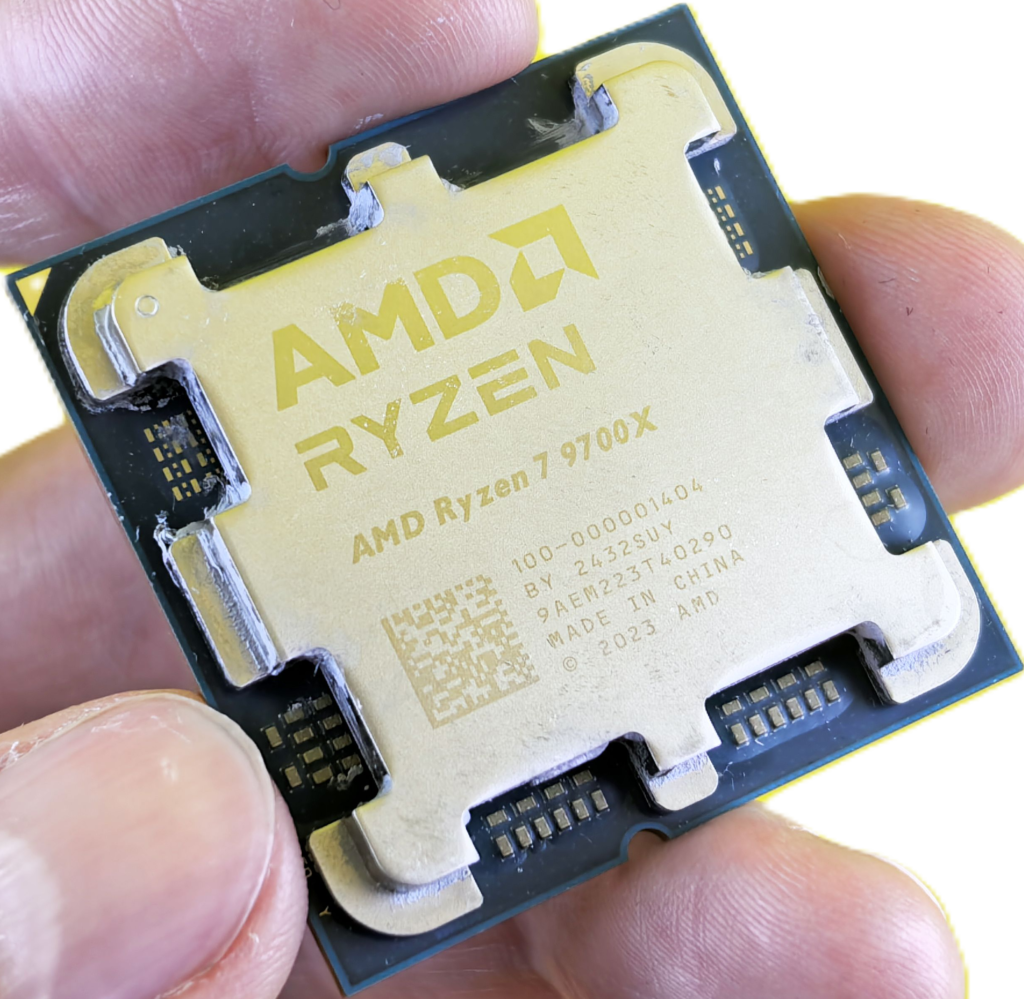
A bottleneck means one component can’t keep up with another, causing the faster component to sit idle waiting. In gaming, the relevant relationship is between your CPU and GPU.
If your CPU is the bottleneck, your GPU finishes rendering frames faster than the CPU can supply new work. GPU utilisation drops below 90-95%. Frame rates are lower than your GPU’s actual capability. The CPU is the constraint.
If your GPU is the bottleneck, it’s the limiting factor, working at full capacity while the CPU waits. GPU utilisation sits at 95-100%. This is normal and expected in most games. It means you’re getting everything your GPU can give you.
A GPU running at 95-100% utilisation is not a problem. It’s correct behaviour. The goal of a gaming build is to have the GPU as the bottleneck, not the CPU.
The Tools You Need
MSI Afterburner with RivaTuner Statistics Server is the standard solution and it’s free. Install both, open Afterburner, go to Settings, then Monitoring, and enable GPU Usage, CPU Usage, GPU Temperature, and Framerate as on-screen display (OSD) elements.
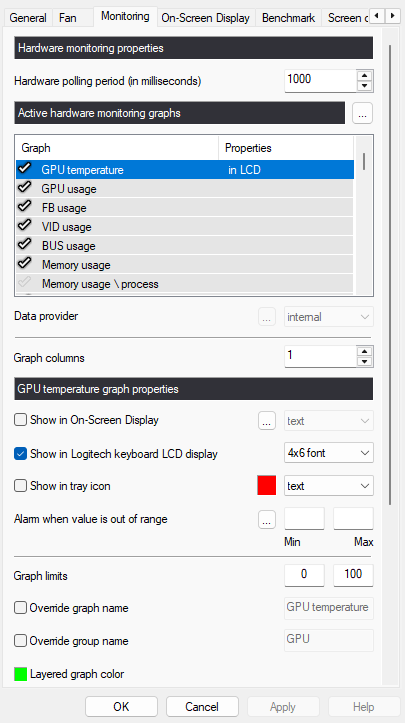
Once configured, the OSD overlay appears in-game. You can watch CPU and GPU utilisation in real time while playing.
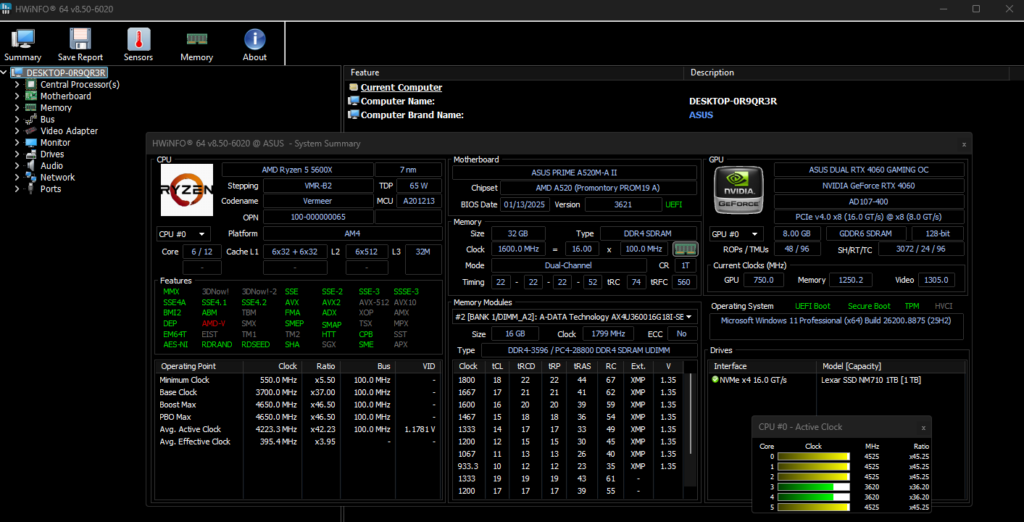
HWiNFO64 is the alternative for detailed system-level monitoring without the in-game overlay. It logs every hardware sensor at configurable intervals. Useful for finding the bottleneck retrospectively by reviewing logs after a gaming session.
Task Manager works in a pinch. Open it during a gaming session (Win + Tab to switch without closing the game), go to Performance, and check CPU and GPU utilisation. It’s less precise than Afterburner but gives a quick snapshot.
The Diagnostic Process
Launch a game you play regularly and load into typical gameplay, not the main menu, not a loading screen, but actual gameplay at your normal settings and resolution.
Watch GPU utilisation. If it’s consistently at 90-100%, your GPU is working at full capacity. It is the bottleneck, which is correct. Your frame rates are limited by the GPU.
If GPU utilisation is sitting at 60-80% while frame rates are lower than expected, your CPU isn’t supplying frames fast enough. The GPU is waiting. That’s a CPU bottleneck.
Check CPU utilisation at the same time. A CPU bottleneck typically shows one or two cores running near 100% while total CPU utilisation looks moderate. Modern CPUs with more cores distribute game workloads differently, look at per-core usage in HWiNFO rather than total CPU utilisation for an accurate picture.
Resolution Changes the Equation
This is the most important thing to understand about GPU bottlenecking: resolution determines which component is the constraint.
At 1080p, the GPU has less rendering work per frame than at 1440p or 4K. Less GPU work means the CPU is more likely to be the limiting factor. A CPU bottleneck at 1080p can disappear at 1440p on identical hardware because the GPU now has more work to do and the CPU has more time to catch up.
If you suspect a CPU bottleneck at 1080p, try raising to 1440p or enabling maximum settings before upgrading the CPU. In many cases the bottleneck shifts without changing any hardware.
Specific Scenarios
Low frame rates with GPU at 90-100%: the GPU is the limiting factor. A GPU upgrade will raise frame rates. A CPU upgrade won’t help here.
Low frame rates with GPU at 60-75%: likely a CPU bottleneck. Check which CPU cores are near 100%. Upgrading the CPU, enabling Resizable BAR in BIOS if not already on, or moving to a higher core-count chip if your game uses them can help.
Frame rates are fine but you’re seeing stutters: not a traditional bottleneck. Stuttering with acceptable average frame rates often points to VRAM saturation (the GPU’s memory is full and data is being swapped), driver issues, or a slow storage drive causing asset streaming delays.
High frame rates in the main menu but lower in gameplay: CPU scheduling is the common culprit. Some games are CPU-intensive during scene loading and CPU-light once gameplay begins, or vice versa.
The Honest Reality About Bottleneck Calculators
A lot of online bottleneck calculators give you one precise-looking percentage and tell you to buy a new CPU. Don’t trust that number. Most of them aren’t based on real testing. The actual bottleneck between any CPU and GPU depends on the specific game, the resolution, the graphical settings, whether Resizable BAR is enabled, and dozens of other variables that a single figure can’t capture.
The only reliable method is measuring your own hardware in your own games with a monitoring overlay. Ten minutes of Afterburner data tells you more than any bottleneck calculator. If you still want a rough idea before you start measuring, our PC bottleneck calculator is built on published benchmark results and gives a range instead of a single score, so treat it as a starting point and let your own overlay numbers have the final say.
What to Do With the Results
If the CPU is bottlenecking your GPU at your current resolution and settings, check whether Resizable BAR is enabled in your BIOS first, it’s a free performance improvement that reduces CPU-GPU transfer overhead. If it’s already on and the bottleneck is real, consider the CPU upgrade path.

If the GPU is the bottleneck and performance isn’t where you want it, that’s the upgrade that will actually help, assuming your GPU is underperforming relative to its specification. If your GPU is running at 100% and delivering frame rates consistent with benchmarks for that card, you have the right diagnosis: you’ve hit the GPU’s ceiling and a more powerful card is the path forward.
Stop guessing and start measuring. The tools are free and the answer takes less than ten minutes to find.