
Windows Security ships in every copy of Windows 11, costs nothing, and covers most of what a home PC needs from a security suite. Most people have never opened it on purpose. They accepted the defaults, ignored the occasional notification, and assumed it was either working or not. Open every section below, check what it actually does, and tighten the defaults where they are soft. For most builds you do not need a paid third-party suite on top.
How to open Windows Security
Search for Windows Security in the Start menu and open it. Alternatively, click the shield icon in the system tray at the bottom right of the taskbar. If you see a green tick on the shield icon, your core protections are active. Yellow means something needs attention. Red means a protection has been turned off and requires action.


Virus and threat protection: the most important section
This is Microsoft Defender Antivirus. It runs continuously in the background, scanning files as they’re accessed and downloaded, and performs scheduled full scans automatically. Open Virus and threat protection and check the following:

Real-time protection should be On. This is the continuous background scanning that catches threats as they happen. Turning this off for any reason, including the common advice to disable it for gaming performance, leaves your system unprotected until you turn it back on. The performance impact of modern Defender on gaming is negligible and not a valid reason to disable it.
Cloud-delivered protection should be On. This connects Defender to Microsoft’s cloud database, which receives threat signature updates faster than local definition updates. A newly identified piece of malware is blocked by cloud protection within minutes of Microsoft’s analysis completing, versus hours for a full definition update cycle.
Automatic sample submission can remain on unless you have a specific reason to disable it. When Defender encounters a suspicious file, it hasn’t seen before, this setting allows it to send a copy to Microsoft for analysis, which improves detection for everyone else too. The files submitted are limited to potentially malicious executables, your documents and personal files are not included so no need to stress about privacy here.
Scroll down to Protection updates and click Check for updates. While Defender updates automatically it’s always a good idea to run a manual check after a period of inactivity to confirm nothing was missed.

Run a Quick scan from the main Virus and threat protection screen if you haven’t run one recently. A quick scan checks the locations most commonly targeted by malware, startup entries, running processes, common system folders, and completes in a few minutes. A full scan checks every file on every drive and takes significantly longer but is worth running once every few months to ensure nothing has slipped through the cracks.
Firewall and network protection
Open Firewall and network protection. You’ll see three network profiles namely Domain, Private and Public. Each should show Firewall is on. For home users the relevant ones are Private (your home network) and Public (coffee shops, hotels, any network you don’t control).
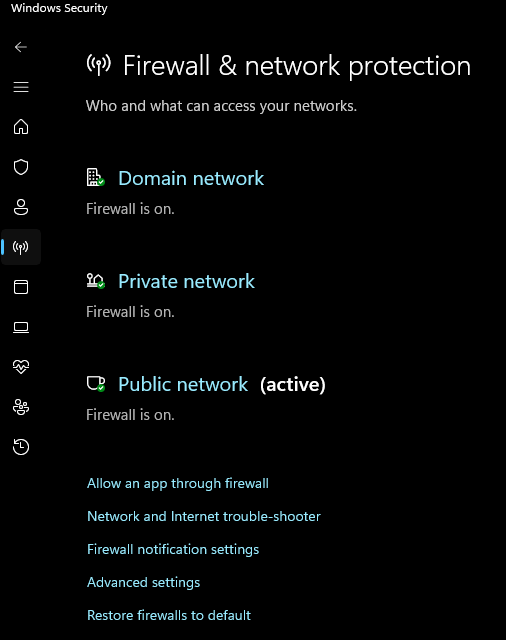
Private network firewall should be on. It filters incoming connection attempts to your PC from your local network.
Public network firewall is the more important one when you’re away from home. Connecting to an unsecured public network with the firewall off exposes your PC to connection attempts from other devices on that network. Keep this on always.
If an application is being blocked by the firewall and you need to allow it through, click Allow an app through firewall rather than disabling the firewall entirely. This creates a specific exception for that application without removing protection for everything else. You’ll need administrator access to make changes here so might not be as easy as this if you’re using a work machine.

App and browser control
This section handles two things: SmartScreen, which checks apps and files you download for known malicious signatures, and Exploit protection, which applies hardware-level mitigations against specific attack types. anything you download that is suspicious will be flagged.

SmartScreen for Microsoft Edge should be On. It checks websites and downloads against Microsoft’s database of known malicious URLs and files actively filtering out any possible chance of an attack.
SmartScreen for apps and files should be On. This checks executables you download outside of a browser, installers, patches, tools, against the same database. the download might look clean but once you open it could contain dangerous files which is what smart screen is protecting you from
Reputation-based protection settings, found by clicking the link in this section, contains additional options worth reviewing. Potentially unwanted app blocking catches software that isn’t outright malicious but bundles adware, changes browser settings without permission, or installs additional software you didn’t ask for. Enable both Block apps and Block downloads here.
Leave Exploit protection on its default settings. These are hardware-level security measures and the defaults are correct for the vast majority of users. Modifying them without a specific technical reason can cause compatibility issues.
Device security
This section shows the status of hardware-based security features. Core isolation and Memory integrity are the relevant settings for most users.

Memory integrity, found under Core isolation details, uses hardware virtualisation to protect the most sensitive parts of Windows from tampering. It was turned off by default on older hardware due to compatibility concerns, but on any PC built in the last three years it should be enabled. If it shows as Off, toggle it on. Windows will ask you to restart. After restarting, this protection is active.

If Memory integrity shows a warning about incompatible drivers, click Review incompatible drivers. Old or unsigned drivers, often from legacy hardware or outdated software, can block this feature from enabling. Update or remove the flagged drivers and try again.
Account protection
This section manages Windows Hello, the biometric and PIN login system, and Dynamic Lock, which can lock your PC automatically when a paired Bluetooth device moves out of range.

If you’re using a Microsoft account, make sure Windows Hello is configured. A PIN is the minimum; facial recognition or fingerprint login adds a layer of convenience and doesn’t compromise security. Passwords alone are the weakest login method and Windows Hello is the direct replacement.
Dynamic Lock is useful on laptops but relevant for desktop users who share a space. Pair your phone via Bluetooth and enable Dynamic Lock, when you walk away with your phone, Windows locks automatically within a minute. It’s not instant but it’s better than an unlocked desktop when you step away.

Privacy and additional settings worth knowing
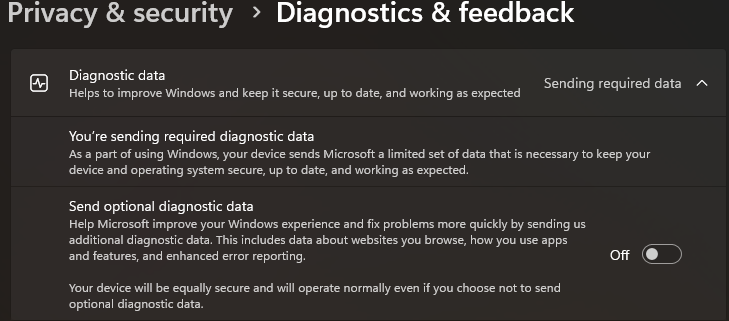
Windows 11 collects diagnostic data by default. Go to Settings → Privacy and security → Diagnostics and feedback. Set Diagnostic data to Required only rather than Optional. Optional sends browsing habits, app usage patterns, and other behavioural data to Microsoft. Required sends only error reports and basic system information needed for Windows Update to function. This is a privacy preference rather than a security setting, but it’s worth adjusting while you’re reviewing your security configuration.
Location services, found in Settings → Privacy and security → Location, can be left on if you use location-aware apps like weather or maps. If you don’t, turn it off. Individual app permissions can be controlled here rather than disabling the service entirely.
Third-party antivirus: do you need it?
For most home gaming PC users, no. Defender at its current capability level competes with paid third-party products in independent testing. The gap that existed several years ago has closed substantially.
Third-party products add value in specific scenarios: managed business environments where centralised reporting is needed, users who frequently handle sensitive files from untrusted sources professionally, or users who want email scanning integrated with their mail client rather than browser-based filtering. For a gaming PC on a home network used by a single person with sensible browsing habits, Defender configured as described above is sufficient.
If you do use a third-party antivirus, Defender disables itself automatically to avoid conflicts. That’s correct behaviour, don’t force both to run simultaneously.
The one habit that matters more than any setting
No security software reliably catches everything. The most effective protection is not downloading executable files from sources you don’t trust. Cracked software, unofficial game patches, tools downloaded from random forum posts, these are where the majority of real infections on home PCs originate. A correctly configured Defender instance catches a large proportion of known threats. It cannot substitute for basic judgement about what you run on your system.
Keep Windows updated. Keep Defender definitions current. Don’t run files from sources you don’t trust. Those three habits, combined with the settings above, cover the realistic threat profile of a home gaming PC more thoroughly than any paid security suite used carelessly.