
Modern CPUs run hotter than they need to most of the time and that’s Not because the silicon requires it, but because manufacturers set voltage curves conservatively to guarantee stability across every chip from the best to the worst sample on the production line. Your specific CPU is almost certainly capable of running cooler and quieter at the same performance level with less voltage. Undervolting finds that point and locks it in.
AMD Ryzen uses Ryzen Master and Precision Boost Overdrive. Intel Core uses Intel XTU or ThrottleStop. The steps differ by platform, and both stay straightforward once you treat voltage as a measured experiment rather than a max-out contest. Before you start, our guide on how to monitor GPU and CPU temperatures shows what to watch.


What undervolting actually does
A CPU’s voltage and frequency are linked meaning that Higher voltage allows higher frequencies but generates more heat and draws more power. Manufacturers set the default voltage curve with margin built in, enough to guarantee the chip is stable even on a bad power delivery setup or with mediocre cooling. while this is a good idea, the side effect is That margin translates directly into excess heat.
Undervolting reduces the voltage at a given frequency, or reduces the voltage ceiling the CPU is allowed to reach. The CPU runs cooler and the cooler runs quieter at a lower fan speed, and performance either stays identical or in some cases improves because the chip can sustain boost clocks longer without hitting its thermal limits.
It is not dangerous to attempt. If the undervolt is too aggressive the system becomes unstable and crashes. You increase the voltage slightly and try again. No hardware damage occurs from an undervolt that’s too low, the worst outcome is a system crash and a BIOS reset; that’s it.

AMD Ryzen: Using Ryzen Master
AMD’s platform gives you the most accessible path to undervolting through Ryzen Master, a free utility from AMD.
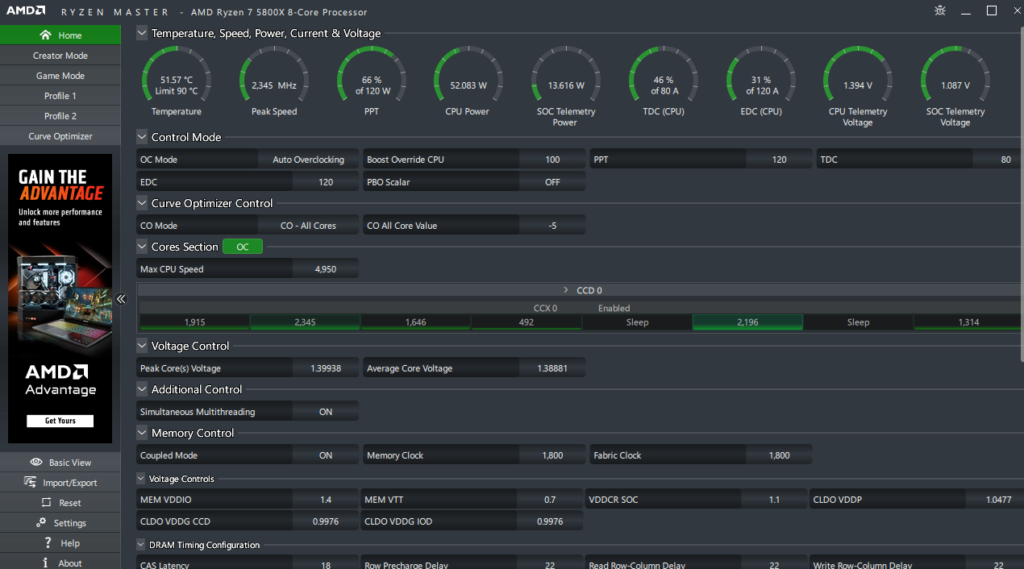
The most effective approach on Ryzen 9000 and 7000 series is Precision Boost Overdrive 2 (PBO2) combined with a negative CO (Curve Optimiser) offset. This doesn’t cap your CPU’s performance, it allows the processor to boost higher and sustain those clocks longer while drawing less voltage.
Step 1: Install Ryzen Master
Download from AMD’s website. Launch it and select Creator Mode or Advanced View, the simple view doesn’t expose the settings you need.
Step 2: Enable PBO
Under the PBO section, set Precision Boost Overdrive to Advanced. Leave the limits at Auto for now.
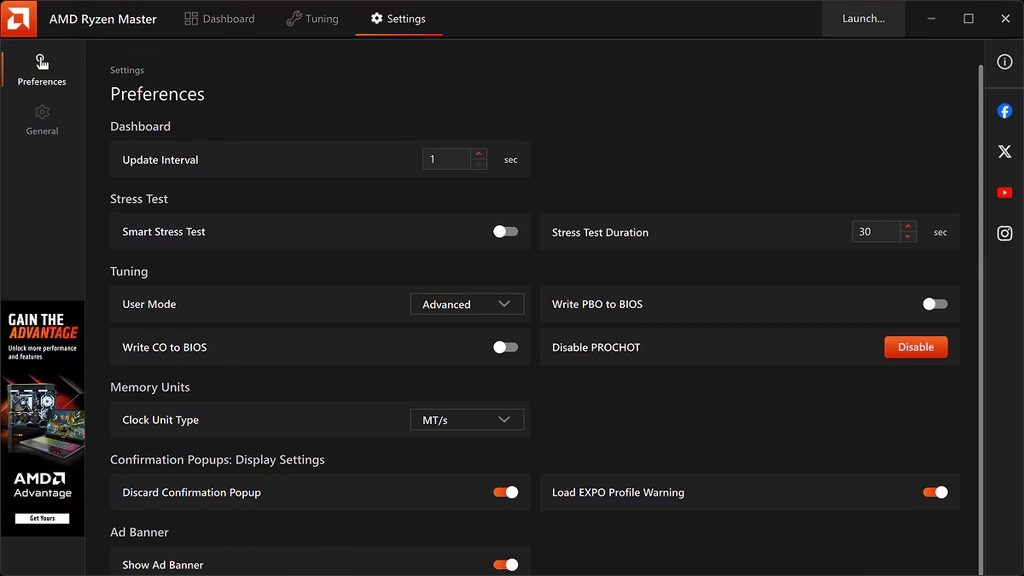
Step 3: Set a Curve Optimiser offset
This is the core of AMD undervolting. The Curve Optimiser allows you to shift the voltage-frequency curve down by a set amount per core. Negative values reduce voltage. Start conservative, set all cores to -10. This is a mild starting point that will be stable on virtually any chip.
Apply and click the option to apply on reboot. Restart.
Step 4: Stress test
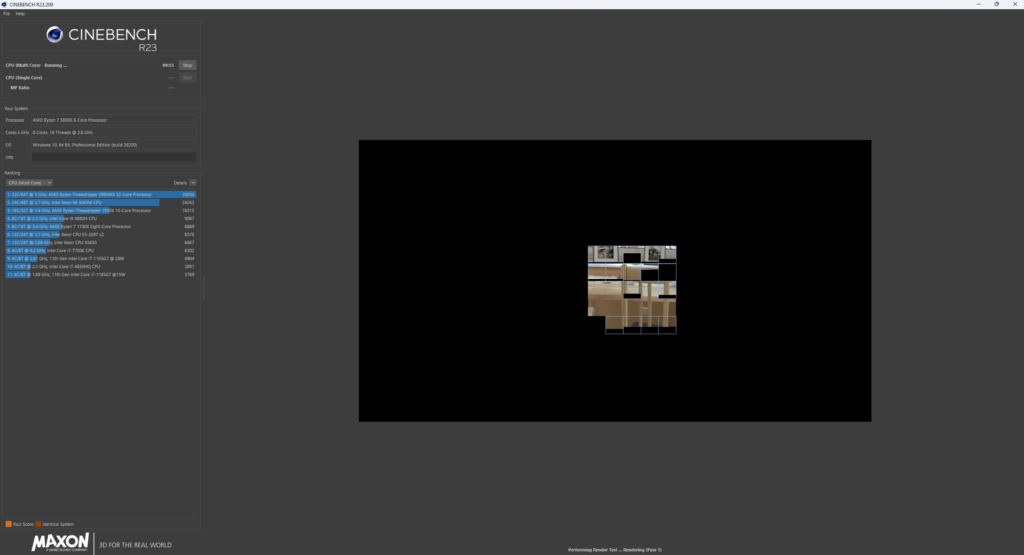
Run Cinebench R23 multi-core three times back-to-back. If the system completes all three without crashing, the offset is stable at -10. Open HWInfo64 alongside and note your peak core temperatures.
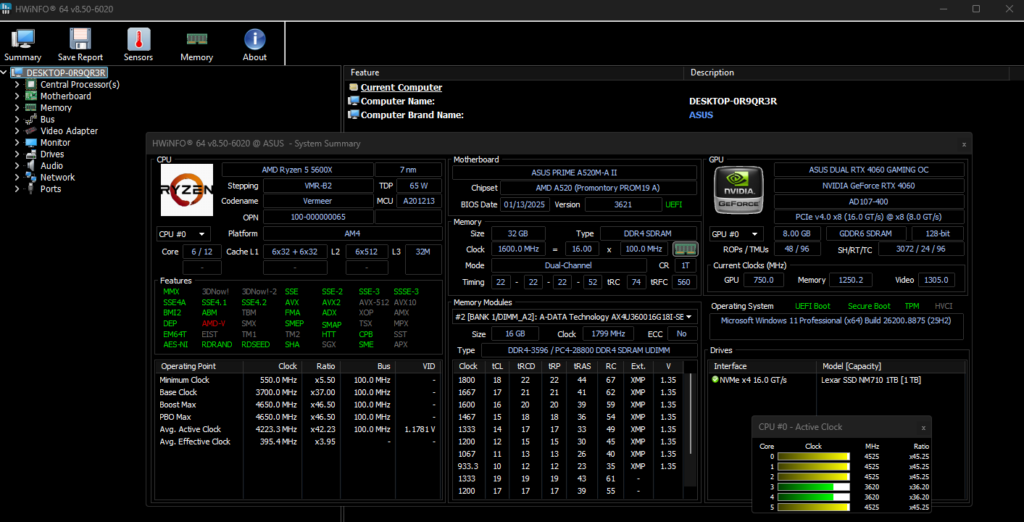
Step 5: Push further cautiously
If stable at -10, try -20. Reboot, stress test again. Most Ryzen 9000 chips will run stably between -20 and -30 on all cores. Some will go further on individual cores. Chips that won’t stabilise past -15 exist, if you hit crashes at -20, dial back to -15 and leave it.
The temperature reduction at -30 all-core offset on a Ryzen 7 9800X3D running sustained all-core load is typically 8–15°C depending on the cooler. Fan speeds drop accordingly. The gaming performance impact is zero or marginally positive, PBO ensures the chip still boosts as high as the silicon allows. Confirm the result is stable with the steps in our guide on how to stress test your PC.
Per-core Curve Optimiser (advanced)
Each core on a Ryzen CPU can take a different offset because each core has different voltage characteristics. The best cores on your chip, identifiable in Ryzen Master as Core 0 and Core 1 on a well-binned chip, often accept more aggressive negative offsets than weaker cores. If you want to extract maximum results, test each core individually with values between -20 and -40 rather than applying a uniform offset. This takes an afternoon and isn’t necessary for most users, but produces the lowest temperatures and highest sustained boost clocks.
Intel Core: Using Intel XTU and Throttle Stop
Intel’s approach to undervolting changed significantly with Alder Lake (12th gen) and was partly locked down due to the Plundervolt vulnerability. Core Ultra 200 (Arrow Lake, LGA1851) re-opened undervolting through official tools. Older locked chips require Throttle Stop.
For Intel Core Ultra 200 series (LGA1851): Intel XTU
Download Intel Extreme Tuning Utility from Intel’s website.
Go to Core settings. You’ll see a Core Voltage Offset slider. This shifts the voltage across all P-cores. Start at -50mV. Apply.
Run Intel XTU’s built-in benchmark or Cinebench R23. If stable, go to -75mV. Most Core Ultra 200 chips will run stably at -75mV to -100mV. Some will tolerate -125mV. Stop at the first sign of instability, a crash or a failed benchmark, and back off by 25mV.
E-core voltage offset is a separate slider. E-cores are less aggressive, start at -25mV and test independently.
The temperature reduction at -100mV offset on a Core Ultra 9 285K running sustained all-core load is typically 6–12°C. The chip sustains its all-core boost longer because it hits the power limit before the thermal limit, and lower voltage means lower power draw.
For Intel 13th/14th gen (LGA1700): ThrottleStop
Intel locked voltage undervolting on most mainstream Alder Lake, Raptor Lake and Raptor Lake Refresh chips. ThrottleStop can still apply an undervolt on many of these through a different mechanism. Our Ryzen Master and Intel XTU guide covers both tools in more depth.
Download ThrottleStop from the developer’s website. Open it and click FIVR (Fully Integrated Voltage Regulator). You’ll see separate sliders for CPU Core, CPU Cache and System Agent.

Set CPU Core voltage to Unlock Adjustable Voltage and move the Offset Voltage slider to -100mV as a starting point. Do the same for CPU Cache. Apply with OK, then the Turn On button in the FIVR window.
Test with Cinebench. If stable, push CPU Core to -125mV. The effective range for most i5 and i7 Raptor Lake chips is -100mV to -150mV. i9 chips run hotter and vary more, some tolerate -150mV, some crash at -80mV.
ThrottleStop settings do not survive a reboot by default. To make them permanent, use Task Scheduler to run ThrottleStop at startup with your saved profile. Instructions are on the ThrottleStop documentation page.

Verifying the results
After settling on a stable offset, compare temperatures before and after using HWInfo64 during a real gaming session and not a synthetic stress test. Stress tests show the ceiling. A 45-minute gaming session shows what your actual daily operating temperatures look like.
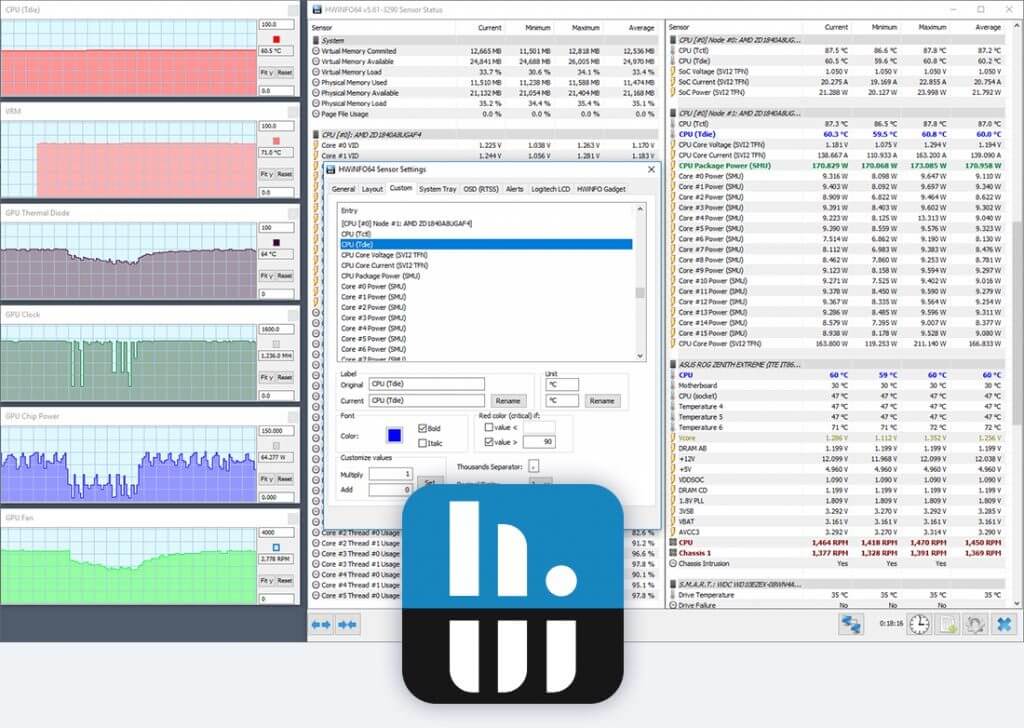
Then Monitor all relevant metrics: CPU package temperature, CPU core max temperature, and CPU power draw. Lower power draw at the same clock speeds confirms the undervolt is working. A chip drawing 10W less under load while hitting the same boost frequency is a successful result.
What you won’t lose
Gaming performance is not reduced by a correct undervolt. The CPU still boosts to its rated frequency, it just does so on less voltage and with less heat. In CPU-limited scenarios at 1080p, a chip that previously thermal-throttled under sustained boost may actually perform slightly better after undervolting because it can hold its peak clocks longer without hitting the thermal ceiling.
Productivity workload performance is also unaffected at mild offsets. Aggressive undervolts on workloads that stress every core simultaneously may introduce instability before they affect performance. If you run rendering or compilation workloads, stress test with those specifically rather than relying on Cinebench alone.
When to stop
If a system crashes repeatedly at -10 all-core offset on AMD or -50mV on Intel, the chip is a poor sample or the power delivery on the motherboard is inconsistent. Leave the voltage at stock and focus cooling improvements on the physical setup, better thermal paste, a larger cooler, improved case airflow. Not every chip benefits equally from undervolting, and a chip that won’t accept a meaningful offset is not defective, it’s just at the tighter end of the production distribution.
