
SpecClear earns a commission if you buy through Newegg links on this page, at no extra cost to you.
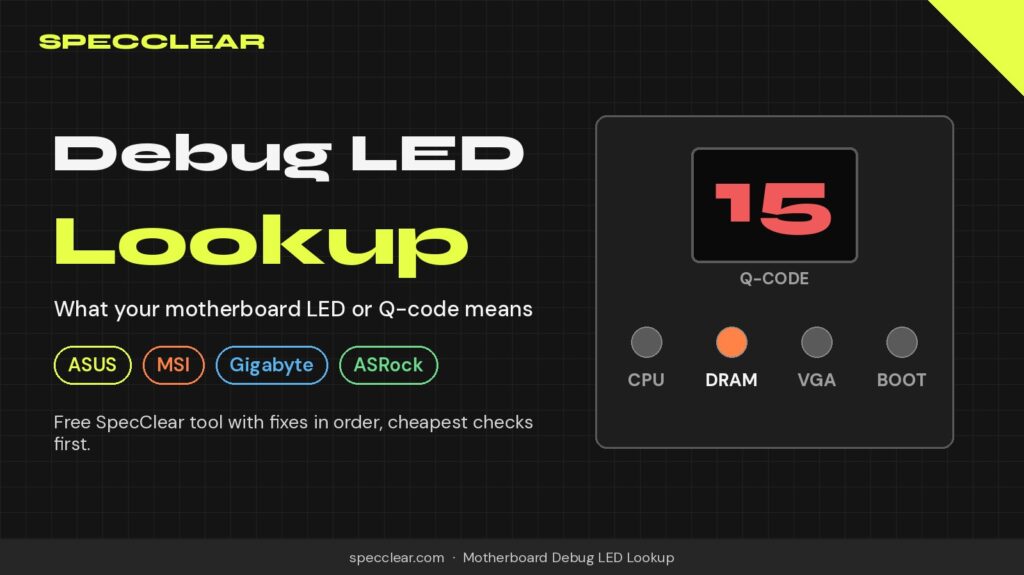
Fans spinning, RGB on, and one small LED on the motherboard refusing to go out. Most modern boards have four of them, labelled CPU, DRAM, VGA and BOOT, and many higher-end boards add a 2-digit code display as well. They are the quickest clue you get when a PC won’t POST, but the manuals explain them in very dry terms.
This lookup turns that LED or code into plain English and an ordered fix list, cheapest checks first. Every code meaning comes from the board maker’s own manual or support page, with the source linked next to it. If a code is not in our list, the tool says so instead of guessing.
Find your LED or code
Tell us which debug LED is stuck, or type the 2-digit code on your board’s display. You get what that boot stage means and a fix list in order, cheapest checks first.
Your board
What the board shows
Pick the LED that stays on. If two LEDs take turns, pick the one furthest along the CPU, DRAM, VGA, BOOT order.
Only boards with a Q-Code or debug code display show this.
How to read your debug LEDs
When you press the power button, the LEDs light up one after another as the board checks the CPU, then the memory, then the graphics, then the boot drive. Each one goes dark once its stage passes. If one stays lit, that is where POST stopped. If two take turns, the one furthest along the sequence is usually the culprit.
A 2-digit display works the same way, only with more detail. Codes flicker past quickly during a normal boot, so only a code that stays put means anything. Codes also differ between brands, chipsets and BIOS versions, so always confirm a stuck code in your own manual.
For the full step-by-step process, including AM5 memory training, BIOS support and power cable checks, read our guide to a PC that won't POST or shows no display. If you are shopping for a new board and want easier troubleshooting next time, look for motherboards with a debug LED or Q-code display.
FAQ
Is a DRAM LED on a new AM5 build always a fault?
No. On the first boot, and after a BIOS update, a CMOS clear or a RAM change, AM5 boards train the memory with no picture on screen and the DRAM LED (or Q-code 15 on ASUS boards) lit. ASUS says this can take 5 to 15 minutes, so wait before you start pulling parts. If it is still stuck after 15 minutes, work through the memory checks and then stress test the RAM once it boots.
What does it mean if the BOOT LED stays on?
The board has finished checking the CPU, memory and graphics but cannot hand over to a boot drive. Check the SSD is seated and detected in the BIOS, that it is first in the boot order, and that it actually has Windows installed.
My code isn't in the tool. What now?
We only include the most common stop codes, and only where an official ASUS, MSI, Gigabyte or ASRock source confirms the meaning. Look the code up in the debug code table in your own manual, which is usually in the appendix or the onboard LEDs section.
The CPU LED is on after a CPU upgrade. Is the CPU dead?
Usually not. A common cause is a BIOS that is too old for the new CPU, and a loose CPU power cable is another. Check support for your exact BIOS version with our compatibility checker, and use USB BIOS Flashback to update if your board has it.
Can the VGA LED mean my power supply is too weak?
It can point to a graphics card that is not getting enough power, so check every GPU power connector is fully seated first. If you have just fitted a bigger card, run your parts through our PSU calculator to check the power supply has enough headroom.
Sources
- ASUS: troubleshooting with Q-LED indicators
- ASUS: ROG Crosshair X870E Apex user manual, Q-Code table (appendix)
- ASUS ROG: understanding memory training on AM5 (Q-Code 15)
- MSI: no power or no display troubleshooting
- MSI: MAG X870E Tomahawk WiFi user guide, EZ Debug LED and Debug Code LED table
- Gigabyte: X870E AORUS Master user manual, Status LEDs and Debug LED Codes
- ASRock: Debug LED Troubleshooting Checklist
- ASRock: Dr. Debug FAQ
- ASRock: EZ LED Troubleshooting
- NZXT: how to identify and read debug codes