
SpecClear earns a commission if you buy through Newegg links on this page, at no extra cost to you.
A few years ago, a screen inside a PC case was a $500 modding project filled with complexity and work arounds. In 2026 it’s a mainstream feature that ships on cases from $83 to $450, ranging from a small panel showing CPU temperature to a 14.9-inch touchscreen you can interact with while gaming. The category has matured enough that it’s worth understanding your options properly before building around one.


Every meaningful 2026 option below: how each screen works, what you can actually put on it, and how to get more than wallpaper out of the panel.
Why people add screens to their builds
there are Three distinct use cases that drive most purchases. Knowing which one applies to you points directly at the right product.
The first is at-a-glance system monitoring for CPU temperature, GPU temperature, clock speeds, fan RPMs, memory usage, all visible without alt-tabbing or opening extra software. If you want to know at a glance whether your temps are normal while gaming, a case screen replaces a second monitor running HWInfo64 with ease.
The second is for aesthetics where A case screen adds a dynamic visual element to a windowed build that RGB alone can’t achieve. things like Animated wallpapers, build-matched themes, reactive displays that change based on what’s happening in the system are all possible while making a build look unlike anything else in the room.
The third is interactivity. The higher-end screens are touchscreens that let you adjust fan curves, change lighting profiles or switch audio sources directly from the case panel without touching a keyboard or opening software. granted, this one sound more useful than it actually is, but the use case does exist.
Option 1: Lian Li Lancool 207 Digital, integrated 6-inch panel, ~$83
The Lancool 207 Digital is a mid-tower ATX case with a 6-inch LCD panel integrated at the bottom of the front panel. The display runs at 60Hz with 720×1600 resolution and 500 nits’ brightness, controlled through Lian Li’s L-Connect 3 software. If you would rather have a case without a screen, our Fractal Design North review covers a popular alternative.

This is the most accessible entry point in the category and the screen shows what you configure in L-Connect 3, system stats, static images, animated GIFs, or a clock. Setup is straightforward: install L-Connect 3, connect the display header to a USB port on the motherboard, configure the content in software and the screen works independently of whether any game or application is open.
The 6-inch size and position at the bottom of the front panel means it reads as a detail rather than a statement. The case itself is a competent mid-range airflow chassis where you’re not compromising on cooling to get the screen but for builders who want to try a case display without spending significantly extra, this is the correct starting point.
Option 2: Lian Li Universal Screen (SM088W), retrofit add-on, ~$83
This is Lian Li’s standalone screen designed to fit into existing cases rather than requiring a new chassis. It attaches via a magnetic plate and so making it compatible with most cases and easy to reposition to suit anyone’s liking. It supports AIDA64 sensor data, custom image and video playback, and installs via USB-C in under ten minutes without GPU output or driver headaches. Newegg lists the Lian Li Universal Screen 8.8-inch (SM088X, white) (about $82).

The universal mounting solution means you can add a screen to a case you already own. Supported content includes AIDA64 sensor readouts, which gives you every hardware stat you’d want, as well as custom images and short video loops. The 8.8-inch size is visible from across a room without dominating the build.
This is the right option if you like your current case and don’t want to rebuild around a new chassis just to get a screen.
Unrelated point, but let us know if you’d like us to cover the process of creating a custom AIDA64 screen… these can be initially intimidating but once you understand it, its child’s play.
Option 3: Corsair FRAME 4000D LCD RS, integrated panel in a case you already know
Corsair’s approach integrates LCD panel options into their established 4000D series chassis. The 4000D is already one of the most popular mid-range cases on the market and now Corsair added a screen variant that retains the same proven layout with a front-mounted display panel managed through iCUE.

The integration with iCUE is the selling point here. If you’re already running a Corsair ecosystem, ARGB fans, AIO cooler, RAM, iCUE manages everything from one interface including the screen content. The display can show system stats, static images, animated content, and syncs with lighting effects across the system.
The trade-off is ecosystem lock-in. iCUE is the only software path for Corsair’s screen implementations, which means the display is less configurable with third-party tools than some alternatives. If you’re not already in the Corsair ecosystem, the Lian Li options offer broader compatibility.
Option 4: HYTE Y70 Touch Infinite, the flagship at $400+
The HYTE Y70 Touch Infinite integrates a 14.9-inch IPS panel at 682×2560 (2.5K) resolution with a 60Hz refresh rate and 10-point multi-touch capability. The third-generation panel is 43% brighter than its predecessor and the display is powered by HYTE Nexus software, is integrated into the case chassis structure as a core design element rather than an add-on. HYTE Y70 Touch Infinite ($393)
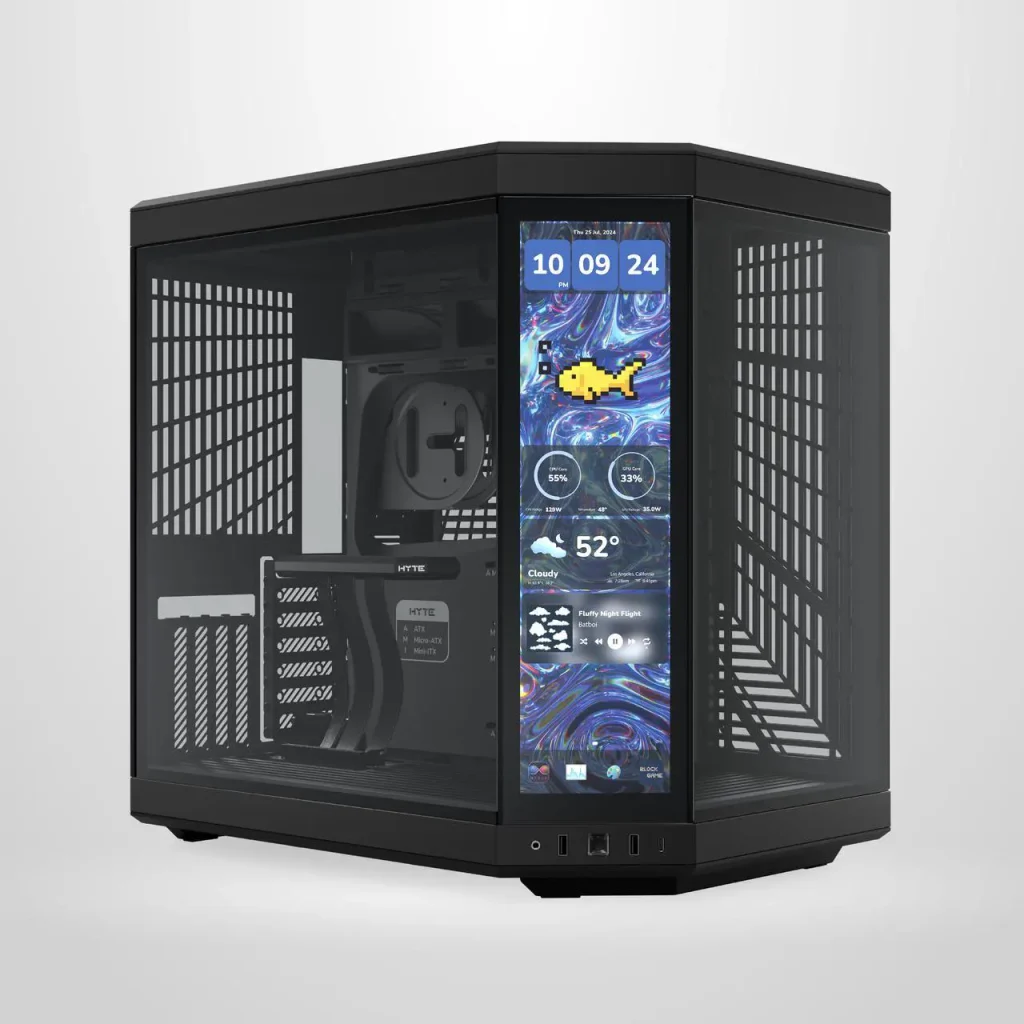
This is a fundamentally different product from the options above. At 14.9 inches with 2.5K resolution, the screen is half the case. The dual-chamber layout puts the motherboard and GPU in a vertical mount behind glass, with the touchscreen as the face of the build. You interact with it through HYTE Nexus, adjusting fan curves, controlling RGB, setting up animated widgets, displaying game stats. If you mainly want temperature readouts, our guide on how to monitor GPU and CPU temperatures covers free software that does it.
The case itself is built around the screen concept entirely and GPU clearance is massive at four expansion slots for vertical mounting, cooling capacity supports 360mm radiators with up to 10 fans, and the panoramic three-piece glass panels mean the interior is visible from multiple angles simultaneously.
At $400+ it’s very much a premium purchase. The screen alone justifies it for the right builder, someone making a showcase build where the aesthetic impact is the point. It doesn’t justify itself as a utility purchase where you just want CPU temperature in the corner.
What to display: the practical setups
Beyond the default manufacturer software, three setups are worth knowing.
System monitoring with AIDA64. AIDA64 Extreme has native support for external displays and most case screen software. Configure a sensor panel layout, CPU temp, GPU temp, CPU clock, GPU clock, VRAM usage, fan RPMs, exported as an image that refreshes every second. The Lian Li universal screen supports this natively. On HYTE Nexus you create equivalent widgets. This setup is the highest practical utility, relevant data always visible, zero alt-tab required.

Animated wallpaper themes. Most case screen software accepts animated GIFs or short video loops. A looping animation matched to your build’s colour scheme, ember glow for a red build, underwater for a blue and black build, circuit patterns for a green aesthetic, turns the screen into a mood element rather than a utility tool. Free animated wallpaper assets are widely available through Wallpaper Engine’s Steam Workshop.
Build showcase with hardware visualisation. Some third-party tools display real-time 3D visualisations of the CPU cooler spinning, temperature-reactive colour gradients, or stylised gauges. LCDStudio and Turing Smart Screen support these on compatible hardware. The effect is impressive in person. Setup is more involved than the manufacturer software but well-documented in both communities.
Software to know
L-Connect 3: Lian Li’s ecosystem tool. Required for Lian Li screens and fans. Reliable, regularly updated, straightforward to configure.
iCUE: Corsair’s ecosystem tool. Required for Corsair screen integration. Powerful but resource-hungry as a background process.
HYTE Nexus: HYTE’s dedicated software for the Y70 Touch. Polished and well-designed. Touch input configuration is the most capable in the category.
AIDA64 Extreme: hardware monitoring with sensor panel output. Works with most case screens as the data source regardless of manufacturer.
LCDStudio: open-source display tool with a wide plugin library. Works with USB-connected screens from multiple manufacturers. More configuration required but significantly more flexible.
The honest caveat
Case screens are a visual and practical upgrade for the right builder and They offer a distraction if the rest of the build isn’t solid. Get the cooling, the cable management and the component choices right first because A screen won’t make a badly built system look good, it’ll highlight it.
If the build is ready for a screen, the Lian Li Universal Screen at $60 is the lowest-friction way to try the concept in your existing case. The Lancool 207 Digital at $83 is the right choice for a new mid-range build where you want the screen baked in. The HYTE Y70 Touch is for builders who have decided the screen is the centrepiece and are building everything else around it.