
SpecClear earns a commission if you buy through Newegg links on this page, at no extra cost to you.
Most people buy a PC case the same way they buy a bag, they pick one that looks right, fits their stuff, and leave. That works until you’re fighting a cable bundle through a gap that’s 20mm too tight, or wondering why your GPU runs 12°C hotter than the review showed, or discovering at assembly time that your 360mm AIO doesn’t fit where you planned it.
A PC case is not a container. It’s a thermal management system, a cable routing infrastructure, and an assembly environment all in one product. The decisions the designer made, where to put the PSU, how to handle the front panel, whether to separate the cables from the components, directly affect how your build performs, how it sounds, how long it takes to build, and how easy it is to maintain.
This guide explains every major design decision in modern PC cases. What each one is, why it exists, what problem it solves, and when it matters for your specific build. With specific examples at each tier so you know exactly what to buy.
Form Factor: The Decision That Sets Every Other Constraint
Before anything else, the case determines which motherboards fit. And the motherboard form factor determines PCIe slot count, memory slot count, connectivity options, and price.
ATX (Advanced Technology Extended): 305 × 244mm
ATX is the standard. Seven PCIe expansion slots, four memory slots as standard, full feature set from every chipset, the widest case selection, the most build guides, and the easiest assembly experience. When a first-time builder asks what case to buy, the answer is almost always an ATX mid-tower because the margin for error is highest and the component selection is widest.
The trade-off is size. An ATX mid-tower typically sits 450-500mm tall and 400-450mm deep, a meaningful footprint on or under a desk. If desk space is constrained, ATX forces a trade-off between the easiest build experience and the available space.
Micro-ATX (mATX): 244 × 244mm
mATX is ATX shrunk to a square. Four PCIe slots instead of seven, which in practice means one GPU and no additional cards, covering 99% of gaming builds. Four memory slots typically, full DDR5 support, same CPU socket compatibility. The performance of an ATX board in a footprint roughly 30% smaller.
The price advantage is real and often overlooked. A B850 Micro-ATX board typically runs $30-$50 less than the equivalent ATX board because the PCB is physically smaller. In a gaming-only build where you’ll never use more than one PCIe slot, mATX is the rational choice.
The limitation is case selection, fewer premium mATX cases exist at the mid-to-high tier compared to ATX. Corsair, NZXT, and Phanteks all focus flagship case development on ATX. The mATX buyer has excellent options at the budget tier and reasonable options at mid-range, but the extreme end of case quality is predominantly ATX territory.
Cases to consider:
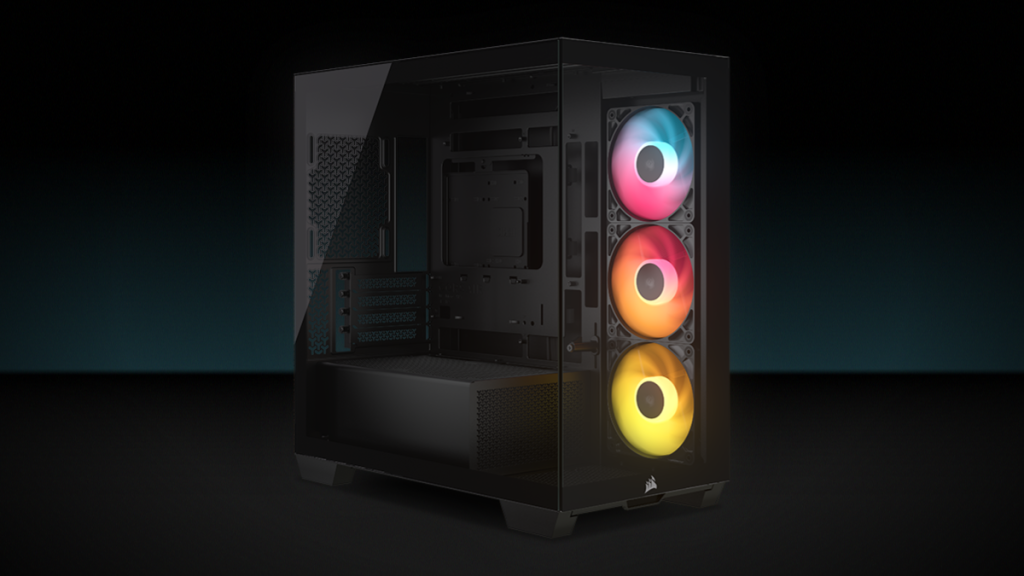
- Corsair 2800X RS-R ARGB (~$89.99 on Newegg): Premium mATX with panoramic glass, three RS120 fans included, 410mm GPU clearance Corsair 2800X RS-R ARGB
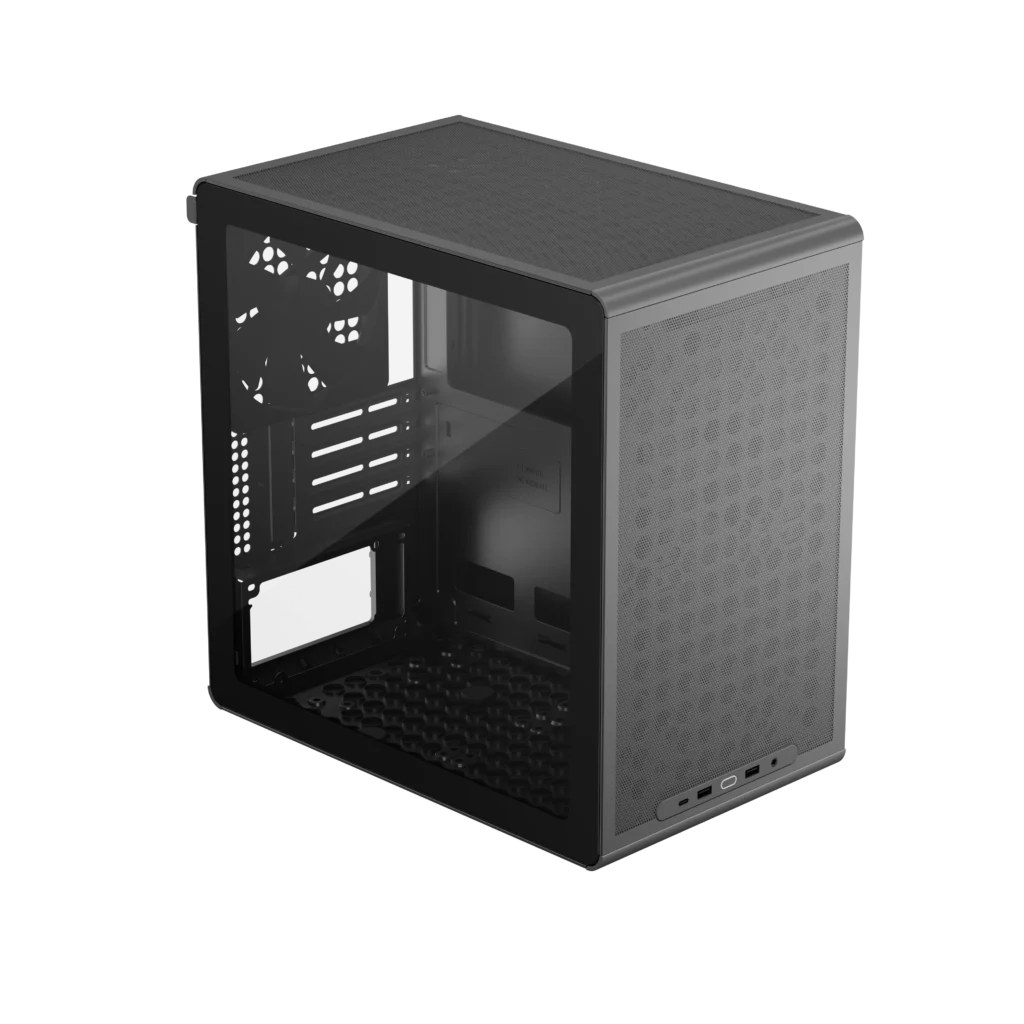
- Cooler Master Q300L V3 (~$39 on Newegg): Budget mATX with 178mm CPU clearance and 366mm GPU clearance Cooler Master Q300L V3
- Phanteks Eclipse P360A (~$79.99 on Newegg): Mesh-front mATX with strong airflow
Mini-ITX: 170 × 170mm
Mini-ITX is the smallest standard form factor. Two memory slots, one PCIe slot, and a physical footprint small enough to sit on a desk, in a media cabinet, or travel to LAN events in a backpack.
The trade-off is everything about the build process. ITX cases are tighter, cable routing is harder, component clearance is tighter, and the order of assembly matters, get the sequence wrong and you’re disassembling half the build to access something you should have installed first. Most ITX cases require SFX power supplies, which cost $20-$60 more than equivalent ATX units.
The payoff is a fully capable gaming PC in a volume that genuinely shocks people who see it in person. An 11-litre case containing a 9800X3D and an RTX 5070 is one of the more impressive things you can build.
Cases to consider:


- Cooler Master NR200P V2 (~$85 refurbished on Newegg): The benchmark ITX case, 330mm GPU clearance, 280mm AIO support, dual panel system Cooler Master NR200P V2
- Lian Li A4-H2O (~$154 on Newegg): Ultra-compact at 11 litres, for builders who want the absolute minimum footprint Lian Li A4-H2O
- Fractal Design Terra (~$199 on Newegg): Walnut-panel aesthetic case for desk-first builds Fractal Design Terra
E-ATX: 305 × 330mm and larger
E-ATX is for workstations and extreme enthusiast builds. More PCIe slots, more memory slots, larger boards that support dual-processor configurations. Requires a full tower case, these boards don’t fit standard mid-towers. Unless you’re building a workstation with specific multi-card or high-memory requirements, E-ATX is not your form factor.
Airflow Design: The Difference Between 70°C and 85°C GPU
The front panel is the most important airflow decision in any case. It determines how much cool air enters the system, and that number sets the floor for your thermal performance regardless of how many fans you install. Small cases have the least room for error here, which our list of the best Mini ITX cases looks at closely.
Mesh front panels are the correct choice for performance-focused builds. An open mesh passes close to 100% of the airflow the fans generate, the mesh itself imposes minimal resistance. Three 140mm fans behind a full-mesh front move substantial airflow, drop GPU temperatures, and let high-TDP cards sustain their boost clocks without throttling.
The visual trade-off is real. A mesh front with dust filter visible behind it doesn’t have the premium look of a glass panel or a solid metal front. Builders who prioritise thermal performance and builders who prioritise aesthetics genuinely want different things, and no case satisfies both equally.
Cases to consider:


- Phanteks Eclipse EX5 (~$109.99 on Newegg): Full-mesh front, excellent airflow, large mid-tower
- Cooler Master HAF II 500 (~$119.99 on Newegg): Maximum airflow focus, mesh everywhere, high-TDP build certified Cooler Master HAF II 500
- Phanteks P400A (~$89.99 on Newegg): Budget mesh-front with three fans included Phanteks P400A
Glass and solid front panels prioritise the visual presentation of the build. The tempered glass panel looks premium, it shows the interior lighting and the build itself. The acoustic impact is also real: a solid or glass front naturally deadens some fan noise compared to a mesh panel.
The thermal penalty varies by design. A Y-pattern perforated front like the Corsair 3200D or FRAME 5000D passes meaningful airflow while maintaining visual presence, the restriction is 15-25% versus a full mesh. A fully solid or glass front restricts intake significantly, some sealed-front cases produce GPU temperatures 8-15°C higher than equivalent mesh-front cases with identical fans and components.
Cases to consider:
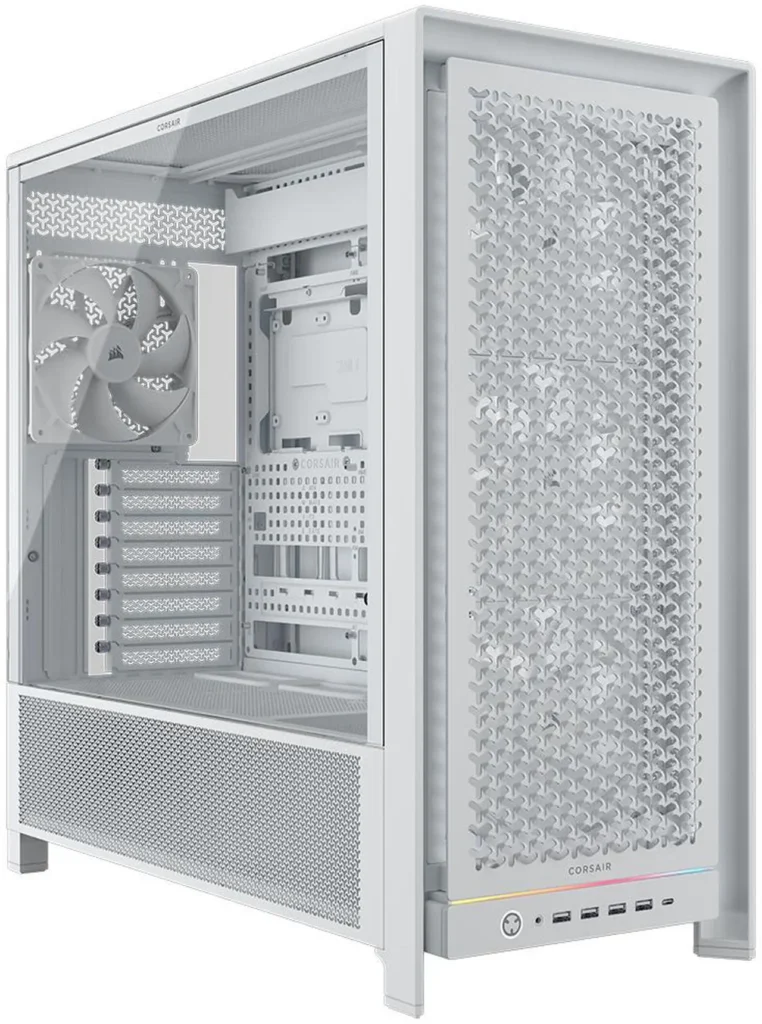

Corsair FRAME 5000D RS (~$159.99 on Newegg): Y-pattern perforated front with InfiniRail fan mounting Corsair FRAME 5000D RS
- Corsair 3200D RS ARGB (~$69.99 on Newegg): Y-pattern perforated budget mid-tower with three RS120 fans Corsair 3200D RS ARGB
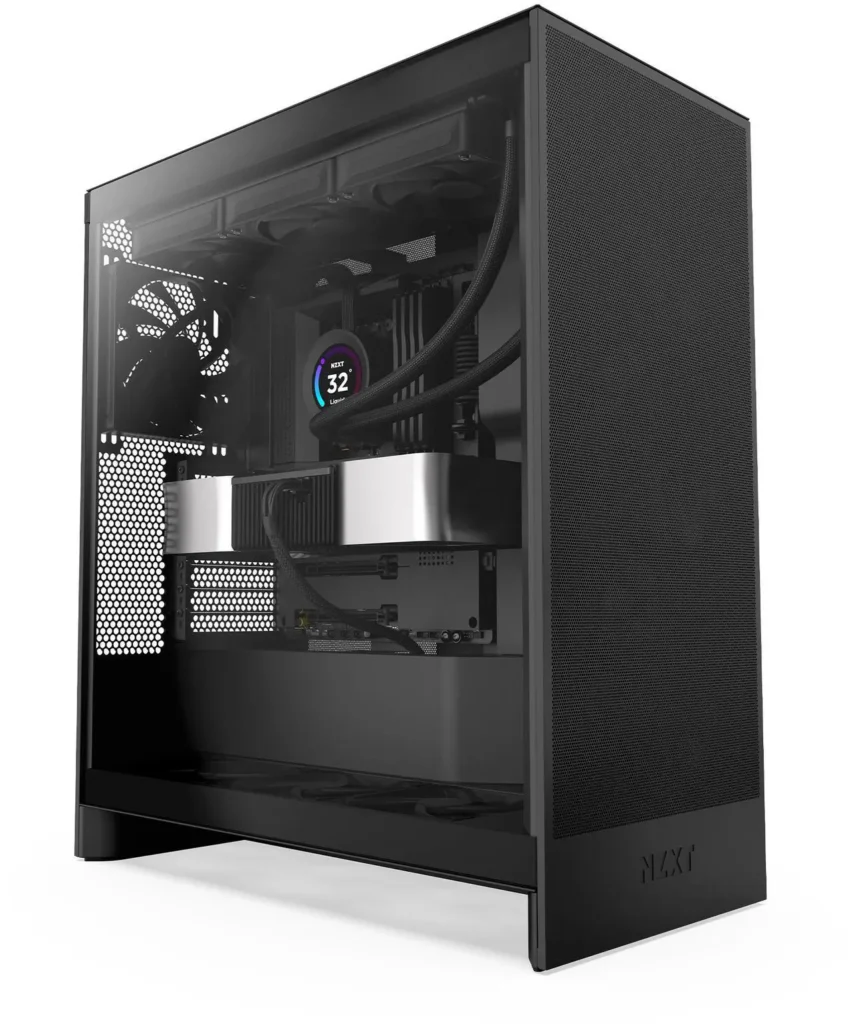
- NZXT H7 Flow (~$109.99 on Newegg): Hybrid glass-mesh front, clean aesthetics, decent airflow NZXT H7 Flow
Top exhaust vs top intake for AIOs: covered in the fan airflow guide, the short version is front intake for GPU-heavy builds, top exhaust for CPU-heavy builds.
Dual Chamber Design: Cables Behind the Wall
Dual-chamber cases split the interior into two separate spaces. The primary chamber holds the motherboard, CPU, GPU, RAM, and cooling. The secondary chamber, behind the motherboard tray, holds the PSU, cable runs, and drive storage. A solid wall between them with only necessary cable pass-throughs connecting the two.
The problem this solves is fundamental. In a single-chamber case, every power cable from the PSU runs across the visible face of the build, 24-pin ATX cable, EPS CPU cable, PCIe power cables for the GPU. Even with good cable management these runs are present and visible. The fan for the GPU sits directly behind the bundle, restricting airflow over the card.
In a dual-chamber design, all of that moves behind the wall. The primary chamber shows only the components, motherboard, GPU, RAM, cooling. No cables crossing the visible face. GPU fan intake is unobstructed. The build looks substantially cleaner and in many thermal tests runs 3-7°C cooler on the GPU specifically because of the unobstructed intake.
The assembly implication is the other side of the trade-off. Working in the secondary chamber requires reaching around the wall, routing cables through grommeted holes in specific positions, and tolerating a tighter working environment. For first-time builders, dual-chamber cases take longer to build in than single-chamber cases because the cable routing requires more planning.
Cases to consider:
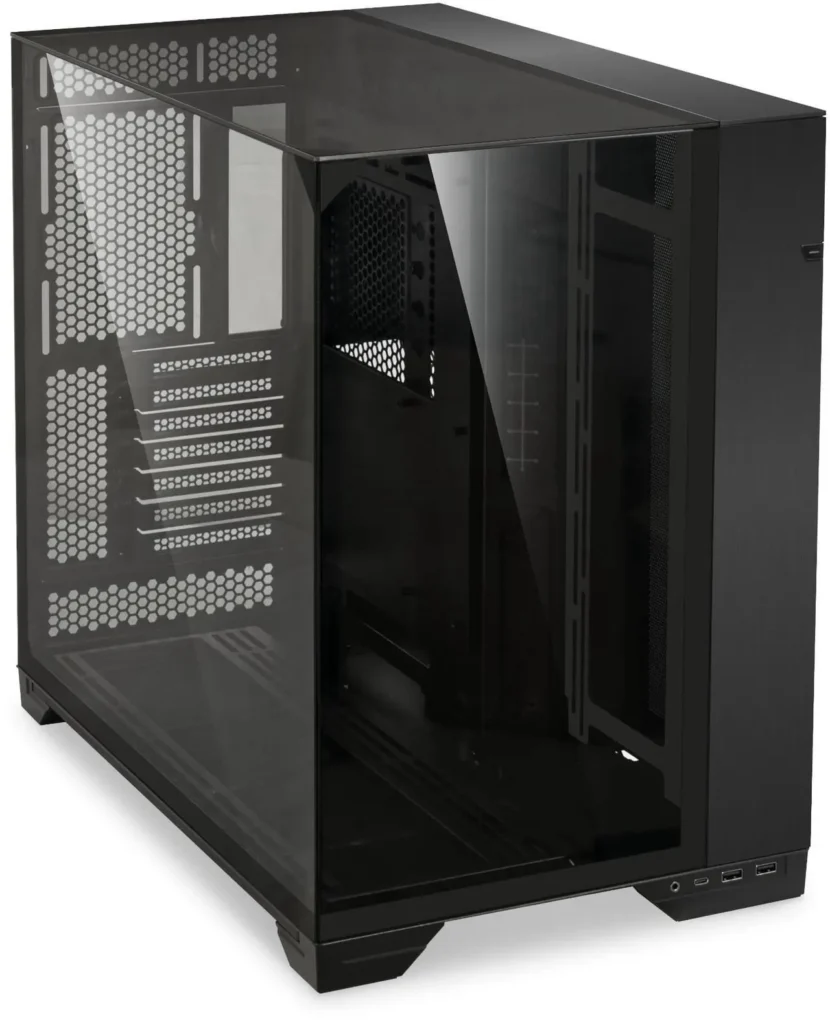


- Lian Li O11 Dynamic EVO (~$159.99 on Newegg): The benchmark dual-chamber ATX case, wide secondary chamber, excellent build quality, supports triple 360mm radiators Lian Li O11 Dynamic EVO
- NZXT H6 Flow (~$79.99 on Newegg): Compact dual-chamber with panoramic glass, three fans included NZXT H6 Flow
- Lian Li O11 Vision (~$129.99 on Newegg): Premium dual-chamber with glass on three sides Lian Li O11 Vision
PSU Placement: Bottom Mount vs Top Mount
For most of PC gaming history, power supplies sat at the top rear of the case. Cold air entered the top, the PSU’s fan drew it through the PSU, and warm exhaust left through the back. Logical enough.
The problem: hot air rises. The CPU heatsink and GPU both exhaust hot air upward. In a top-mount PSU layout, that hot air flows directly over the PSU’s intake. The PSU works harder, runs warmer, and in high-TDP builds occasionally thermal throttles, reducing power delivery to the components at precisely the moment they need it most.
Bottom-mount PSUs reverse this entirely. The PSU sits at the bottom of the case, drawing cool air from below, either from a filtered bottom intake or from ambient room temperature. Hot exhaust from the CPU and GPU never reaches the PSU intake. The PSU runs cooler, operates more efficiently, and the warm air it exhausts exits through the rear without contributing to case temperatures.
Bottom-mount PSUs are now standard on virtually every modern mid-tower. Most cases include a PSU shroud, a cover that hides the PSU and its cable runs from view, contributing to the clean visual presentation of the primary chamber while also reducing thermal recirculation from the PSU itself.
The PSU shroud creates one constraint: PSU length limit. Most shrouded cases accept PSUs up to 160-200mm in length. Full-modular PSUs from Corsair, SeaSonic, and be quiet! typically run 140-160mm and fit without issue. Some very high-wattage PSUs exceed 180mm, verify your PSU length against the case specification if you’re running a 1200W+ unit.
Cases to consider:
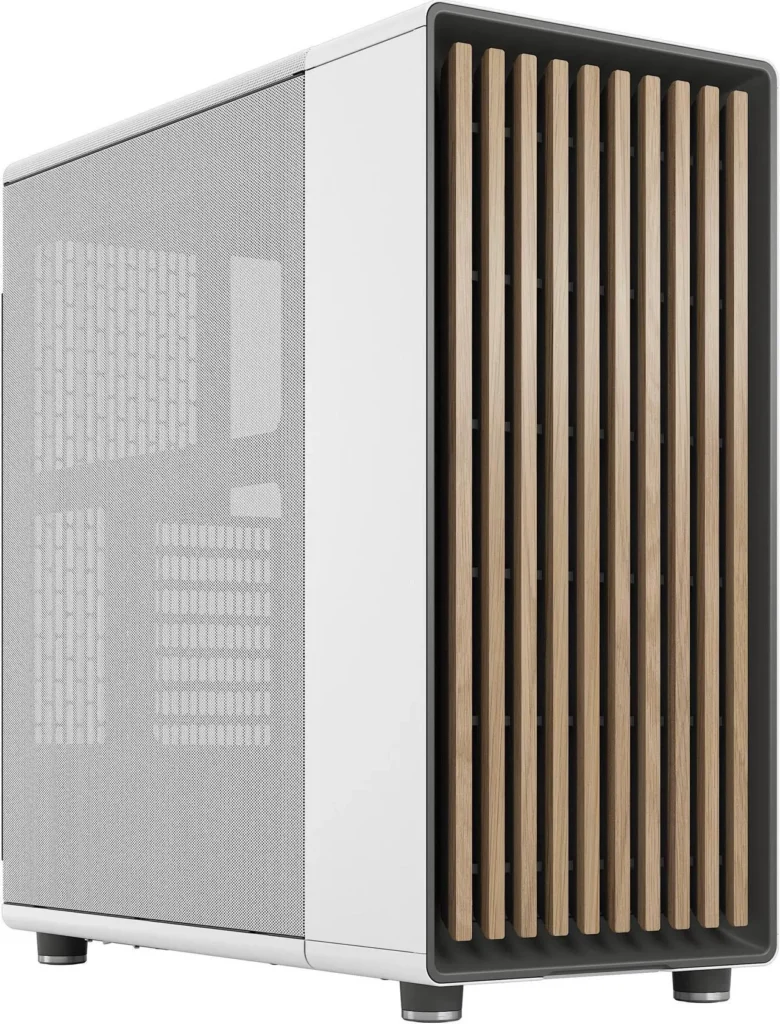

- Fractal Design North (~$123.99 on Newegg): Bottom-mount PSU with wood-panel aesthetic, shrouded Fractal Design North
- Corsair FRAME 4000D RS (~$84.99 on Newegg): Bottom-mount with full PSU shroud and cable pass-throughs Corsair FRAME 4000D RS
- Phanteks Eclipse G500A (~$69.99 on Newegg): Bottom-mount, mesh front, high-airflow Phanteks Eclipse G500A
Top-mount PSU cases still exist in specific product categories, most commonly in cases designed for HTPCs and media cabinet placement where the case sits horizontally, and in some retro-aesthetic cases. If you’re buying a modern gaming case and see a top-mount PSU position, it’s either a budget product or a deliberate aesthetic choice. Factor in the thermal implications accordingly.
Radiator Support: What the Numbers Actually Mean
A case listing says “supports 360mm radiator at top and front.” What does that actually mean for your build?
A 360mm radiator is three 120mm fan positions assembled in a row, a single unit that’s 120mm wide, 360mm long, and typically 25-45mm thick. A 240mm radiator is two 120mm positions. A 280mm radiator is two 140mm positions. A 420mm radiator is three 140mm positions.
The number tells you the physical dimension of the radiator. The position, top, front, or side, tells you where it mounts. Some cases support 360mm only at the top, some only at the front, some at both. Some support 420mm in one position but only 240mm in another.
Why position matters: a top-mounted AIO exhausts hot coolant heat directly out of the case. A front-mounted AIO pushes coolant-cooled air into the case interior, slightly warming the air that reaches the GPU. For CPU-heavy builds, top is usually better. For GPU-heavy builds, front mount may produce better overall system temperatures. The SpecClear fan airflow guide covers this decision in detail.
Why thickness matters: a 45mm radiator has more surface area for heat dissipation than a 25mm radiator at the same length. Some cases have limited clearance between the radiator mounting position and the motherboard or RAM, a 45mm radiator on a top mount may conflict with tall RAM heatspreaders. Check the case specification for radiator thickness clearance, not just length support.
Cases to consider:

- Lian Li O11 Dynamic EVO (~$159.99 on Newegg): 360mm support at front, top, and side, three simultaneous 360mm radiators possible Lian Li O11 Dynamic EVO
- Corsair FRAME 5000D RS (~$189.99 on Newegg): 420mm support at front, top, and side Corsair FRAME 5000D RS
- NZXT H7 Flow (~$69.99 on Newegg): 360mm front and top, solid mid-tower radiator support NZXT H7 Flow
Cable Management: Why This Is a Thermal and Aesthetic Decision
Cable management gets discussed as a purely visual concern, the build looks cleaner with cables managed. The thermal dimension gets less attention and matters more.
A GPU’s cooling fans sit on the bottom face of the card, drawing cool air up through the heatsink. A bundle of PSU cables running across the floor of the case directly below those fans restricts the airflow volume reaching the heatsink. The GPU runs harder to maintain the same temperature, fan speed increases, noise increases, and in sustained gaming the temperature ceiling drops.
Real-world testing consistently shows 3-7°C lower GPU temperatures with clean cable routing versus poor cable routing in the same case with identical components and fan speeds. That’s not cosmetic. That’s sustained boost clock maintenance.
What good cable management looks like in a case design:
Rear panel clearance of 20mm+ between the motherboard tray and the side panel gives room to bundle cables without forcing the panel closed. Below 15mm, even thin cables require deliberate placement. Corsair’s FRAME 5000D leads this category at 42mm of rear clearance, almost nothing requires effort to close.
Cable pass-throughs with rubber grommets let cables cross from the secondary chamber to the primary chamber cleanly. Cases with two or three well-positioned grommets at natural cable routing paths produce cleaner results than cases with many poorly positioned holes.
Modular cable anchor points that can be repositioned, like Corsair’s RapidRoute 2.0 system, let you place tie-down anchors where the cables naturally want to run rather than forcing cables through fixed positions. Our FormulaV Line Air Power G10 and Crystal Z3 article looks at two newer cases.
Cases to consider:

- Corsair FRAME 5000D RS (~$159.99 on Newegg): 42mm rear clearance, RapidRoute 2.0 modular anchors, best cable management in the mid-tower segment Corsair FRAME 5000D RS
- Fractal Design Define 7 (~$194.99 on Newegg): Sound-dampened build, excellent rear routing clearance, designed for clean results Fractal Design Define 7
- NZXT H7 Flow (~$109.99 on Newegg): Dedicated cable management bar, velcro ties included, easy to achieve clean results NZXT H7 Flow
Back-Connect Motherboard Support
Back-connect motherboards, ASUS BTF, MSI Project Zero, Gigabyte Project Stealth, move all power and data connectors to the rear of the PCB. The visible face of the motherboard shows only components: CPU cooler, RAM, GPU. No 24-pin ATX cable, no EPS CPU cable, no SATA cables crossing the front of the board.
The result is the cleanest possible build aesthetic without requiring custom cables or extensive effort. It looks like a professional custom loop build even with standard components.
The catch: the case must support it. Back-connect boards require specific cutouts in the motherboard tray at precise positions for the connectors to pass through. A standard case without these cutouts physically cannot be used with a back-connect board, the connectors have nowhere to go.
Check the case specification explicitly for “back-connect motherboard support” or specific brand compatibility (BTF, Project Zero, Project Stealth) before buying. This is not a default feature even on expensive cases, it requires specific design decisions by the manufacturer.
Cases to consider:


- Corsair FRAME 5000D RS (~$159.99 on Newegg): Confirmed BTF, Project Zero, and Project Stealth support Corsair FRAME 5000D RS
- Corsair 3200D RS ARGB (~$69.99 on Newegg): Back-connect support at budget pricing Corsair 3200D RS ARGB
- Corsair 2800X RS-R ARGB (~$89.99 on Newegg): Back-connect on an mATX case
Fan Mounting Flexibility: Fixed vs Modular
Standard cases have fixed fan mounting positions. 120mm holes go here, 140mm holes go there, and if the fan you want doesn’t match the hole size you adapt or replace. The thermal result is often adequate but rarely optimised, the fans move air in the direction the case designer intended, not necessarily the direction your specific component layout needs.
InfiniRail systems (Corsair) and tilting fan mounts (FormulaV Line G10) represent the current frontier of fan mounting flexibility. InfiniRail allows fans to slide anywhere along continuous rails rather than fixed hole positions, you place 120mm, 140mm, or 200mm fans exactly where the airflow benefit is greatest. The FormulaV Line G10 takes this further by allowing fans to angle up to 10 degrees to direct airflow specifically toward the GPU or CPU.
For a standard gaming build with stock cooling, fixed fan positions are fine. For a builder optimising airflow around a custom loop, high-TDP components, or a challenging case layout, flexible mounting earns its value.
Cases to consider:
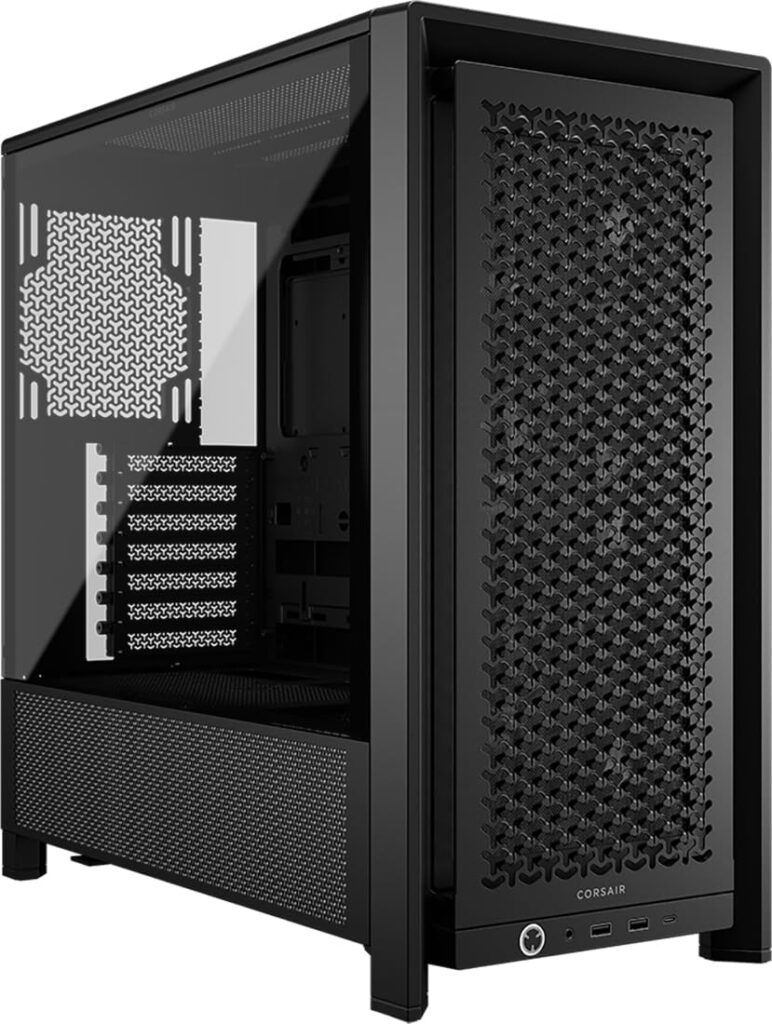
- Corsair FRAME 5000D RS (~$189.99 on Newegg): InfiniRail on front and top positions Corsair FRAME 5000D RS
- Corsair FRAME 4000D RS (~$89.99 on Newegg): InfiniRail at a lower price point Corsair FRAME 4000D RS
- FormulaV Line Air Power G10 (~$150, coming to Newegg August-September 2026): Tilting front fans that direct airflow toward GPU or CPU as needed
The Quick Reference
| Design feature | Buy for it if | Skip it if |
|---|---|---|
| Full ATX | First build, need max expansion slots | Desk space is limited |
| Micro-ATX | Same build, smaller footprint, save money | You need more than one PCIe slot |
| Mini-ITX | Size is the priority, experienced builder | First build, want easy assembly |
| Mesh front | GPU thermals matter, high-TDP build | Build aesthetics are priority |
| Dual chamber | Clean visual result, GPU airflow | First build with tight timeline |
| Bottom PSU | Every modern build | HTPC horizontal placement only |
| 360mm radiator | 125W+ CPU, AIO cooling | Air-cooled builds |
| 42mm+ rear clearance | Heavy cable count, clean result | Minimal cable runs |
| Back-connect support | Using BTF or Project Zero board | Standard motherboard |
| InfiniRail/modular fans | Custom loop, optimised airflow | Standard gaming build |