
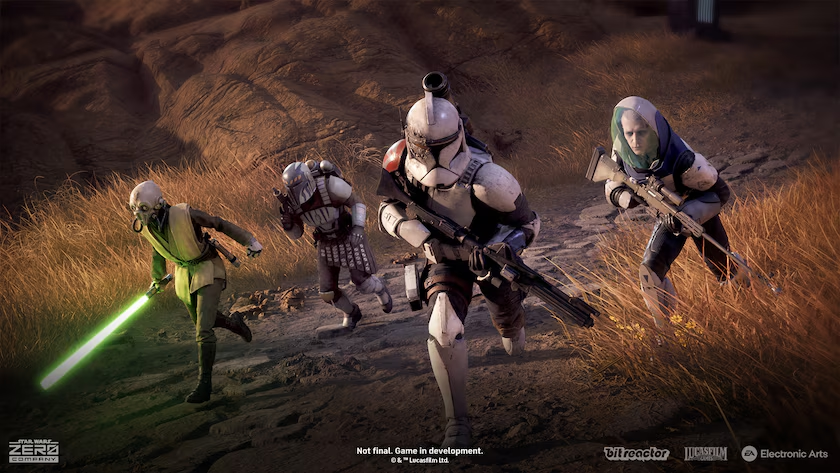
Star Wars Zero Company launched August 27, 2026 at $49.99 Standard / $59.99 Digital Deluxe on PC (consoles are higher). It sits around 88 on Open Critic with roughly 91% of critics recommending it, which puts it among the best-reviewed Star Wars games in decades. It is still a UE5 tactics game: visually sharp and temperamental on PC, so settings matter before you start a campaign.
Below: the official requirements, the settings that actually move the needle, and GPU tiers that hold 1080p/1440p without pretending launch-day hitching never happens. For more detail on the hardware floor, see our Star Wars Zero Company system requirements breakdown.
System Requirements
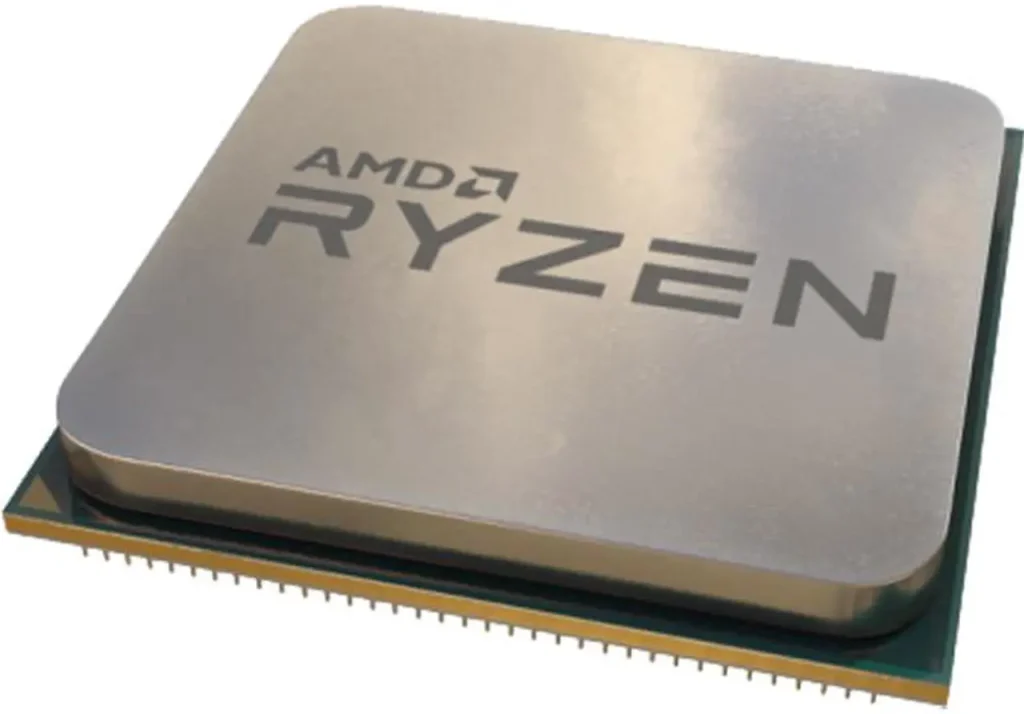
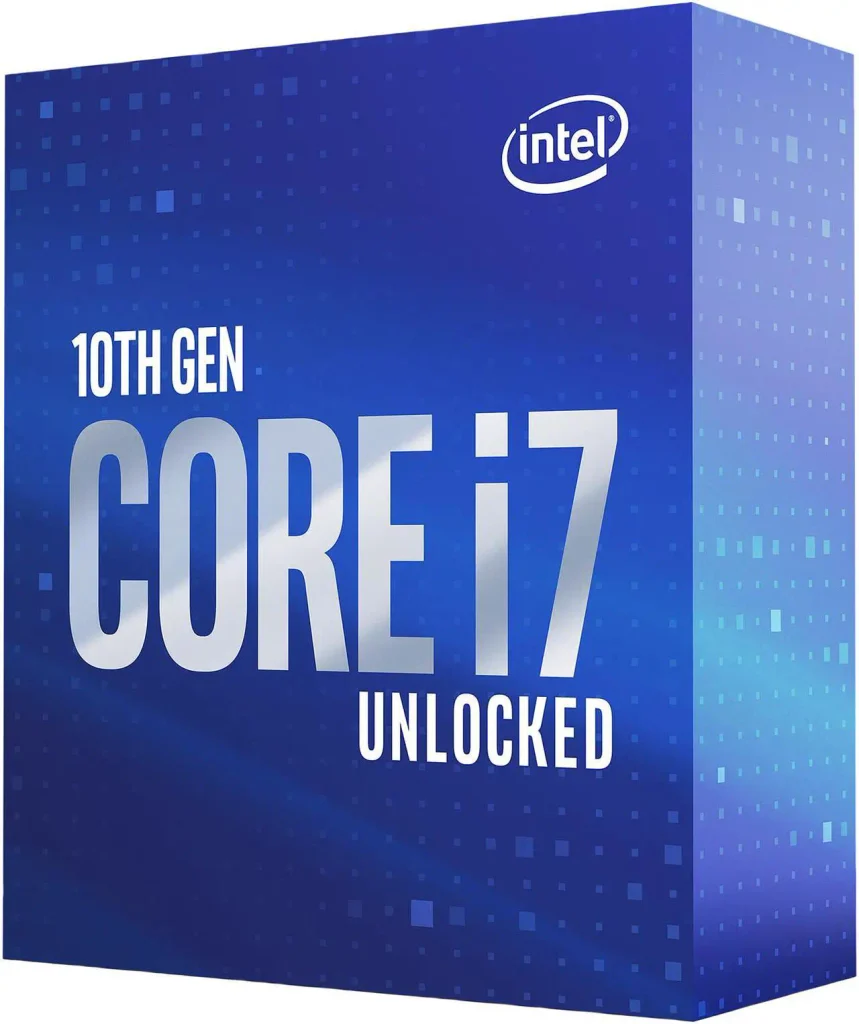
The minimum specification targets 1080p at 30 FPS on the Low preset and requires an Intel Core i5-8400 or Ryzen 5 2600X, 16GB RAM, and either an Nvidia GTX 1080, AMD RX 5600 XT or Intel Arc B580, with 50GB of storage, all very modest here. The recommended tier raises the target to 1440p at 60 FPS on High settings, requiring an Intel Core i7-10700K or Ryzen 7 3700X, 32GB RAM, and either an RTX 3080 or RX 7800 XT. are we the only ones that felt that hit? (listing an RTX3080 for the RECOMMENDED tier)
A few things worth knowing about that number, namely. The minimum spec is honest about its target, 1080p at 30 FPS on Low, which is lower than most games aim for at minimum. Meeting the minimum requirements does not guarantee consistent performance, with early PC testing highlighting occasional frame-rate drops, hitches and crashes including on considerably more powerful hardware. This is an Unreal Engine 5 game and it behaves like one by demanding powerful hardware.
The 32GB RAM recommendation is worth taking seriously. The jump from the 16GB minimum to 32GB recommended is worth noting. If you’re sitting on 16GB and running background processes, you may see additional hitching during larger battles where asset streaming peaks.

The performance picture: this is a CPU-limited game
Even a Ryzen 7 9850X3D paired with an RTX 5090 can spike to 50% CPU usage at the start of missions. Zero Company is a CPU-limited game more than a GPU-limited one, so upgrading your graphics card alone won’t fix stutters.
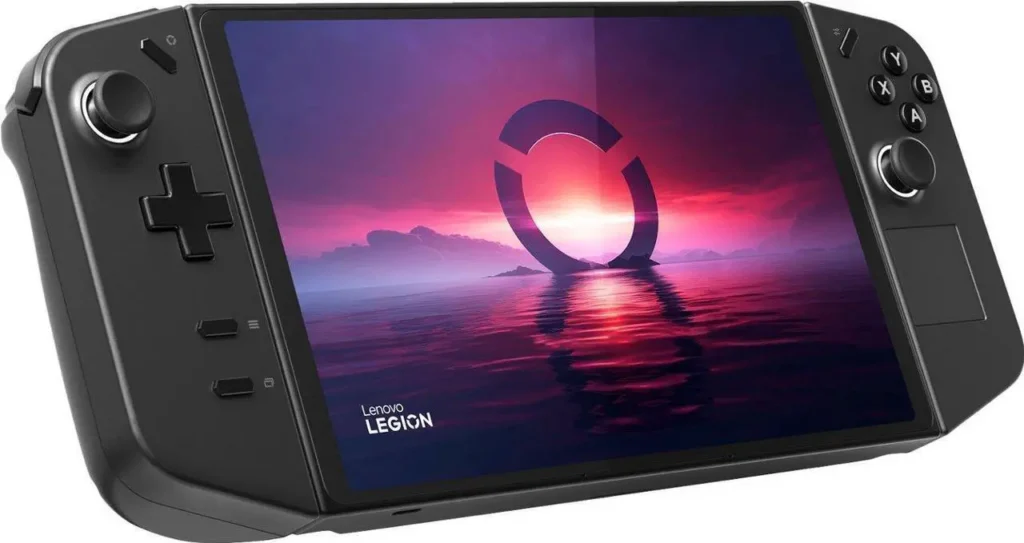
This is the most important thing to understand before adjusting any settings in the hopes to see huge improvements. If your game is stuttering, reducing GPU-bound settings like shadows and reflections will help, but it won’t eliminate hitches caused by the CPU processing mission starts and large numbers of units. Testing on a handheld like the Lenovo Legion Go 2 shows the CPU pinned at 50-60% while the GPU sits at 70-80%, confirming the processor is the bottleneck, not the graphics card.
For desktop PC builders this is useful context as a mid-range GPU on a fast Ryzen 9000 or Core Ultra 200 system will often outperform a high-end GPU on an older CPU platform.
Upscaling: use it, everyone
AMD users should use FSR, Nvidia users should use DLSS, and Intel GPU users should use XeSS. This is a game where using some kind of upscaling is recommended to maximise performance, practically non-negotiable here.
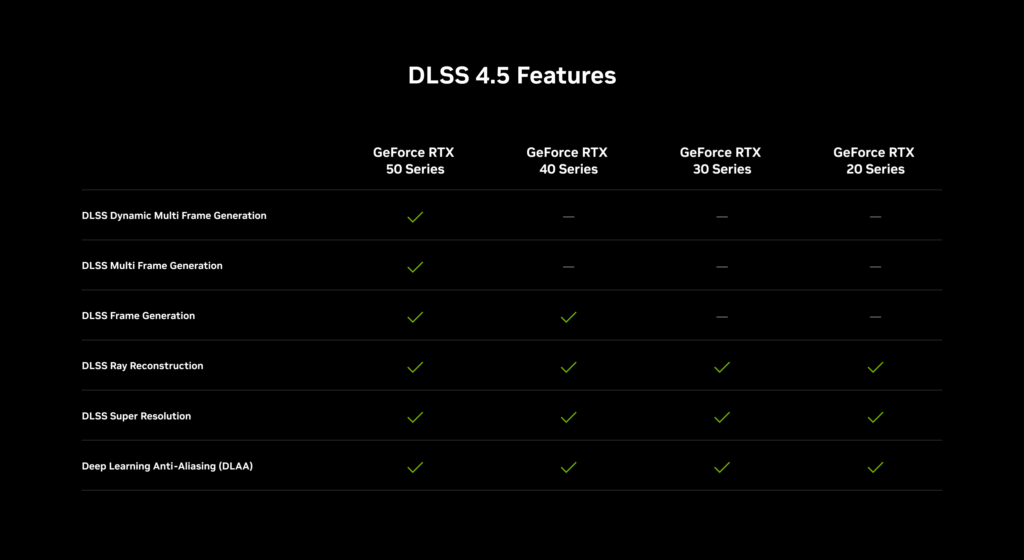

For upscaling quality, the rule of thumb is Performance mode at 4K, Balanced at 1440p, and Quality at 1080p. These recommendations hold across all three vendors since they use equivalent quality tiers. Don’t skip this step… running native at demanding resolutions in a UE5 game cost significantly more than running a well-tuned upscaling pass.
Frame Generation uses AI to generate new frames and increases your frame rate. It does come at the cost of latency, but in a turn-based game like Zero Company, that really doesn’t matter at all. Enable it if your GPU supports it and don’t overthink it. the RTX 40 and 50 series users get DLSS Frame Generation while RX 9000 and 7000 series users get FSR Frame Generation instead. To check the frame rate you are actually getting, see our guide on how to monitor your PC while gaming.
Setting by setting: what to prioritise
Shadow Quality: cut this first
Shadow Quality is the first thing to cut when you’re GPU-limited because Even on Low, shadows in Zero Company look acceptable because Unreal Engine’s baseline quality holds up reasonably well in these scenarios so Drop this before anything else if you’re chasing frames. The visual difference between High and Medium is small in a tactics game where the camera spends most of its time above the battlefield anyway.
Global Illumination: leave on Medium unless GPU-limited
Global Illumination controls indirect lighting quality. If your GPU isn’t sitting at 100% utilisation most of the time, this probably isn’t causing your performance issues. The High and Ultra settings use ray tracing, so going from Medium to High will hit the GPU hard while Medium delivers good results and avoids the performance cliff that ray-traced GI introduces.

Reflections: same story as Global Illumination
Reflections are mostly a GPU-bound setting and Bit Reactor is using ray tracing here too. Medium is the correct choice unless you have a high-end card with headroom to spare.
Volumetric Lighting: the hidden performance killer
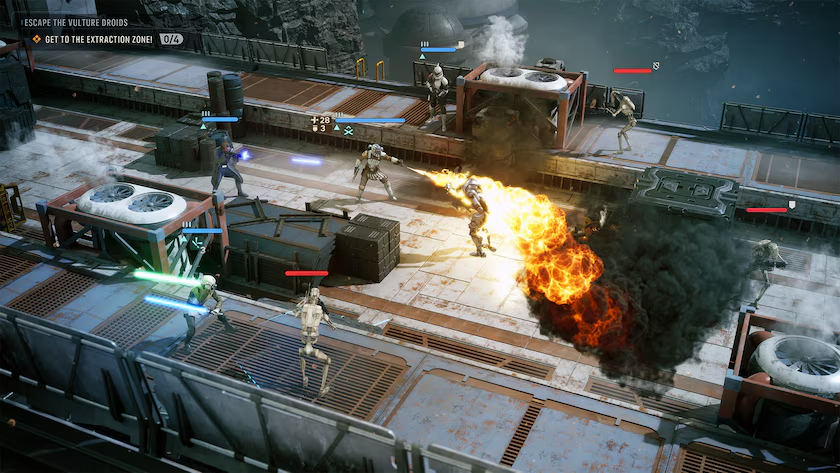
Volumetric lighting is responsible for atmospheric haze, smoke interaction, dusty environments and cinematic battlefield effects. When explosions, smoke and particle effects fill the screen, volumetric calculations become particularly demanding so During heavy firefights with multiple explosions and particle effects, this setting can cause significant frame time spikes at High or Ultra. Medium is the sweet spot as you still get the atmosphere and dramatic lighting, but without an enormous performance tax for effects that aren’t always obvious during actual gameplay.
Texture Quality: don’t touch unless VRAM-limited
Texture quality has almost no impact on frame rate unless your GPU’s VRAM is being exhausted and the system starts streaming from main memory, on a 12GB or larger GPU, leave this at High or Ultra. On an 8GB card running at 1440p Ultra with ray tracing enabled best to drop this to Medium as it frees VRAM for everything else.

Anti-Aliasing: let upscaling handle it
If you’re using DLSS, FSR or XeSS, the upscaling handles anti-aliasing as part of the reconstruction pass so Don’t stack additional TAA or MSAA on top as it costs GPU cycles for no visible improvement.
Display mode
Fullscreen dedicates all rendering resources to the game and can help with performance, but makes alt-tabbing awkward. if you have a Single-monitor setup with no need to alt-tab then Use Fullscreen. Borderless Window for anyone who regularly alt-tabs between the game and Discord, a browser, or a second monitor. If the game still struggles after these changes, our guide on whether to upgrade your CPU or GPU first can help.
Recommended settings by GPU tier
RTX 3080 / RX 7800 XT and above: 1440p High 60 FPS target:
Resolution: 2560×1440 | Upscaling: DLSS/FSR Balanced | Frame Gen: On | Global Illumination: Medium | Reflections: Medium | Shadow Quality: High | Volumetric Lighting: Medium | Textures: High
RTX 4060 Ti / RX 7700 XT: 1440p 60 FPS target:
Resolution: 2560×1440 | Upscaling: DLSS/FSR Performance | Frame Gen: On | Global Illumination: Low | Reflections: Low | Shadow Quality: Medium | Volumetric Lighting: Medium | Textures: High
RTX 3060 / RX 6700 XT: 1080p 60 FPS target:
Resolution: 1920×1080 | Upscaling: DLSS/FSR Quality | Frame Gen: On | Global Illumination: Low | Reflections: Low | Shadow Quality: Medium | Volumetric Lighting: Low | Textures: Medium
GTX 1080 / RX 5600 XT: 1080p 30 FPS target:
Resolution: 1920×1080 | Upscaling: DLSS/FSR Performance | Frame Gen: Off | Global Illumination: Low | Reflections: Low | Shadow Quality: Low | Volumetric Lighting: Low | Textures: Medium
Known issues at launch
The PC version has real growing pains with Frame drops hit even on high-end hardware, crashes show up more than they should, and cutscenes are a particular weak point regardless of what you’re running. These are launch-window issues that will be patched. The core game runs well enough to be playable on the hardware tiers above, but if you hit a crash, check EA’s support forums for driver-specific workarounds before assuming your hardware is the problem.


Verify your game files through EA App before adjusting anything. Several launch-day crashes trace back to incomplete installations rather than hardware limits…. we are now accustomed to the state in which some games are launched these days, gone are the days of getting a 100% finished game on launch day and Star Wars Zero Company is not different.