
Updated for July 7, 2026
The first major DLC for DOOM: The Dark Ages dropped July 7. Revelations is a 10–12 hour campaign expansion set in a frozen Purgatory, adding the Chain Spear as a new core weapon, returning enemies like the Archvile and Pain Elemental, and a Metroidvania-style hub structure that’s larger in scope than DOOM Eternal’s two DLC expansions combined. At $19.99 standalone or included in the Premium Edition. It’s the reason to return to one of the best shooters of 2025.
The base game already runs on id Tech 8 with mandatory hardware ray tracing across all settings, including minimum. If you could run DOOM: The Dark Ages before Revelations, you can run Revelations without any changes. If you haven’t installed the base game yet, this guide covers exactly what GPU you need, which settings to change, and how to get the most out of the expansion without leaving performance on the floor.
DOOM: The Dark Ages Revelations — The Ray Tracing Requirement
This isn’t optional DOOM: The Dark Ages requires a hardware ray tracing-capable GPU at all settings including minimum. GTX 10-series, GTX 16-series, and AMD RX 500-series cards cannot run this game. Full stop. If your GPU doesn’t have dedicated RT cores or RT accelerators, the game won’t launch. Not every new release is that strict. Assassin’s Creed Black Flag Resynced offers software ray tracing for cards without dedicated RT hardware.
The practical card floor for minimum settings is an RTX 2060 Super or AMD RX 6600. Those get you 60fps at 1080p on Low settings. That’s the baseline not a comfortable gaming experience, just the minimum to launch and play.
For anything resembling a smooth gaming experience with decent visuals, you’re looking at the Recommended tier.
Official System Requirements
Minimum — 1080p Low, 60fps:
- CPU: AMD Ryzen 7 3700X (Zen 2) or Intel Core i7 10700K 8 cores required
- GPU: RTX 2060 Super or RX 6600 8GB VRAM minimum
- RAM: 16GB
- Storage: 100GB NVMe SSD (NVMe is required, not recommended)
Recommended — 1440p High, 60fps:
- CPU: AMD Ryzen 7 5700X (Zen 3) or Intel Core i7 12700K same 8 core requirement
- GPU: RTX 3080 or RX 6800 10GB VRAM
- RAM: 32GB
- Storage: 100GB NVMe SSD
Ultra / 4K — 2160p Ultra, 60fps:
- CPU: Same as Recommended CPU requirements don’t increase at 4K
- GPU: RTX 4080 or RX 7900 XT 16GB VRAM
- RAM: 32GB
- Storage: 100GB NVMe SSD
Critical note on the NVMe SSD requirement: id Software lists NVMe storage as required, not optional, the game may load from a SATA SSD with longer load times, but performance hitches and asset streaming issues are reported on SATA drives. Install to NVMe — a 1TB NVMe currently costs $150-$200 and is the single cheapest way to improve loading-sensitive game performance across your entire library.
Real-World GPU Performance: What to Actually Expect
The official system requirements give you targets, the benchmark data fills in what actually happens across a wider range of cards.
DOOM: The Dark Ages is heavily GPU-bound. The CPU doesn’t matter much any modern 8-core processor from the last four years won’t bottleneck the GPU in this game. The 9800X3D and 9850X3D both showed up in AMD’s own benchmark suite for this title, confirming it’s GPU-limited across the board.
At 1080p Ultra: Nearly every card above the RTX 2080 Ti hits 60fps comfortably without upscaling. The RX 6900 XT and RX 9070 XT performed comparably to the RTX 3080 and RTX 5080 respectively at 1080p, according to DSOGaming’s benchmark suite this game scales well across both AMD and Nvidia hardware.
At 1440p Ultra: The top five GPUs in DSOGaming’s test hit 60fps, the RX 9070 at ~$580–$650 and RTX 5070 at ~$760–$900 both sit comfortably above 60fps at 1440p Ultra without upscaling. Cards at the RX 9060 XT and RTX 5060 Ti level need DLSS or FSR Quality mode to hit 60fps consistently at 1440p Ultra.
At 4K native Ultra: Only the RTX 5090 sustains 60fps at all times. The RTX 4090 averages 56fps playable but not locked. At 4K, every card below an RTX 4090 needs upscaling to maintain smooth play.
The good news for 4K players: DLSS Quality mode delivers approximately 50% more FPS than native TAA in this game. DLSS Balanced adds 64%. DLSS Performance adds 77%. Frame Generation on RTX 40 and 50 series adds 73% at native 4K on top of that. An RTX 5070 Ti with 4K DLSS Quality and Frame Generation hits over 200fps. An RTX 5060 Ti achieves similar results at 1440p.
The Best PC Settings for DOOM: The Dark Ages Revelations
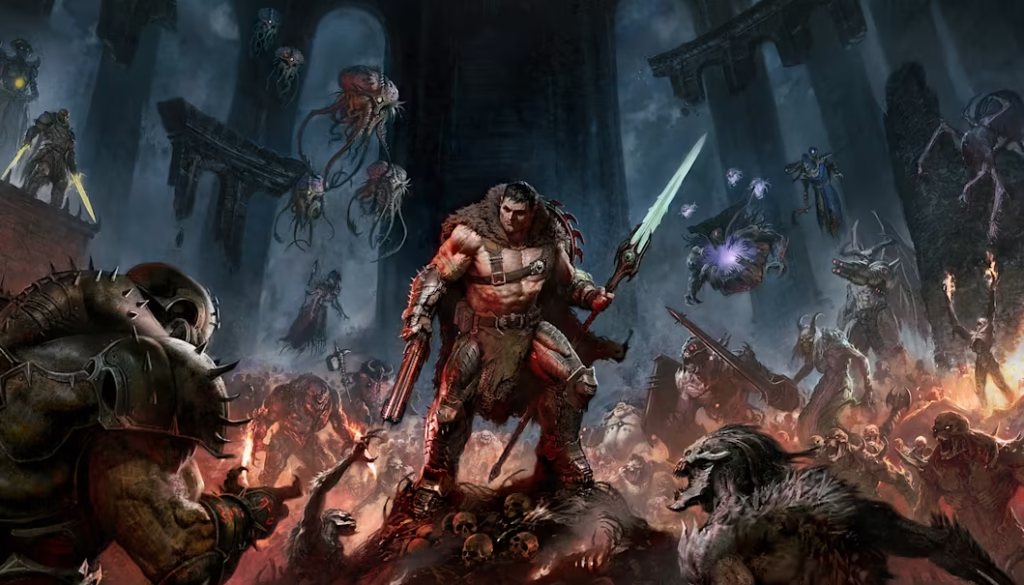
This section covers what each setting actually does and where to cut for performance without meaningfully hurting image quality.
Graphics Preset Start at Ultra, then adjust down
The first thing to know: Ultra and Nightmare presets perform identically Nightmare doesn’t add visual quality or demand more GPU power it adjusts game difficulty, not graphics fidelity. Start at Ultra.
High vs Ultra is also a marginal difference approximately 1fps in most testing. The jump from High to Medium is where you start seeing meaningful performance recovery.
Set your upscaling first, before adjusting individual settings. DLSS (Nvidia) or FSR 3 (AMD and Nvidia) are both natively supported. For 1440p gaming on RTX 5060 Ti, RTX 5070, RX 9070, or RX 9060 XT, enable DLSS or FSR Quality mode before touching anything else. You’ll recover 40–50% of your GPU headroom immediately, which then allows you to run everything else at Ultra without compromise.
Texture Pool The VRAM Management Setting
This controls the resolution of in-game textures and directly determines VRAM usage. At the highest setting, demanding scenes can push VRAM usage aggressively. If you’re using Frame Generation on a 60-class GPU (RTX 5060 Ti, RX 9060 XT), reduce Texture Pool to 2560 benchmarks confirmed this prevents VRAM-related frame time spikes during frame generation on 8GB and 12GB cards.
If your VRAM is above 12GB and you’re not using Frame Generation, leave Texture Pool at maximum.
Directional Occlusion The Big Performance Toggle
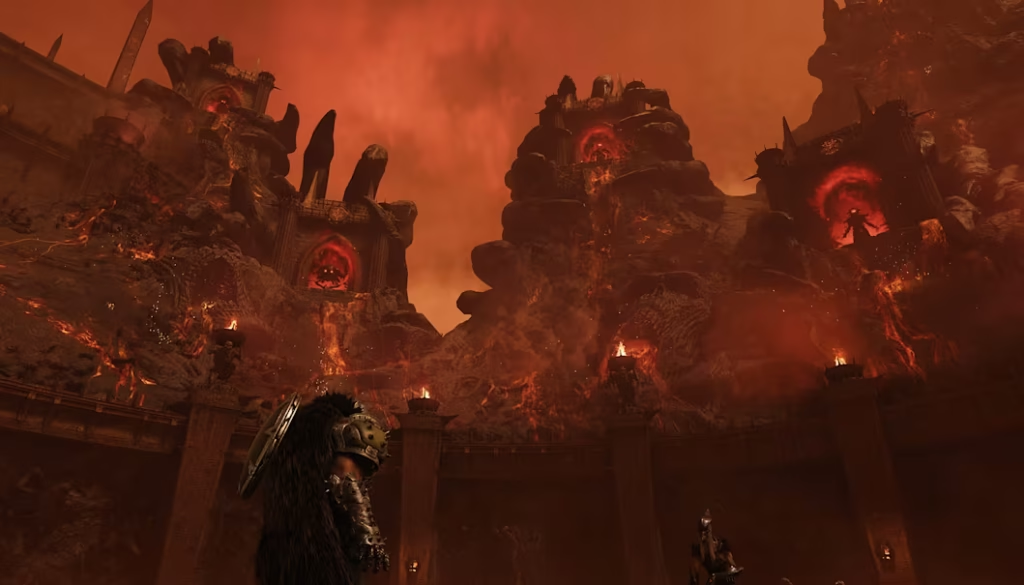
This is the highest-impact individual setting in the game,directional Occlusion calculates ambient shadowing in screen space the darkening that occurs where surfaces are close together and in corners. Turning it off produces a meaningful frame rate improvement while reducing visual quality in shadow contact areas.
Recommendation: Keep it on at High for cards with VRAM headroom above 10GB, Turn it off on cards at the RX 6600 or RTX 2060 Super level where every frame counts. The visual impact of disabling it entirely is more noticeable in indoor environments than in the game’s larger outdoor arena sections.
Reflection Quality
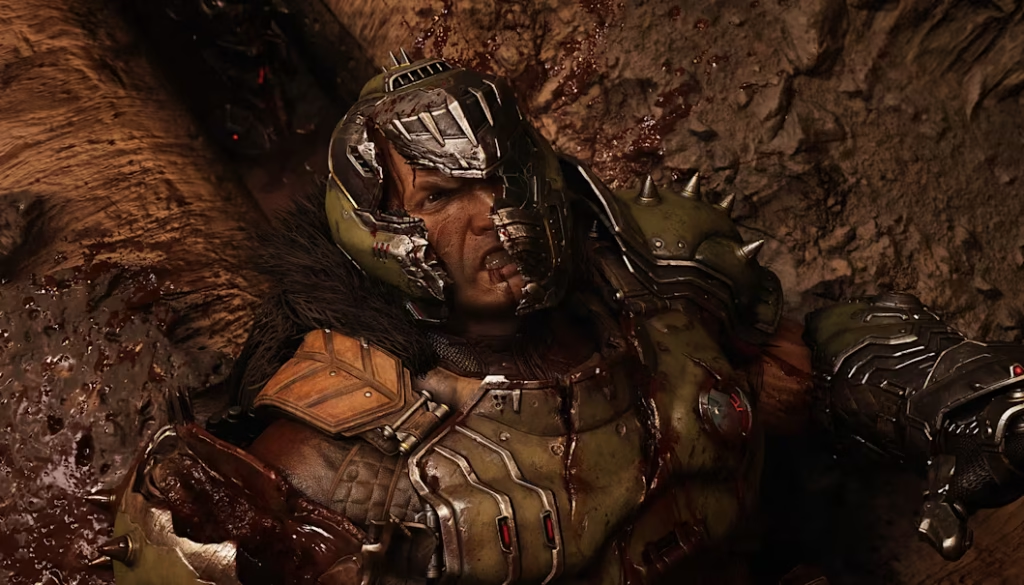
Reflections in DOOM: The Dark Ages are ray-traced by default Ultra reflections look excellent. Medium reflections look good and perform noticeably better. The difference between Medium and Ultra is visible on still water and metallic demon surfaces less obvious during the frantic combat that defines most of the game.
Recommendation: Ultra on high-end cards. Medium on mid-range cards the performance recovery is real and the visual difference during active gameplay is minimal.
Shadow Quality
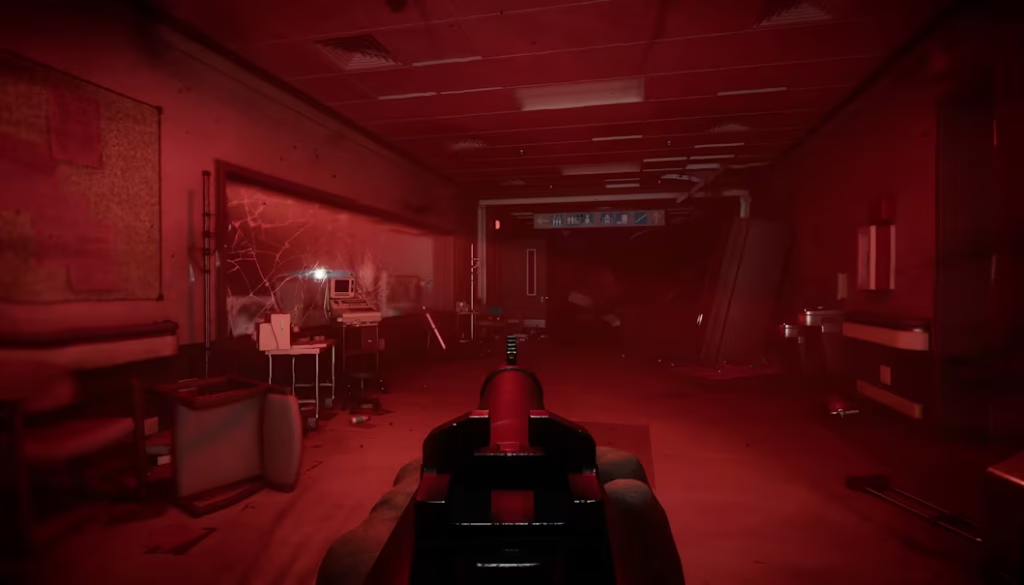
Performance difference between High and Ultra shadows is small, Medium recovers more meaningful frame rates. The visual difference between Medium and High is subtle in the game’s darker indoor environments.
Recommendation: High for most cards drop to Medium on lower-end hardware before touching texture quality.
Present From Compute
This setting enables asynchronous compute, running graphics and compute workloads in parallel. On AMD cards, it consistently improves performance. On Nvidia RTX cards, the GPU is largely unaffected by it but enabling it can improve 1% low frame times and frame pacing.
Enable it. There’s no downside.
Motion Blur
Disabling motion blur recovers 2–3% frame rate. Personal preference for the visual result, but if you’re chasing performance or prefer a sharper image during fast movement, turn it off.
DLSS / FSR Upscaling
If you haven’t already enabled this, it’s the first thing to do after setting your resolution. DLSS 4 and FSR 3 are both natively supported, DLSS uses the Transformer model by default in this game the best version currently available.
Quality preset: internal resolution at approximately 67% of your display. Recommended starting point for 1440p and 4K gaming.
Balanced: 58% internal resolution. More performance, slightly softer output.
Performance: 50% internal resolution. Appropriate for 4K on cards below the RTX 4090 tier.
Frame Generation
Available on RTX 40 and 50 series (DLSS Frame Generation) and via AMD AFMF 2 through Adrenalin for AMD cards. At 4K, this is the difference between 55fps and 100+fps on cards like the RTX 4080 and RX 9070 XT. Enable it when your base frame rate is above 45–50fps below that, the added frames don’t recover enough to make the experience feel smooth.
Quick Recommendations by GPU Tier
| GPU | Resolution | Upscaling | Expected FPS |
|---|---|---|---|
| RTX 2060 Super / RX 6600 | 1080p | FSR Quality | ~60fps |
| RTX 3080 / RX 6800 | 1440p | DLSS/FSR Quality | ~60fps |
| RX 9060 XT / RTX 5060 Ti | 1440p | DLSS/FSR Quality | 80–100fps |
| RX 9070 / RTX 5070 | 1440p | Native or Quality | 80–100fps |
| RX 9070 XT / RTX 5070 Ti | 4K | DLSS/FSR Quality | 60–80fps |
| RTX 4090 / RTX 5090 | 4K | Native | 56–60fps+ |
All figures at Ultra settings- Enable Frame Generation to roughly double displayed frame rate on compatible cards.
Path Tracing: Not Yet
id Software announced full path tracing support for DOOM: The Dark Ages via a post-launch update, It’s not in the game at time of Revelations’ launch. When it arrives, path tracing will require significantly more GPU horsepower the RTX 4090 dropped from 56fps to 29fps in early path tracing testing at 4K Ultra. Frame Generation will be essential for path tracing at any resolution above 1080p. This guide will be updated when path tracing drops.
SpecClear participates in affiliate programmes. When you purchase through links on this site we may earn a commission at no additional cost to you.