
If you’ve been questioning whether your PC supports Windows 11, the answer depends on three things and only one of them might actually cost you money.Windows 10 support ended in October 2025. Microsoft isn’t patching it anymore. If you’re still running it, you’re collecting unpatched security vulnerabilities every month. That gets unhealthy for your system fast.
The problem is that a lot of perfectly capable PCs don’t qualify for Windows 11. Not because they’re slow. Not because they’re broken. Because Microsoft drew a line in the sand around CPU generations and security features, and anything on the wrong side of that line gets left behind.
This guide tells you exactly where your PC stands and what to do about it.
Step One: Run the Check Right Now
Before anything else, download Microsoft’s PC Health Check app. It’s free, it’s official, and it gives you a straight answer in about 30 seconds.
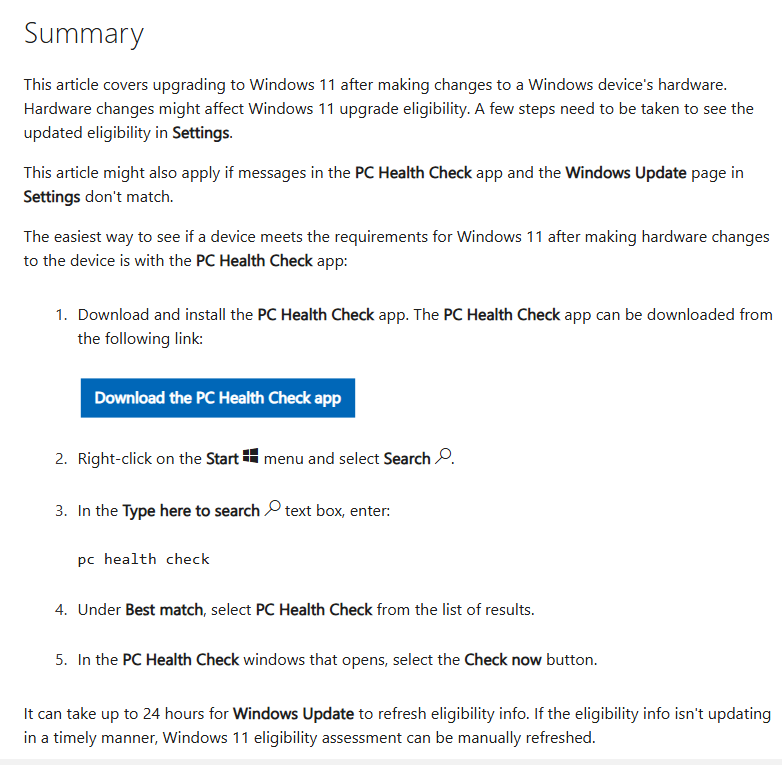
Go to microsoft.com/en-us/windows/windows-11, download the tool, run it, and click “Check now.” It’ll tell you one of two things: your PC is ready, or it isn’t, and why.
If it comes back clean, you’re done. Upgrade at your leisure.
If it fails, keep reading. The reasons it fails matter, and some of them are fixable without touching any hardware.
The Three Things That Block the Upgrade
1. Your CPU Generation
This is the one you can’t fix without new hardware.
Microsoft’s cutoff sits at Intel 8th Gen and AMD Ryzen 2000-series. If you’re running an Intel Core i7-7700K, i5-7600K, or anything else with a 7 at the start of the model number, you’re blocked. Doesn’t matter how fast it is. Doesn’t matter that it still runs games fine. Microsoft won’t officially support it.
The cutoff by generation:
Intel — supported from: 8th Gen Core (i3-8xxx, i5-8xxx, i7-8xxx, i9-8xxx) and newer. If your CPU starts with an 8, 9, 10, 11, 12, 13, or 14, you’re in. Core Ultra chips are all supported.
AMD — supported from: Ryzen 2000-series and newer. Ryzen 3 3100, Ryzen 5 3600, Ryzen 7 3700X — all fine. First-gen Ryzen 1000-series desktop chips don’t make the list.
Not sure what generation your CPU is? Press Win + R, type msinfo32, hit Enter. Look for “Processor” in the System Summary. The model number tells you everything.
2. TPM 2.0 Not Enabled
This one catches a lot of people off guard, and it’s fixable for most PCs built after 2016.
TPM stands for Trusted Platform Module. It’s a security chip or firmware feature that Windows 11 uses for encryption and login security. The issue isn’t that most PCs lack it. The issue is that it ships disabled by default on a huge number of motherboards, including most custom PC builds.
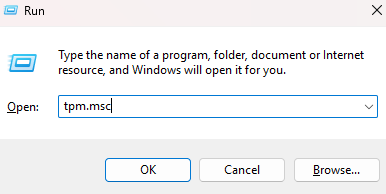
Check yours first. Press Win + R, type tpm.msc, hit Enter. Two possible outcomes:
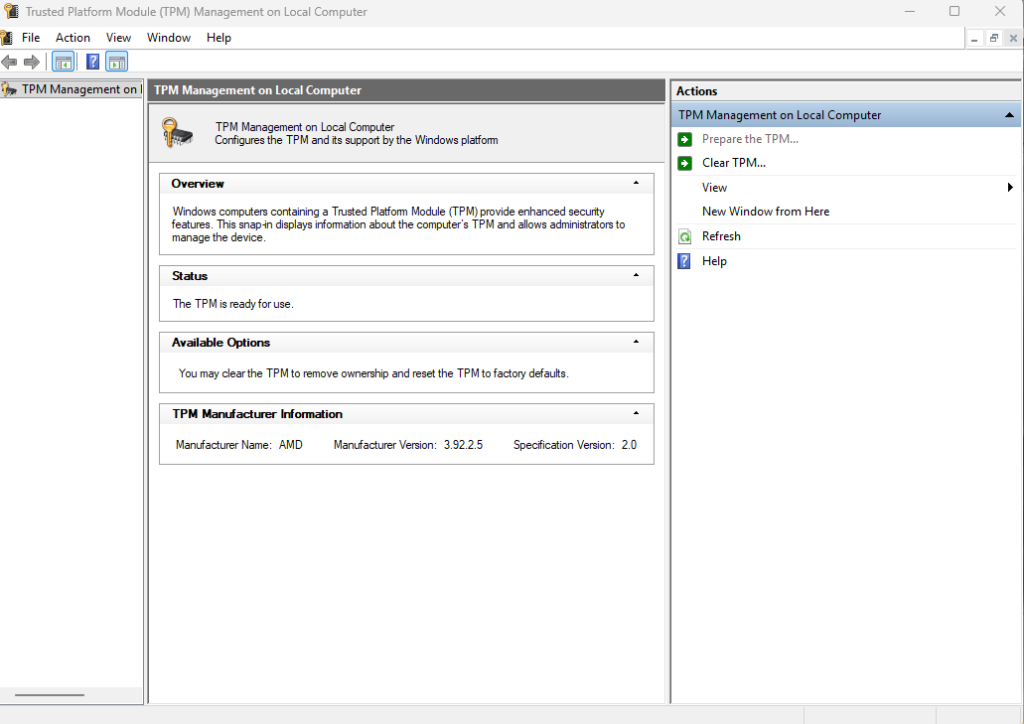
- “Compatible TPM cannot be found” — either it’s disabled in BIOS or your hardware genuinely doesn’t have it.
- “The TPM is ready for use” — check the Specification Version at the bottom. It needs to say 2.0. If it says 1.2, that’s not sufficient.
If it’s disabled, here’s how to turn it on:
Go to Settings > System > Recovery > Restart now (under Advanced startup). From there: Troubleshoot > Advanced options > UEFI Firmware Settings > Restart.
Once you’re in BIOS, the setting name varies by motherboard manufacturer:
- AMD systems: look for “AMD fTPM” or “AMD CPU fTPM” — usually under Advanced or Security
- Intel systems: look for “Intel PTT” (Platform Trust Technology) — same location
Enable it, save with F10, reboot. Run tpm.msc again. If it now shows TPM 2.0 ready, that blocker is gone.
3. Secure Boot Disabled
Less common than the TPM issue, but still shows up regularly on custom builds.
Secure Boot is a UEFI feature that verifies your OS hasn’t been tampered with during startup. Windows 11 requires it. Most modern motherboards support it, but it needs to be switched on.
Check it by pressing Win + R, typing msinfo32, and looking for “Secure Boot State” in the System Summary. It should say “On.”
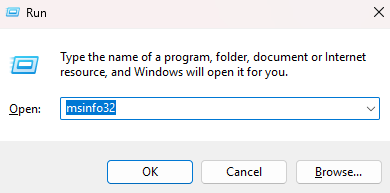
If it says “Off” or “Unsupported,” go back into BIOS and look for Secure Boot under the Boot or Security section. Enable it and save.
One thing worth knowing: if your drive is set up with MBR partitioning instead of GPT, Secure Boot won’t work. This is rare on any PC built after 2012, but if you’re on older hardware you converted from Windows 7 or 8, it can happen. Converting MBR to GPT is possible without data loss using Windows’ MBR2GPT tool, but it’s a more involved process.
What If Your CPU Is the Problem?
If your CPU generation is the blocker, the situation is honest: you need new hardware at some point.
The bypass options exist. Rufus can create a Windows 11 installation USB that skips the TPM, Secure Boot, and CPU checks. It works. Plenty of people are running Windows 11 on unsupported hardware right now.
But Microsoft has been clear that unsupported installs may not receive future feature updates, and there’s no guarantee that tightens further. Running a major OS without security patches because you can’t officially upgrade isn’t a long-term solution. It just delays the same problem.
If your CPU is 7th Gen Intel or first-gen Ryzen, you have two real options: bypass and accept the risk, or plan a new build.
If You Need a New Build
If you’re at the point where a new system makes more sense than patching around an unsupported one, here’s the market reality in mid-2026.
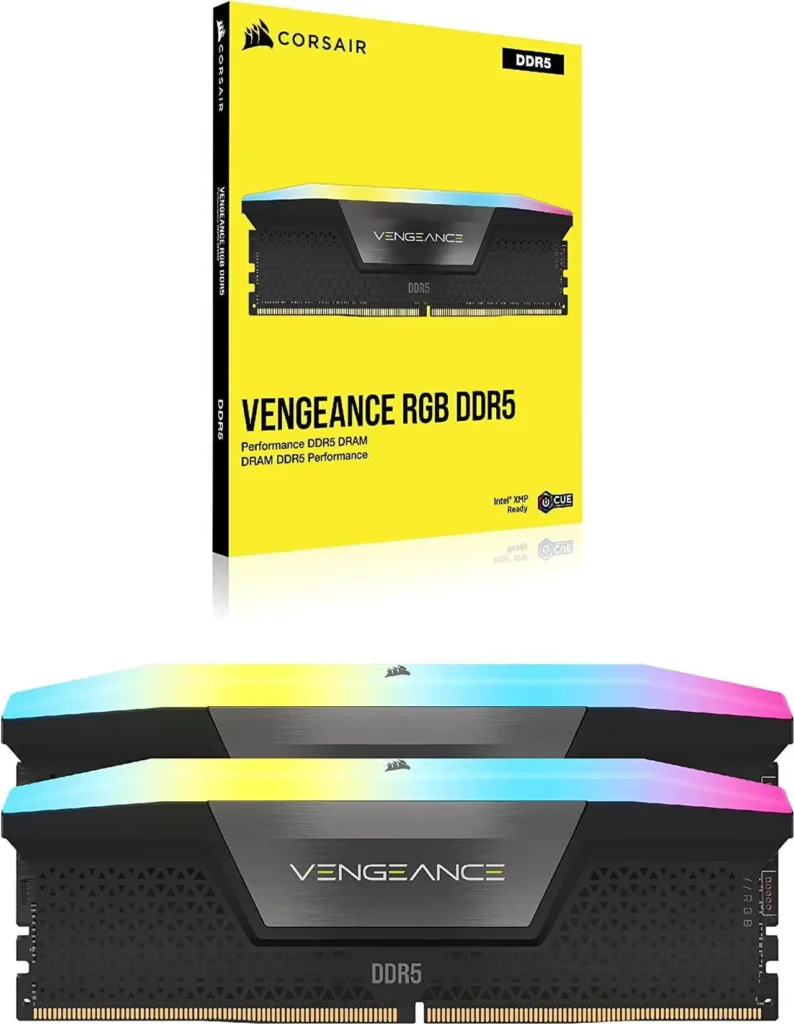
RAM pricing is painful right now. The Corsair Vengeance RGB DDR5 6000 32GB kit (CMH32GX5M2E6000C36) is running around $440 standalone on Newegg, though combo deals with motherboards can bring that closer to $255. This isn’t what DDR5 cost 18 months ago. The AI-driven memory crunch is real and isn’t resolving soon.
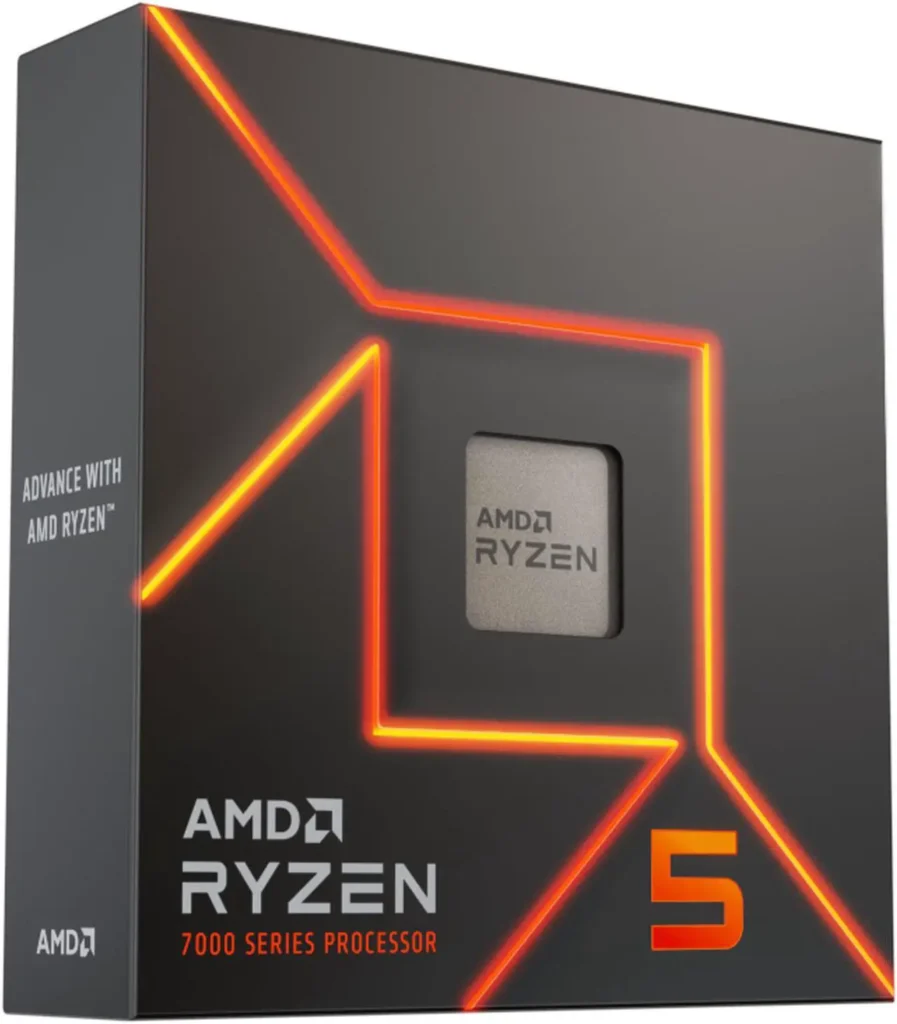
Everything else is more manageable. An AMD Ryzen 5 7600X is sitting around $195 on Newegg at the time of writing it becomes solid AM5 entry point, natively Windows 11 compatible, 6 cores and 12 threads with strong single-core performance for gaming.
For full build recommendations at specific budgets, SpecClear’s build guides have verified current pricing:
- Best Gaming PC Build Under $1,400 in 2026 — full AM5 build with RTX 5060
- Best Budget CPU and GPU Combinations for 1080p Gaming in 2026 — if you’re upgrading components rather than starting fresh
The Quick Summary
Run PC Health Check first. If it passes, upgrade.
If it fails, check which of the three blockers you’re hitting. TPM 2.0 and Secure Boot are both fixable in BIOS for most modern systems has no new hardware required. Take 10 minutes in BIOS before assuming you need to spend money.
If the CPU generation is the problem, the honest answer is that a new build is coming eventually. The only question is whether you patch around it in the meantime or get ahead of it now while component prices on CPUs are reasonable.
Don’t wait on the RAM though. It’s not getting cheaper.
SpecClear participates in affiliate programmes. When you purchase through links on this site we may earn a commission at no additional cost to you.