SpecClear earns a commission if you buy through Newegg links on this page, at no extra cost to you.
Overclocking a GPU in 2026 is safer, more accessible, and more reversible than it’s ever been. The tools are free. The process takes under an hour. And if anything goes wrong, which it rarely does when you follow a methodical approach, pressing a single button in the software resets everything to factory defaults.

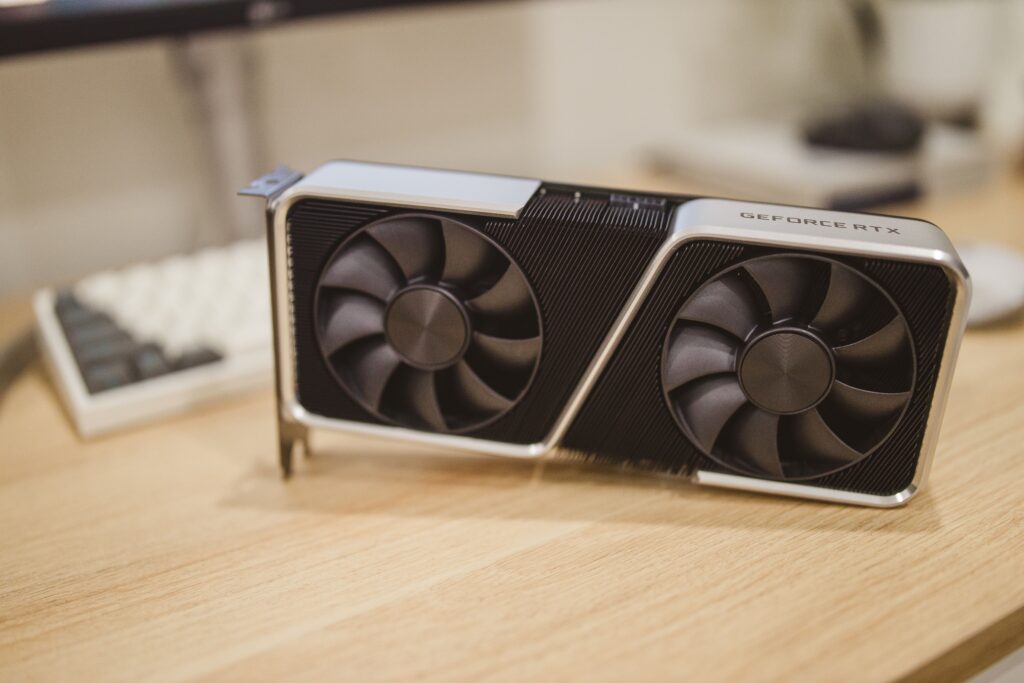
This guide covers the complete process for both Nvidia and AMD graphics cards, explains why the two platforms require different approaches, introduces the silicon lottery and why your results will differ from anyone else’s, gives you conservative before-and-after performance estimates, and tells you exactly what to avoid.
Read the whole guide before touching any settings. Understand what you’re doing before you do it.
What GPU Overclocking and Undervolting Actually Do
Your GPU has two key performance variables: core clock speed (how fast the chip runs) and memory clock speed (how fast the VRAM operates). From the factory, both are set conservatively, the manufacturer has to guarantee the card works correctly across millions of units, in every case, at every temperature, with every PSU. The result is that most GPUs have headroom above their factory settings that you can access safely.
Overclocking pushes the core clock and memory clock higher than stock, extracting more performance from the same hardware. More clock speed means more frames per second in GPU-limited scenarios.
Undervolting works in the opposite direction, not reducing clock speed, but reducing the voltage the GPU uses at a given clock speed. Modern GPUs boost their clocks based on temperature, power, and voltage limits. By running at lower voltage for the same clock speed, the GPU produces less heat, which means it sustains its boost clocks longer before thermal throttling pulls them back. Counter-intuitively, undervolting often produces better sustained performance than stock, not worse. The same idea applies to processors, as our guide to overclocking your CPU and RAM explains.
In practice, the best approach combines both: find the highest stable clock speed your GPU can reach, then undervolt it to run at that speed as efficiently as possible. Lower temperature, lower noise, better sustained performance.
The Silicon Lottery: Why Your Results Will Differ
Every GPU chip is manufactured on a silicon wafer. No wafer is perfect. Microscopic variations in the manufacturing process mean some chips on the wafer are slightly better quality than others, they can run at higher clocks, accept lower voltages, and produce lower temperatures. Other chips from the same batch are slightly worse. All of them get flashed with the same firmware and sold as the same product at the same price.
This variation is called the silicon lottery. Two people with identical RTX 5070s, identical cooling, and identical systems may find completely different overclocking results. One card might be stable at +150MHz on the core. The other might crash at +80MHz. Neither owner did anything wrong, their chips simply drew different positions in the lottery.
What this means practically: ignore anyone who tells you “the RTX 5070 can definitely do +200MHz on the core.” That’s their chip. Your chip is different. Start from the beginning, work incrementally, and let your specific card tell you what it can handle. Don’t chase someone else’s numbers.
It also means a chip that undervolts well is often a better silicon lottery winner than one that needs high voltage to maintain its clocks. If your GPU runs cool and stable at lower voltage, you won. If it needs maximum voltage to hit its rated clocks, you drew a worse chip. Neither outcome is dangerous. Only the result differs.
Before You Start: The Non-Negotiable Preparation
Update your drivers first. Both Nvidia and AMD have had specific driver versions that caused instability during overclocking testing. For Nvidia, confirm you’re on driver 595.76 or later, avoid the problematic 595.59 and 595.71 releases. For AMD, use the latest stable Adrenalin release from AMD’s website. Open the Nvidia App or AMD Adrenalin software and check for updates before touching any clock settings.
Clean your PC. A GPU that’s running 10°C hotter than it should because the heatsink fins are full of dust has less overclocking headroom than a clean one. If your GPU fans are more than three months since their last clean, compressed air the heatsink now. Five minutes of cleaning can recover 5-8°C of thermal headroom. If temperatures stay high after cleaning, our GPU repasting guide is the next step.
Run your baseline benchmark. This is the most important step and the one most people skip. Before changing anything, run 3DMark Time Spy or Unigine Superposition and record your score. Write it down. This is your before number. Without it, you have no way to know whether the overclock actually improved performance or just generated instability.
Conservative baseline estimates for reference:
| GPU | Typical Stock 3DMark Time Spy Score |
|---|---|
| RTX 5060 | ~12,000-13,500 |
| RTX 5060 Ti | ~14,500-16,000 |
| RTX 5070 | ~18,000-20,000 |
| RTX 5070 Ti | ~22,000-24,000 |
| RTX 5080 | ~26,000-29,000 |
| RX 9060 XT | ~11,000-12,500 |
| RX 9070 | ~17,000-19,000 |
| RX 9070 XT | ~20,000-22,500 |
These are population averages from community testing, your stock score may differ by 5-10% in either direction depending on your specific chip, cooling, and system.
Expected gains from a successful overclock/undervolt: 5-15% improvement on the benchmark score. In real gaming, the frame rate gain is typically 5-10% in GPU-limited scenarios. This is meaningful, 5% on 80fps is 4 extra frames per second, but don’t expect transformational gains. You’re tuning an already-fast card, not adding a new GPU tier.
The Tools: Free, Established, Trusted
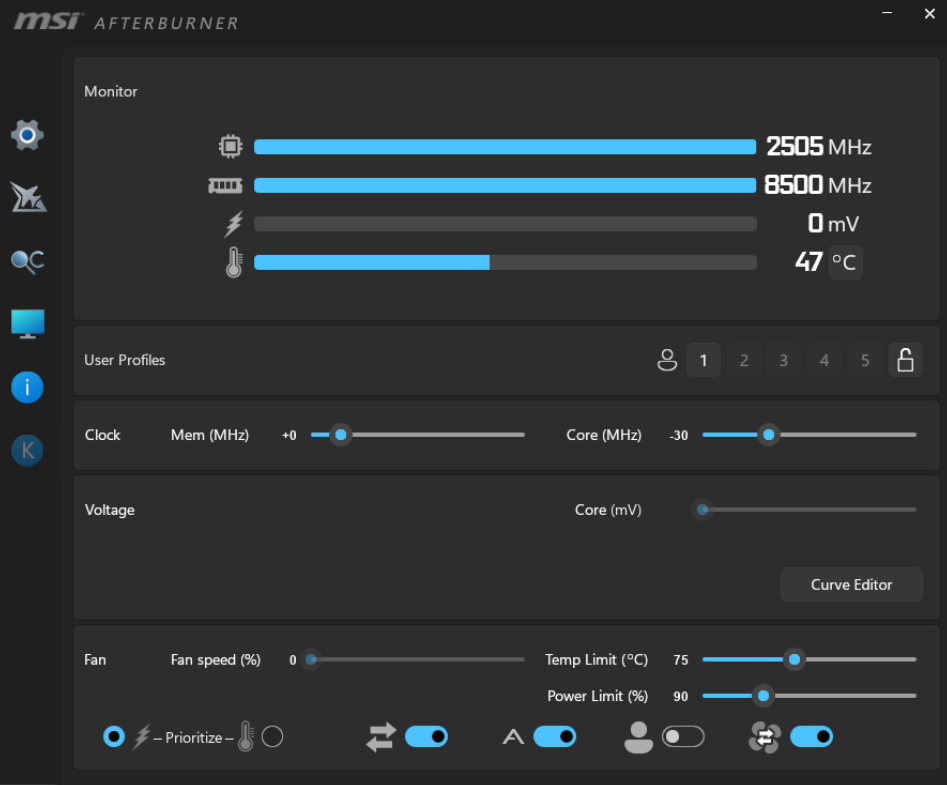
MSI Afterburner is the tool for Nvidia GPU overclocking, and also works for AMD. Download it from MSI’s official website. It’s free, has been the community standard for over a decade, and works with every modern GPU regardless of manufacturer. You don’t need to own an MSI GPU to use MSI Afterburner.
AMD Adrenalin includes its own GPU tuning tools directly in the driver software. For AMD cards specifically, Adrenalin’s built-in Radeon Performance Tuning is the cleaner approach, everything in one place, integrated with AMD’s driver stack.
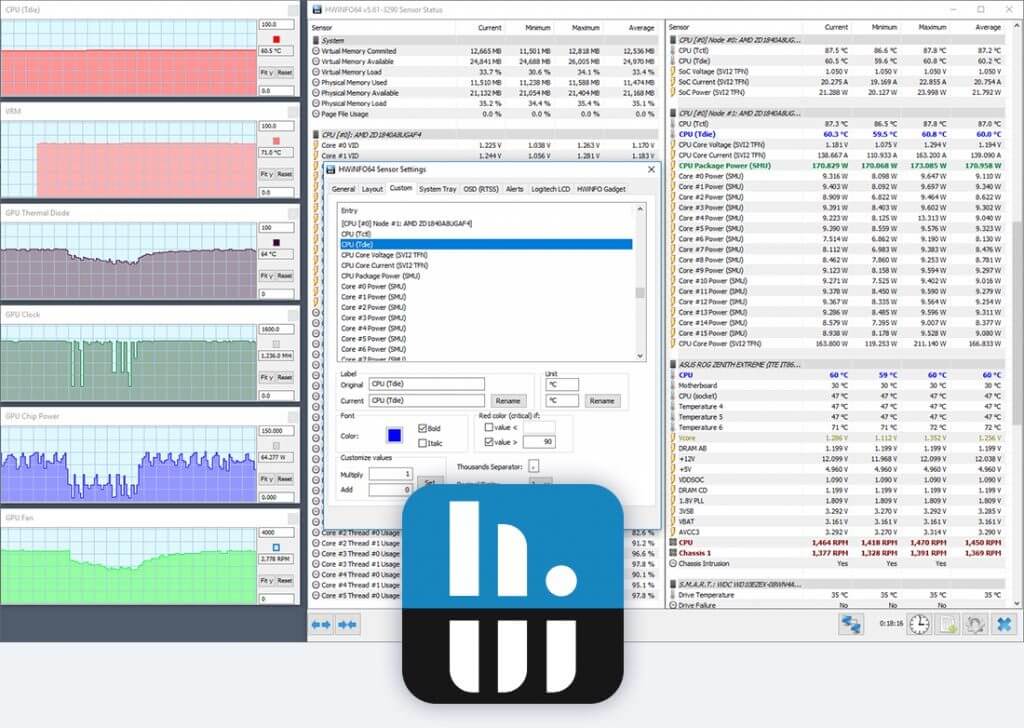
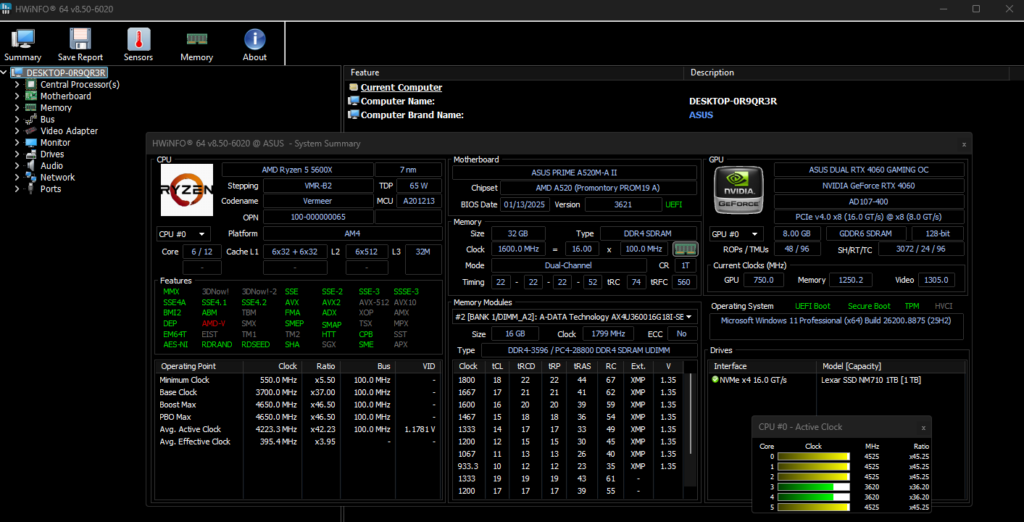
HWiNFO64 is your monitoring tool. Download it and run it in sensor-only mode. It shows GPU core temperature, junction temperature, core clock, power draw, and voltage in real time. Run it in a small window alongside your game or benchmark.
3DMark: download the free version from Steam. Time Spy is the test to use for GPU overclocking validation. Run it before and after every change.

Nvidia GPU Overclocking with MSI Afterburner
Step 1: Open Afterburner and Understand the Interface
Open MSI Afterburner. You’ll see five main sliders: Core Voltage, Power Limit, Temp Limit, Core Clock, and Memory Clock. The lock icon between Core Voltage and Power Limit links them together on some cards.

For modern Nvidia RTX 50 series cards, Core Voltage control may be greyed out, Nvidia locked direct voltage control on recent generations in favour of the curve-based approach. This is fine. We’ll work within what’s available.
Do not touch anything yet. Read the interface and understand what each slider does before moving anything.
- Power Limit: Controls the maximum wattage the GPU can draw. Increasing it allows the GPU to boost harder and longer at the cost of more heat and power consumption.
- Temp Limit: The temperature ceiling the GPU respects before pulling back clocks. Leave this at default, 83-87°C depending on card.
- Core Clock: Adds MHz to the GPU’s core clock offset. This value adds to whatever the GPU would otherwise boost to.
- Memory Clock: Adds MHz to the VRAM clock. Memory overclocking is often where the largest gains come from with least risk.
Step 2: Raise the Power Limit First
Before touching clock speeds, raise the Power Limit slider to its maximum, typically 103-120% depending on the card. This gives the GPU permission to draw more power and sustain higher boost clocks longer. On many cards this alone produces a 2-3% performance improvement with zero stability risk.
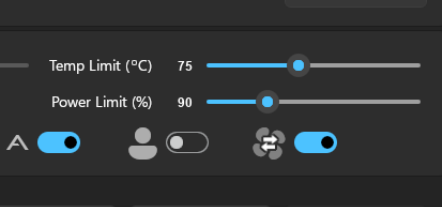
Click Apply (the tick icon). Run Time Spy and note the score. This is your post-power-limit baseline.
Step 3: Memory Clock Offset
Memory overclocking on Nvidia is typically the lower-risk, higher-reward starting point. GDDR7 on RTX 50 series responds well to memory overclocking. Start conservatively.
Set the Memory Clock slider to +500. Click Apply. Run Time Spy. Note the score. If stable, push to +800. Run Time Spy again. Continue in +200 increments until either:
- The benchmark crashes or produces visual artefacts, horizontal lines, flickering pixels, colour corruption
- You reach +1500 (a common stable ceiling for GDDR7)
If you see artefacts, that’s not a crash, it’s the memory telling you it’s too fast. Drop back by 200 and that’s your memory ceiling. Artefacts cause no damage. They’re information.
What artefacts look like: thin horizontal lines across the screen, flickering textures, random coloured pixels appearing. If you see these, the memory is unstable. Drop the offset.
Step 4: Core Clock Offset
Core clock overclocking carries more risk of system crashes than memory overclocking, and produces smaller gains on modern Nvidia cards because they already boost aggressively. Start at +50.
Set Core Clock to +50. Click Apply. Run Time Spy. If stable, push to +100. Continue in +50 increments up to a maximum of +200. Above +200 on the core, stability drops sharply on most chips and the gains per MHz become negligible.
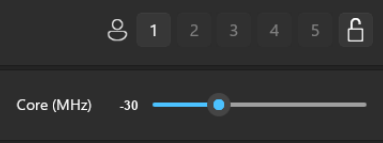
If the benchmark crashes to desktop, the driver restarts, the screen goes black briefly, then returns, that’s a core clock instability event. Drop back by 50 and you’ve found your ceiling. No damage occurs from a crash during overclocking. The GPU resets itself.
Step 5: Validate for 30 Minutes
Once you have a stable Memory Clock and Core Clock offset, the benchmark passes don’t guarantee the settings are daily-driver stable. Run Unigine Superposition at 1080p Extreme for 30 minutes continuously. Watch the HWiNFO64 sensor panel throughout. Confirm no crashes, no artefacts, and GPU temperature stays below 85°C.
If it passes, you have a stable overclock. If it crashes mid-run, drop the core clock by 25 and run again.
Step 6: Save the Profile
In MSI Afterburner, click one of the numbered profile save slots (1-5 on the right side) after clicking the save icon (floppy disk). This saves your settings. Enable “Start with Windows” in Afterburner settings so the overclock applies automatically at startup.

How to Undo Everything: Nvidia
In MSI Afterburner: click the Reset button (circular arrow icon). All sliders return to zero. Click Apply. Your GPU is back to stock. Complete reset in three clicks.
Alternatively: uninstall MSI Afterburner entirely. Without Afterburner running, no overclock is applied.
AMD GPU Overclocking with Adrenalin
AMD’s approach differs fundamentally from Nvidia’s. AMD cards use a voltage-frequency curve rather than a fixed clock offset, you tune the relationship between voltage and clock speed across the entire operating range rather than adding a fixed offset to a boost clock.
Option 1: Auto Tune (Beginner Recommended)
Open AMD Adrenalin. Go to Performance → Tuning. Click the “Auto Tuning” button. Select “Optimised GPU” and let it run. Adrenalin will run its own automated overclock test over approximately 20 minutes, find the maximum stable clock speed for your specific chip, and apply it automatically.
Auto Tune is the correct starting point for first-time AMD overclockers. It’s specifically designed for the silicon lottery, it tests your chip specifically rather than applying generic values. The result is a validated overclock tailored to your card.
After Auto Tune completes: run Time Spy and record your new score.
Option 2: Manual Voltage-Frequency Curve
For experienced users who want more control: in Adrenalin Performance → Tuning, enable Manual tuning. You’ll see the voltage-frequency (V/F) curve, a graph showing the maximum clock speed at each voltage step.
The standard approach for AMD undervolting is:
- Find the peak frequency point on the curve, typically the rightmost active point
- Reduce the voltage at that point by 50-75mV
- Apply and run Time Spy
- If stable, reduce another 25mV
- Continue until the system crashes during testing, then add 25mV back
This is undervolting, the same clock speed at lower voltage. The GPU runs cooler, fans spin slower, and because it’s cooler it can sustain the boost clock longer. In practice this produces better sustained gaming performance than a simple frequency increase on AMD hardware.
AMD-specific rule: Never apply a positive voltage offset on RX 9000 series cards without a specific reason and without knowing your card’s maximum safe voltage. The maximum safe voltage for RDNA 4 is approximately 1.2V. Stay well below this unless you know exactly what you’re doing. The Auto Tune approach handles voltage automatically within safe limits. Test every change with the tools in our stress testing guide.
Memory Overclocking on AMD
In Adrenalin under Manual tuning, the Memory section allows VRAM frequency adjustment. AMD RDNA 4’s GDDR6 responds similarly to Nvidia’s GDDR7 on memory overclocking, start with a modest +100MHz and test in 50MHz increments. Watch for artefacts the same way as Nvidia.
How to Undo Everything: AMD
In Adrenalin: Performance → Tuning → click “Reset” or toggle Manual off. All settings return to AMD’s default. Complete reset in two clicks.
Alternatively: uninstall and reinstall the AMD driver using AMD’s clean install option. This wipes all tuning to factory defaults.
The Differences Between AMD and Nvidia Overclocking
This table is worth understanding before you start. The platforms require genuinely different mental models.
| Aspect | Nvidia (Afterburner) | AMD (Adrenalin) |
|---|---|---|
| Primary tool | MSI Afterburner | AMD Adrenalin |
| Clock control | Fixed offset above boost | Voltage-frequency curve |
| Best approach | Power limit + memory + small core offset | Auto Tune or V/F curve undervolt |
| Voltage control | Limited on RTX 50 series | Full curve control |
| Auto tuning | OC Scanner in Afterburner | Auto Tune in Adrenalin |
| Biggest gains | Memory clock offset | Undervolting for sustained clocks |
| Reset method | Reset button in Afterburner | Reset in Adrenalin tuning panel |
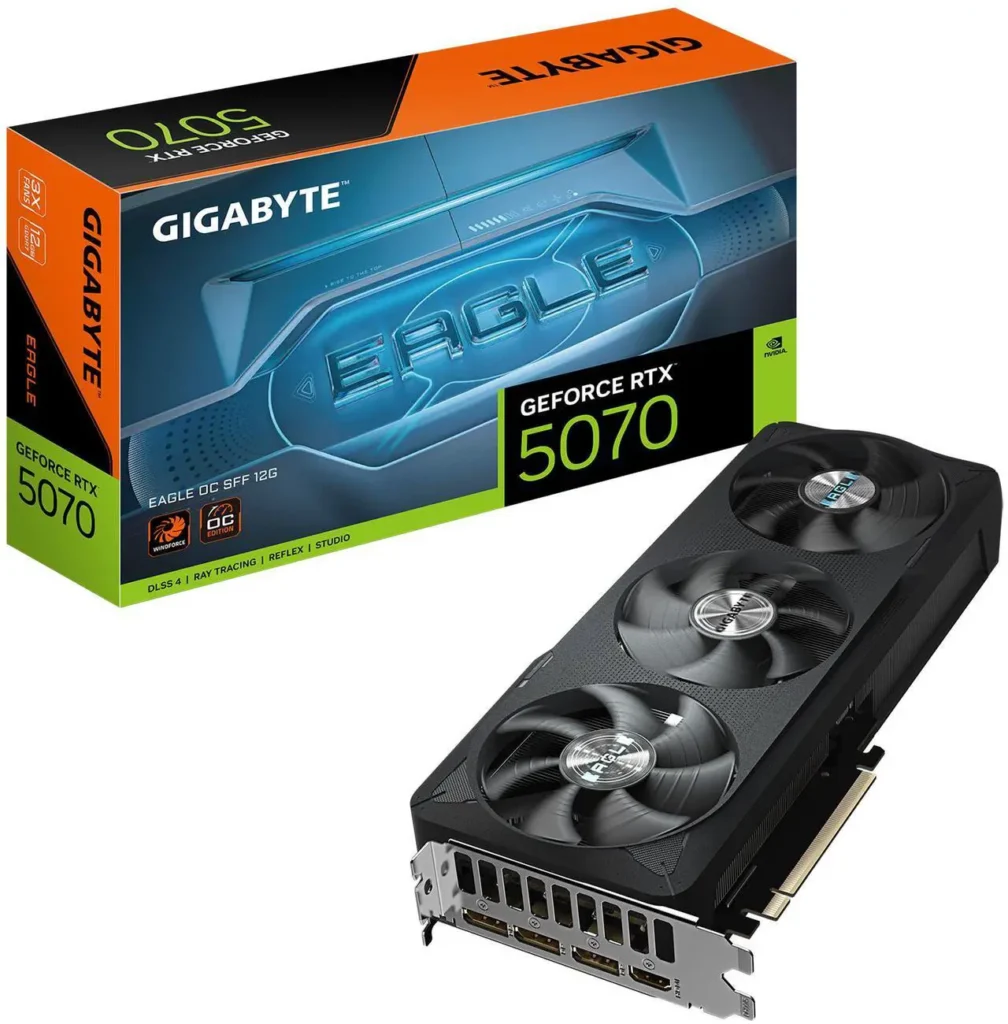
The core philosophical difference: Nvidia cards benefit most from giving the GPU permission to use more power (power limit raise) and pushing memory speed. AMD cards benefit most from finding the most efficient point on the voltage-frequency curve, often through undervolting rather than traditional overclocking. RTX 5070 ($809)
What to Avoid Completely
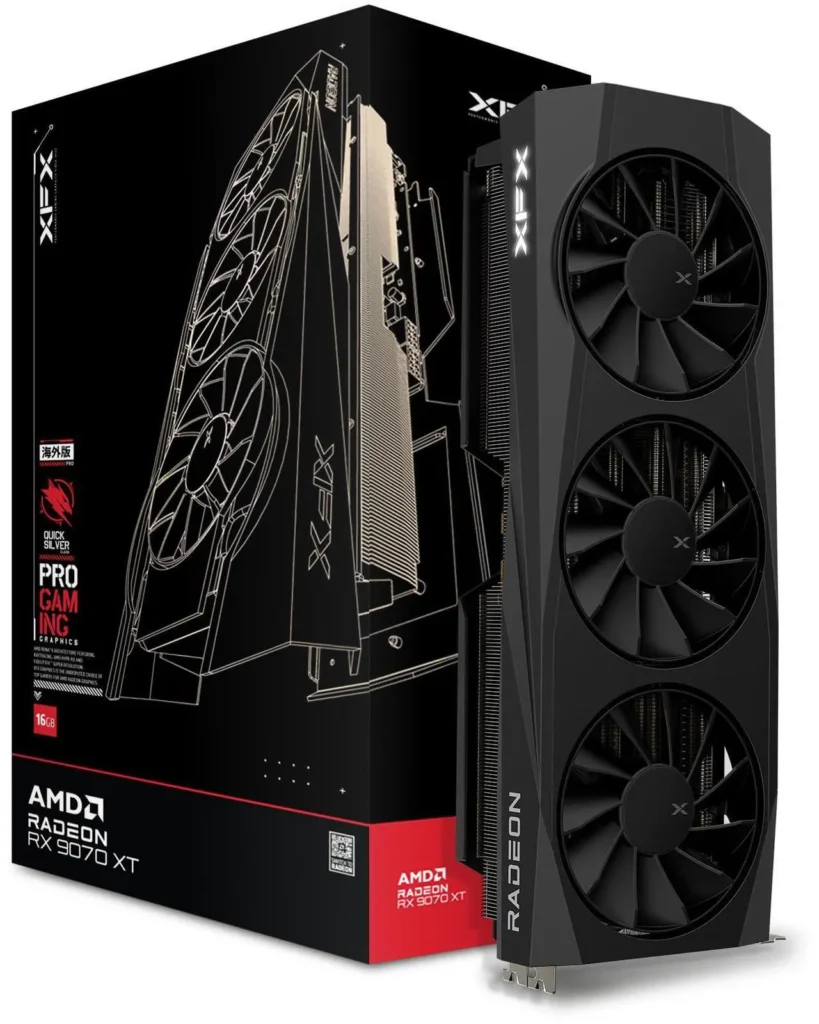
Don’t increase voltage manually unless you know exactly what you’re doing. On Nvidia’s RTX 50 series, voltage control is largely locked for this reason. On AMD, the Auto Tune approach handles voltage within safe limits automatically. Manual voltage increases above AMD’s maximum safe threshold (approximately 1.2V for RDNA 4) cause permanent silicon degradation over time. This is the one area where real damage can occur. RX 9070 XT ($729)
Don’t skip stability testing and go straight to gaming. A setting that passes a five-minute benchmark may crash 40 minutes into a demanding game session. Run the 30-minute Superposition test before declaring anything stable.
Don’t mix and match settings from online guides directly. The silicon lottery means someone else’s stable settings may be unstable on your card. Use other people’s numbers as a starting point, not a destination.
Don’t overclock a GPU that’s running too hot at stock. If your GPU hits 90°C+ under standard gaming load before any overclocking, the overclock will push it further. Fix the thermal situation first, clean the heatsink, improve case airflow, repaste if the card is old, before tuning.
Don’t ignore artefacts. Visual artefacts during testing are the GPU telling you something is wrong. They cause no damage during testing, but running at artefacting settings in daily use can cause file corruption on loaded textures. When you see artefacts, dial back immediately.
Temperature Limits: The Numbers to Respect
| Reading | Safe | Caution | Stop |
|---|---|---|---|
| GPU Core Temp (Nvidia) | Below 83°C | 83-87°C | Above 87°C |
| GPU Junction Temp (AMD) | Below 90°C | 90-100°C | Above 100°C |
| VRAM Temp | Below 90°C | 90-100°C | Above 100°C |
| GPU Core Temp (AMD) | Below 85°C | 85-95°C | Above 95°C |
AMD cards show Junction Temperature in HWiNFO64, this is the hottest point on the die and runs 15-20°C above the reported core temperature. It’s normal for AMD junction temps to look alarming compared to Nvidia core temps. Use the table above for context.

Expected After Results
A successful GPU overclock and undervolt on a modern mid-range to high-end card typically produces:
- 3DMark Time Spy: +8-15% versus stock score
- Gaming frame rates in GPU-limited scenarios: +5-10%
- GPU temperature under sustained load: -3-8°C versus stock (with undervolting)
- Fan noise under gaming load: Noticeably reduced if temperature dropped significantly
These are realistic ranges based on community testing across multiple chip samples. Your specific results depend on your silicon lottery result, your cooling solution, your case airflow, and how aggressively you tune.