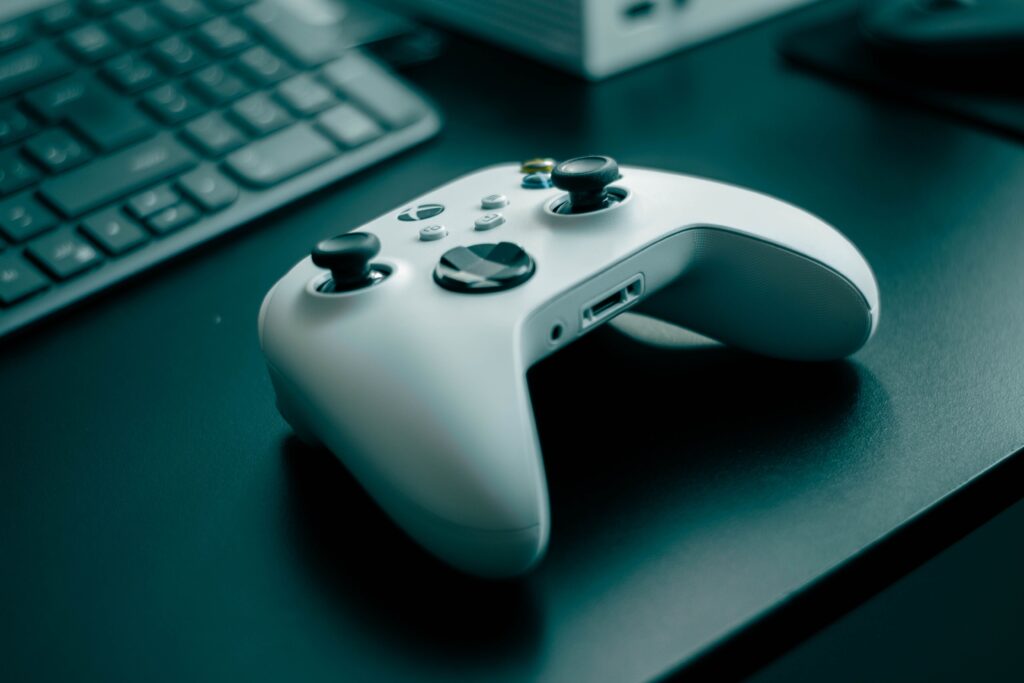
Controllers on PC should be simple. Plug in, it works. Sometimes it does. More often you discover the game doesn’t recognise it, or the button prompts show keyboard icons, or the back buttons and paddles you paid extra for do absolutely nothing. The software that fixes this exists and works well but it’s not intuitive if you’ve never used it before.
This guide how to set up gaming controller pc explains how controllers actually work on PC, what Steam Input does and why it matters, how to get every button including back paddles working correctly, and how to build profiles that change behaviour for different game types.
Why PC controller setup is more complicated than console
On PlayStation or Xbox, the platform controls everything. One controller, one system, one standard. Games are tested against it.
On PC, controllers have to work across three distinct scenarios that handle input differently.
Games with native controller support detect your controller directly through Windows and display the correct button prompts PlayStation symbols if you’re using a DualSense, Xbox labels for an Xbox controller. These games handle everything internally.
Games with partial controller support recognise a controller exists but may not display correct button prompts, may not support all inputs, or may not recognise non-standard buttons like back paddles at all.
Games without controller support were designed for keyboard and mouse and have no controller input path. Playing these with a controller requires a translation layer that converts your controller inputs into keyboard and mouse signals the game understands.
Steam Input handles the second and third scenarios. Understanding what it does and doesn’t do is the foundation of getting controllers to work well on PC.
What Steam Input actually is
Steam Input is Valve’s controller management system built into the Steam client. It sits between your controller and the game, intercepting inputs and translating them before the game receives them.
When Steam Input is active for a game, it sees your physical controller inputs and converts them according to the profile you’ve configured. If you press the South button (X on PlayStation, A on Xbox), Steam Input sends whatever that button is mapped to in your active profile which could be a controller input, a keyboard key, a mouse click, or a combination.
This translation happens invisibly. The game doesn’t know your controller has back paddles. It just receives inputs. Steam Input tells the game “the user pressed A” when you actually pressed your left back paddle and that’s exactly the behaviour you want.
Steam Input also handles what’s called Action Sets and Action Layers more on those in the profiles section, as they’re the feature that makes controllers genuinely powerful once you understand them.
Step 1: Enable Steam Input for your controller
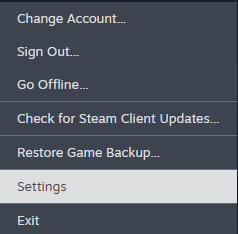
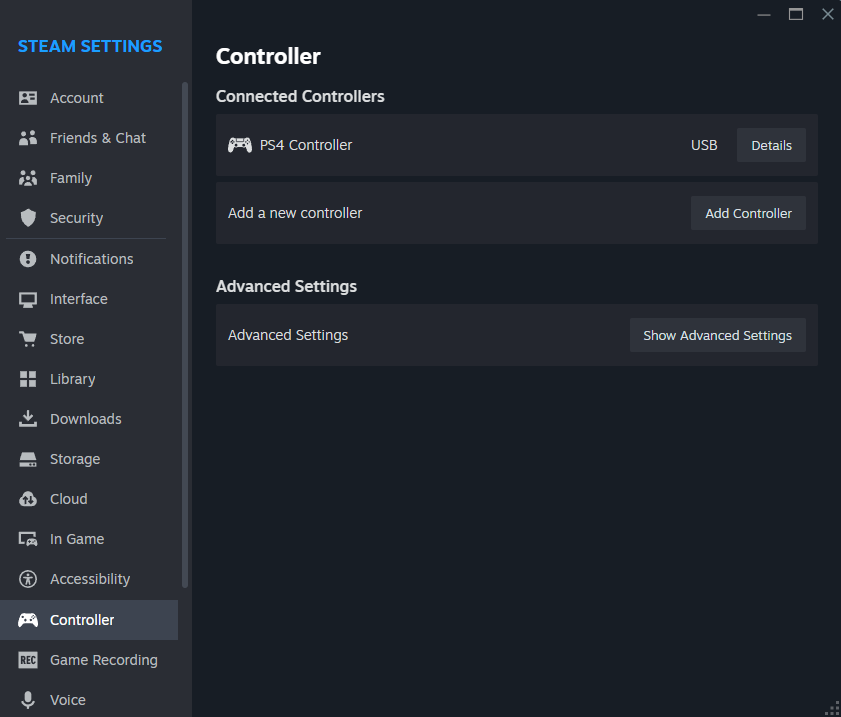
Open Steam. Go to Steam → Settings → Controller. You’ll see toggles for different controller types Xbox, PlayStation, Switch Pro, and Generic controllers. Enable the toggle for your controller type.
Below this you’ll find Desktop Configuration and Guide Button Chord Configuration these control what your controller does when you’re on the desktop rather than in a game. Leave these on default until you’re comfortable with Steam Input generally.
Steam Input can be enabled or disabled on a per-game basis. In your Steam library, right-click any game → Properties → Controller → and choose between Use default settings, Enable Steam Input, or Disable Steam Input. This matters because some games with excellent native controller support work better with Steam Input disabled the native implementation is already doing everything correctly and Steam Input would add an unnecessary translation layer on top. If you want a controller built around Steam Input, see our Steam Controller 2026 review.
A practical rule: if a game shows correct button prompts for your controller type and all buttons work correctly, leave Steam Input on default or disabled. If button prompts are wrong, some buttons don’t work, or your back paddles are unrecognised, enable Steam Input.
Step 2: Understanding the Steam Input configuration screen
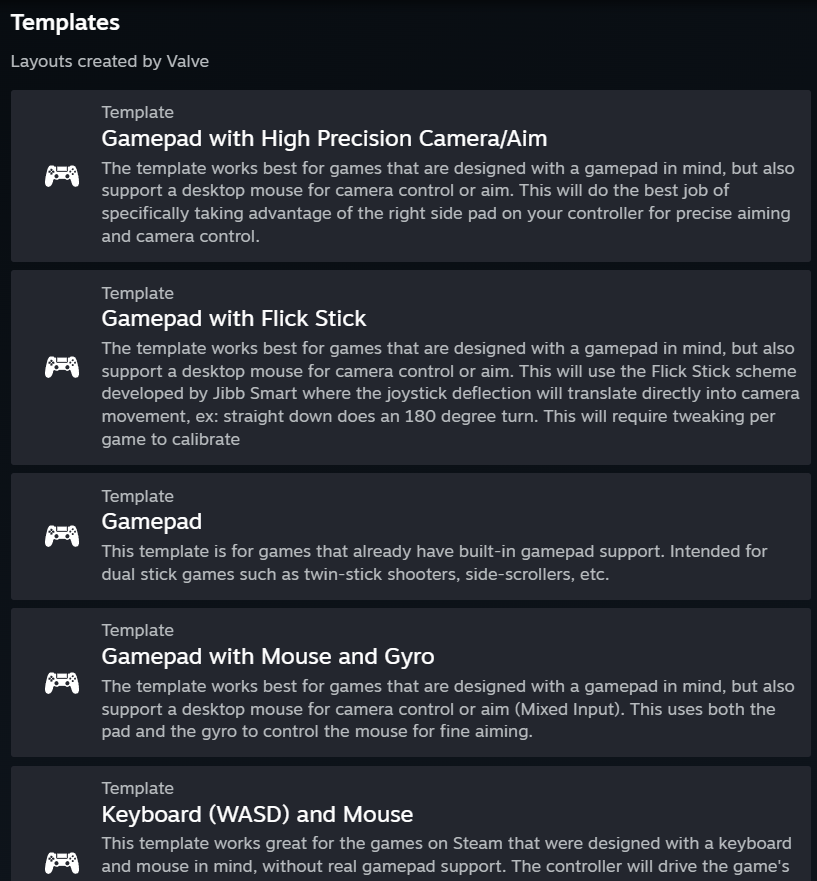
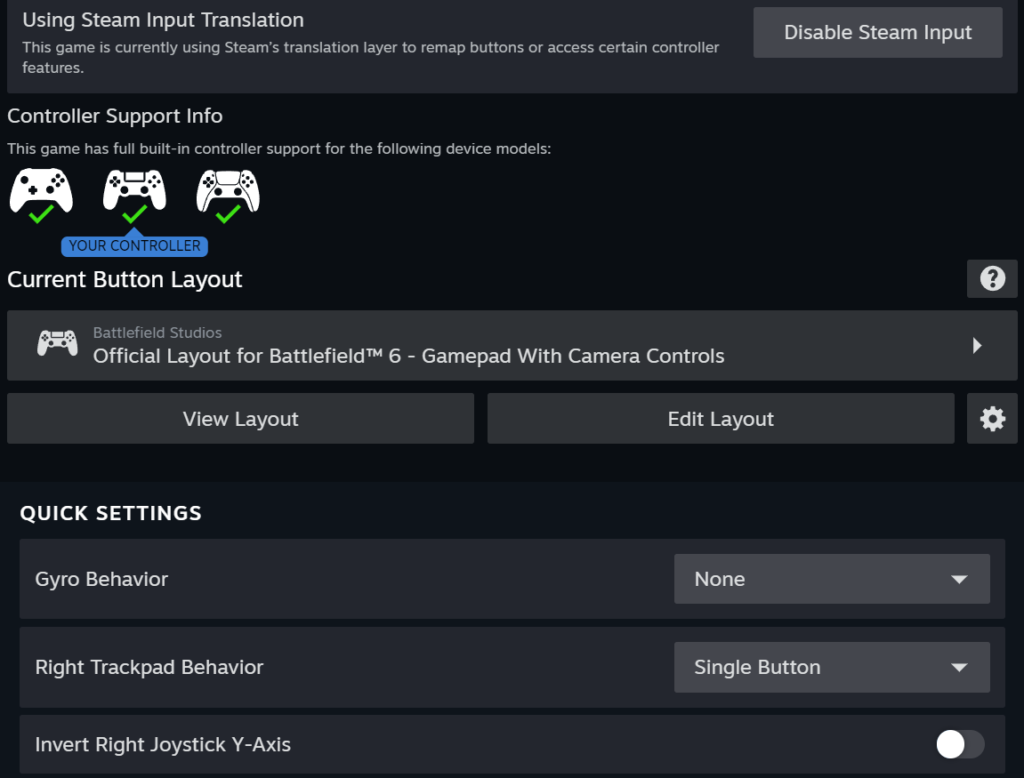
Launch a game with Steam Input enabled. While in-game, press and hold the Steam button on your controller (or Shift + Tab on keyboard) to open the Steam overlay. Select Controller Configuration.
The configuration screen shows a visual representation of your controller with every input listed. Each input has an assigned action which is what that input does in the current profile. You can browse and apply Community Layouts configurations other players have shared or build your own.
The inputs available depend on your controller model. A standard Xbox controller shows:
Buttons (A, B, X, Y), Bumpers (LB, RB), Triggers (LT, RT), Sticks (Left, Right, with click), D-Pad, Start, Select, and the Guide button.
A controller with back paddles the Xbox Elite Series 2, PS5 DualSense Edge, Scuf controllers, or similar adds additional inputs for each paddle. In Steam Input these appear as additional buttons you can map independently.
A controller with a gyroscope DualSense, Switch Pro, Steam Controller adds gyro as an additional input that can be configured for mouse-like aiming, supplementary movement input, or gesture recognition.
Step 3: Setting up back buttons and paddles
This is where most players with premium controllers get stuck. Back paddles and rear buttons often do nothing out of the box on PC because the game has no native mapping for them they’re not standard inputs on any platform’s reference controller.
Two approaches work. The first is controller-native remapping through the manufacturer’s software. The second is Steam Input.
Controller-native remapping
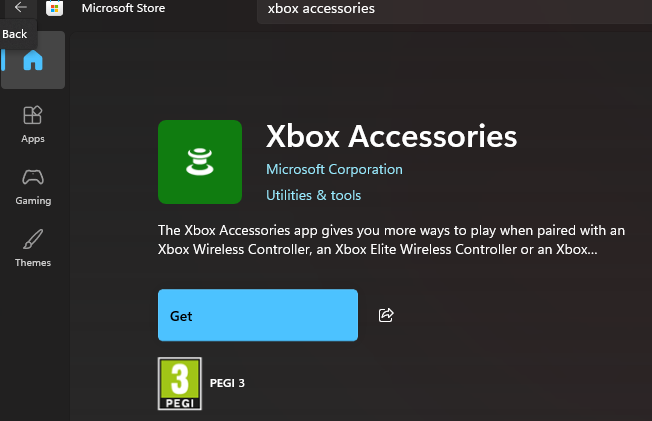
Xbox Accessories app (free, Microsoft Store) for Xbox controllers including Elite Series 2, PlayStation Accessories through PS Remote Play for DualSense Edge on PC, Scuf’s proprietary software for Scuf controllers. These apps let you remap back paddles to replicate any face button or stick click. The paddle presses become button A or button B as far as any game is concerned. Simple, reliable, works everywhere including outside Steam.
The limitation: you can only map paddles to existing controller inputs. You can’t make a paddle press Shift or Ctrl or a mouse button through manufacturer software.
Steam Input remapping
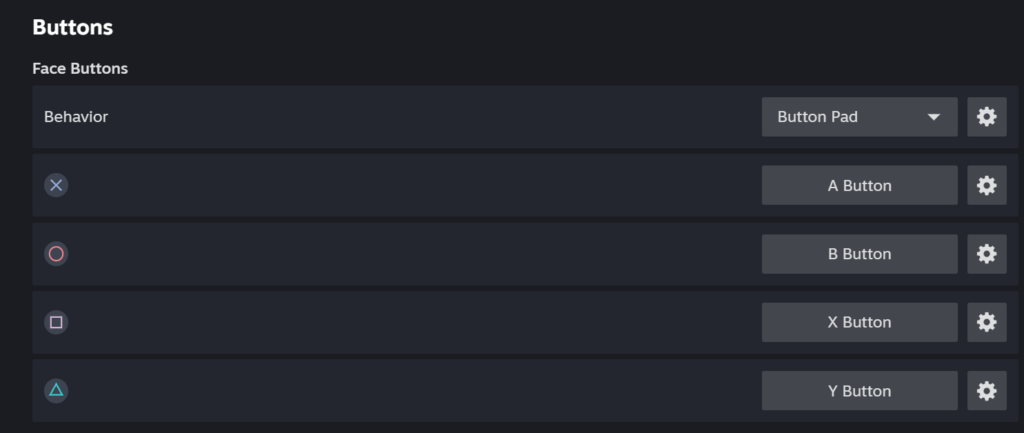
gives you complete flexibility. In the Controller Configuration screen, find your paddle inputs they appear as Back Paddle Left, Back Paddle Right, or similar depending on your controller. Click on one and set it to any action a controller button, a keyboard key, a mouse input, or a multi-button combination called an Action Set Layer trigger. This is the correct approach for games where you want paddles to trigger keyboard shortcuts like Push to Talk (often Caps Lock or a key), crouch toggle, or sprint.
Step 4: Understanding profiles and when to switch between them
This is where Steam Input becomes genuinely powerful for players who invest the time.
A profile is a complete controller configuration for a specific game or game type. Steam saves profiles per-game, so your CS2 profile, your Cyberpunk 2077 profile, and your racing game profile are all independent and load automatically when you launch each game.
Within a profile, Valve’s system uses two concepts that are worth understanding separately.
Action Sets are completely independent control schemes within the same profile. Imagine you’re playing an RPG in normal gameplay your left stick moves your character. In a menu, you want the same stick to navigate menu options. An Action Set lets you define both configurations and switch between them with a button press or automatically based on what the game is doing. Many games with full Steam Input support handle Action Set switching automatically.
Action Layers are modifications applied on top of your current Action Set rather than replacing it. If your base Action Set has left stick as movement, an Action Layer can temporarily change only the left trigger behaviour say, switching from aim-down-sights to a different function when you hold a specific button while leaving everything else unchanged. Layers stack and unstack instantly.
For most players the simpler approach is sufficient: build one profile per game type and switch manually when needed.
Step 5: Profiles for different game types
Here’s how to think about configuration for the most common gaming scenarios.
Competitive FPS (CS2: Valorant, Apex Legends)
Aim precision is the priority. Configure your right stick for Look with Response Curve set to Linear rather than the default Relaxed Linear gives you predictable 1:1 response that’s easier to build muscle memory around. Reduce Look Deadzone as low as your controller allows without stick drift. If your controller has gyro, enable Gyro as Mouse with a low sensitivity for fine aim corrections this is how professional controller players on PC compete. Map your most-used keyboard actions (crouch, jump, reload) to face buttons and paddles. Push to Talk should be on a paddle rather than a face button so it doesn’t conflict with gameplay inputs.
Action RPG and single-player adventure
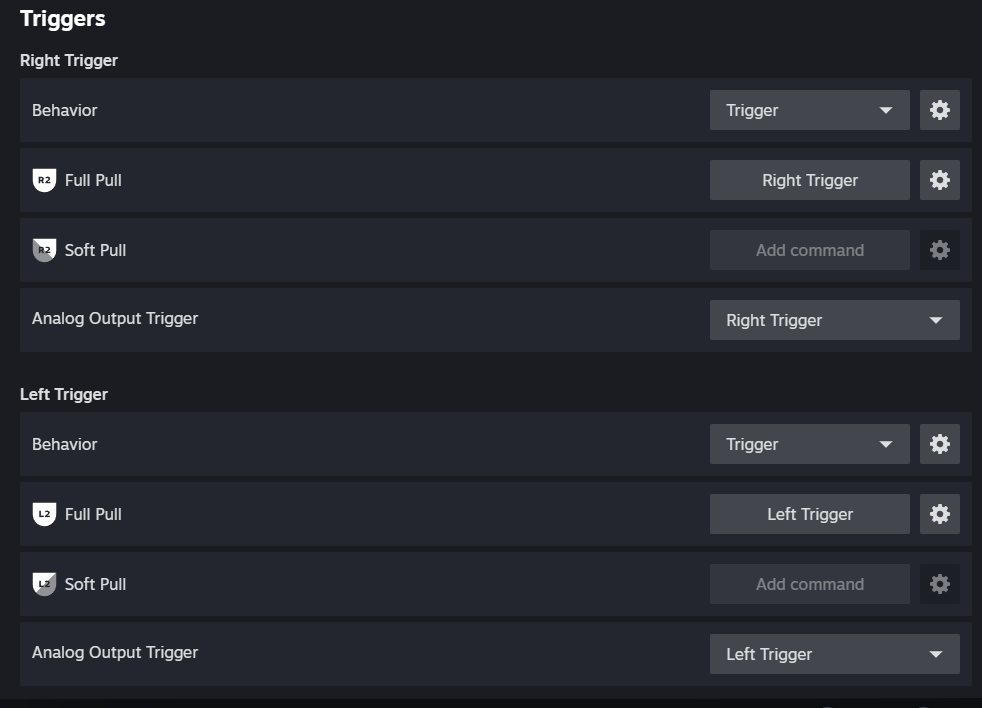
Default Xbox or PlayStation layout works well for most games in this category with native controller support. Where you customise: map your most-used inventory or ability shortcuts to paddles to reduce time navigating menus. Trigger sensitivity how much you press before the game registers a trigger input can be adjusted in Steam Input for triggers that feel too sensitive or not sensitive enough.
Racing games
Triggers are the steering wheel of a controller in racing games. In Steam Input, configure trigger output curves so light pressure gives you gentle acceleration and full press gives full throttle avoid the stepped trigger behaviour some controllers default to. If your controller has trigger haptics (DualSense), these are controlled by the game itself for supported titles rather than Steam Input.
Platform and action games
These work well with default layouts. Where Steam Input adds value: if you want a button to toggle rather than hold hold to sprint becoming toggle sprint you can set any button’s Behaviour to Toggle in Steam Input rather than needing the game to support toggle natively.
Step 6: Manufacturer software vs Steam Input: when to use which
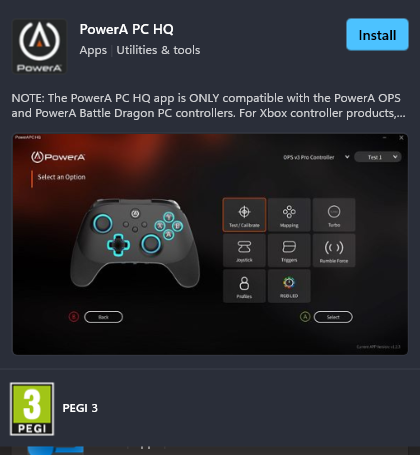
Use manufacturer software (Xbox Accessories, PlayStation Accessories, Razer Nexus, etc.) when: you want simple paddle-to-button remapping that works everywhere including non-Steam games and desktop use. The remapping is persistent at the hardware level and doesn’t require Steam to be running.
Use Steam Input when: you want paddles mapped to keyboard keys or mouse inputs, you want different profiles per game that load automatically, you want gyro aim, you want Action Sets or Layers for complex in-game behaviour changes, or you want to share your configuration with the Steam community.
Both can coexist. A common setup: use Xbox Accessories to map paddles to extra face buttons at the hardware level, then use Steam Input to configure those face button inputs per game. This gives you maximum flexibility the paddles work everywhere, and Steam Input handles the game-specific refinement.
When Steam Input causes problems: and how to fix it
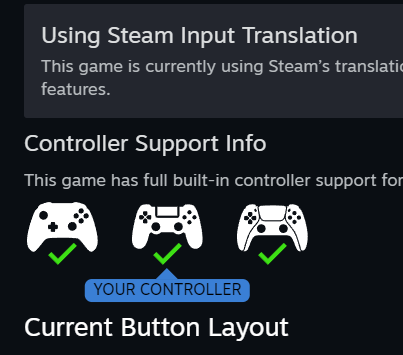
If a game shows Xbox button prompts when you’re using a PlayStation controller and Steam Input is enabled: in Controller Configuration, find the Preferences section and enable Use PlayStation Button Glyphs. Some games don’t support this override in that case the visual mismatch is cosmetic only and inputs still work correctly.
If a game registers double inputs pressing A triggers the action twice: Steam Input and the game’s native controller support are both active simultaneously. Right-click the game in Steam → Properties → Controller → Force Off to disable Steam Input for this specific game. The native implementation will handle everything.
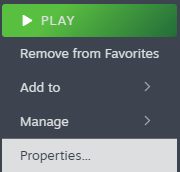
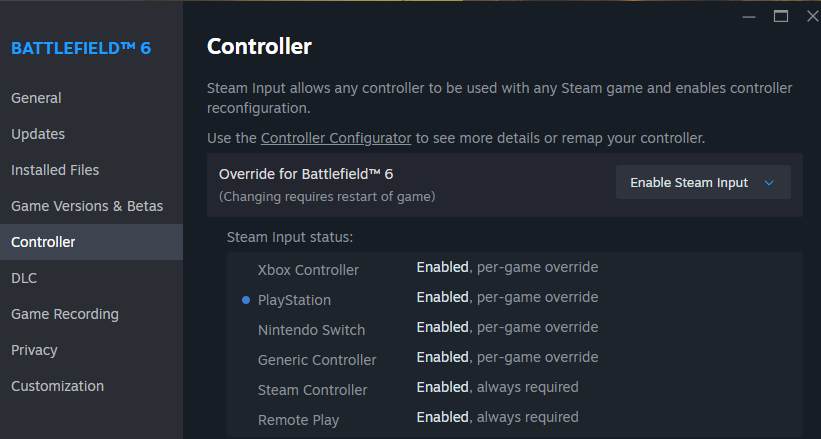
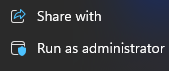
If your controller works in the Steam overlay but not in the game: the game is running with elevated permissions (as administrator) while Steam is not. Run Steam as administrator, or run the game without administrator permissions.
If back paddles still don’t appear in Steam Input: your controller may need its firmware updated through the manufacturer’s software before Steam recognises the additional inputs. Xbox Accessories app and PlayStation Accessories both have firmware update functions.