
SpecClear earns a commission if you buy through Newegg links on this page, at no extra cost to you.
RAID turns up in BIOS menus, motherboard spec sheets and enthusiast forums regularly enough that most PC builders have encountered the term before but Most have also navigated straight past it without touching it, which is usually the correct decision. Understanding what RAID actually does, which configurations are genuinely useful on a consumer desktop, and what each one costs you in drives and complexity makes that decision a deliberate one.

RAID 0, 1, 5 and 10 below are in plain terms: what hardware you need, and which modern desktop scenarios actually benefit.
What RAID is and what it is not
RAID stands for Redundant Array of Independent Disks. It’s a method of combining multiple physical storage drives so the operating system sees them as a single logical volume. Depending on the configuration, that combination can give you faster speeds, protection against drive failure, or both but at the cost of requiring multiple drives and losing some total usable capacity.
The most important thing to understand about RAID before anything else is that RAID is not a backup. This cannot be overstated enough. A RAID array that protects against drive failure does nothing to protect against accidental deletion, ransomware, fire, theft, or a RAID controller failure that corrupts the array metadata. Builders who set up RAID 1 and stop making backups are worse off than builders who keep a single drive and use backup software, because RAID 1 gives the false confidence of protection without the actual protection of a real backup strategy.
Hardware RAID vs Software RAID vs Intel RST
Before covering the different configurations it’s worth knowing how RAID is implemented on consumer platforms because the implementation type affects both performance and reliability.
Dedicated hardware-based RAID controllers are separate PCIe expansion cards with their own processor and cache. They’re used in servers and workstations, not consumer gaming PCs. They’re expensive which makes them overkill for home use, and not relevant here.

Software RAID involves using Windows Storage Spaces or Linux’s made for which handles all the parity calculations and striping in the operating system itself. CPU overhead is minimal on modern processors, and the array is tied to the OS rather than the hardware, meaning you can move drives to a different machine and rebuild the array without losing data. For consumer builds, this is the most flexible approach.

Intel RST (Rapid Storage Technology) and AMD RAIDXpert2 are firmware-level implementations that sit between pure hardware and pure software RAID. They use a small RAID chip on the motherboard or chipset rather than a dedicated card, and they handle array operations before the operating system. Intel RST is available on Z790, B760, Z890 and B860 platforms among others. AMD RAIDXpert2 is available on X570, B550, X870 and similar chipsets. Both are accessed through the BIOS or a Windows utility.
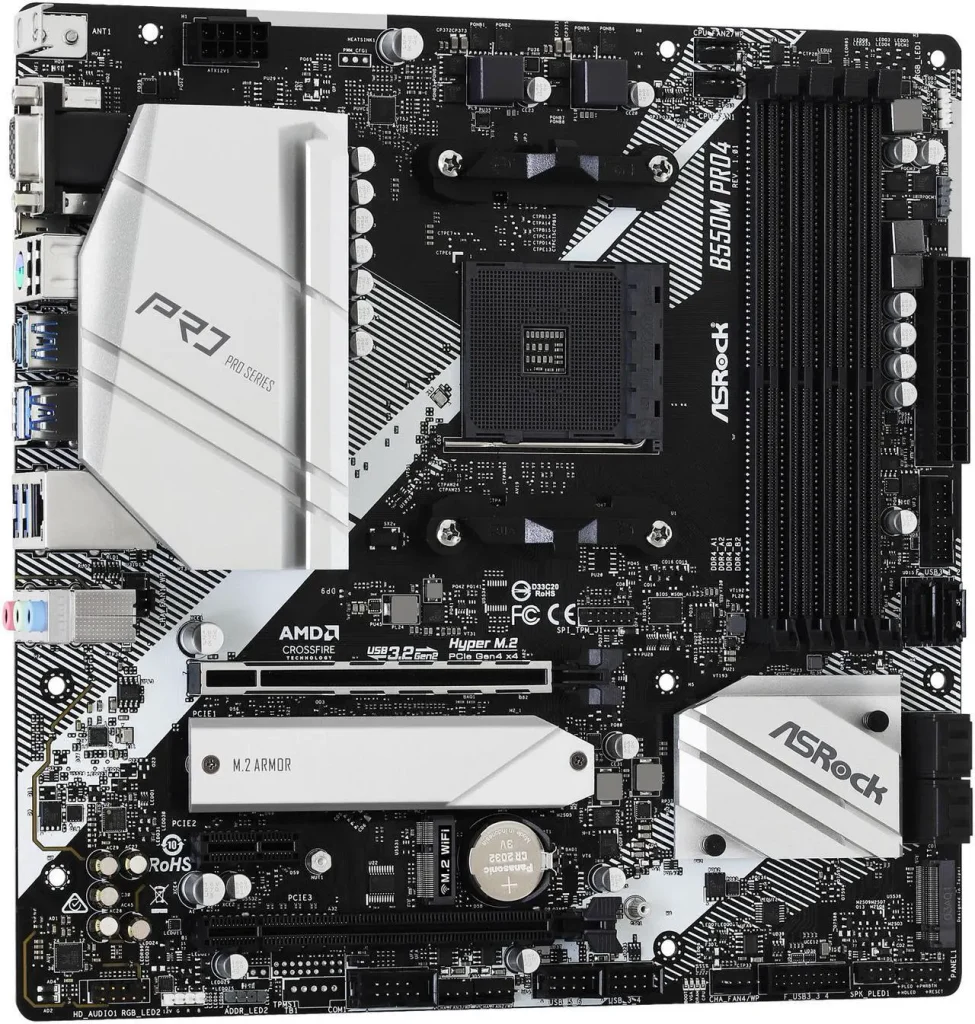
For gaming builds, software RAID through Windows Storage Spaces is the simplest and most recoverable option for most use cases. Intel RST is relevant if you want to RAID NVMe drives with minimal configuration overhead.
RAID 0: Speed at the cost of everything else
RAID 0, called striping, splits data evenly across two or more drives. Every write split between the drives, and every read pulls from both simultaneously. With two identical drives, you get roughly double the sequential read and write speeds.
Minimum number of drives required is 2. Usable capacity: 100% of total, two 1TB drives give you 2TB of usable space. Fault tolerance is zero…
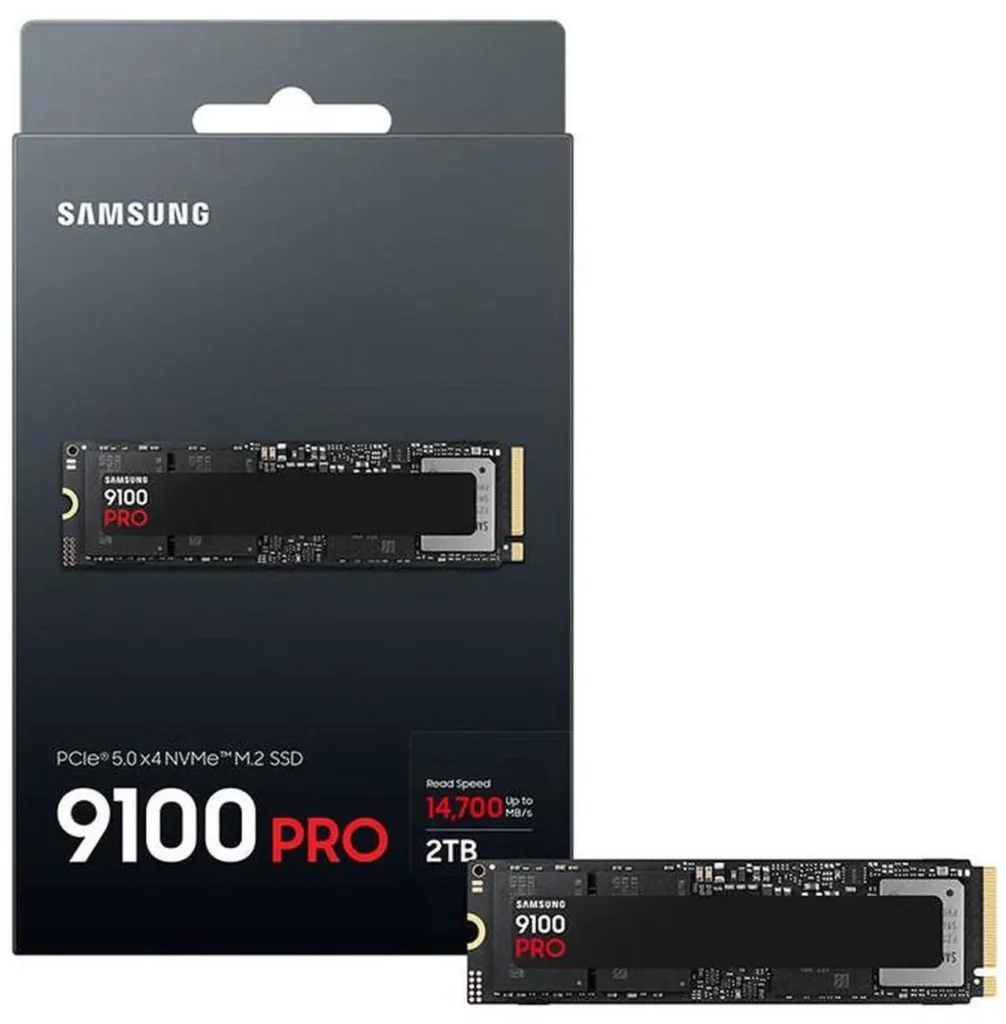
The speed gain is real and measurable in benchmarks. Two NVMe drives striped in RAID 0 can hit sequential read speeds that exceed a single PCIe 5.0 drive in synthetic tests. In real-world workloads, game loading, application launch and file transfers leave the improvement as far less dramatic because random access patterns don’t benefit from striping the same way sequential transfers do. SAMSUNG SSD 9100 PRO 2TB ($399)

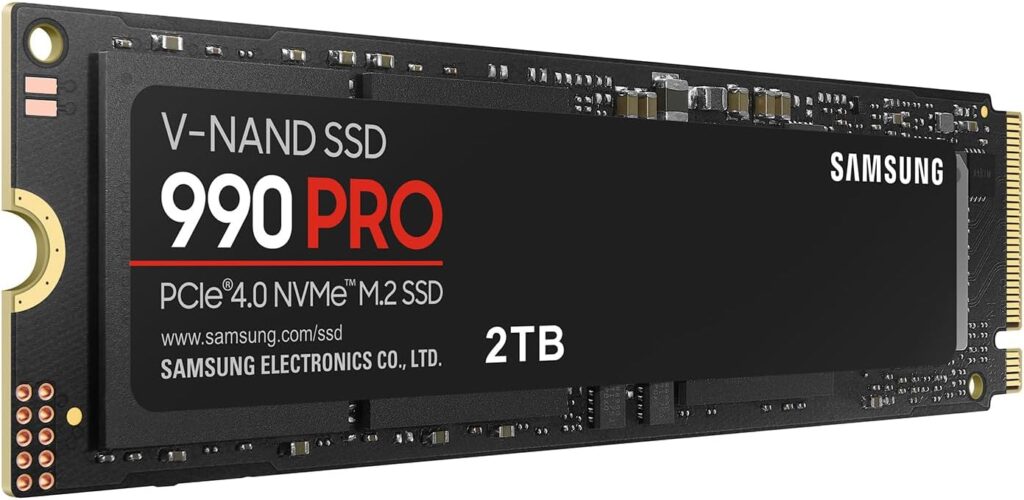
The critical limitation is that if either drive in a RAID 0 array fails, you lose everything on both drives instantly. All data is gone permanently. There is no partial recovery. RAID 0 doubles your risk of data loss compared to a single drive, because the array fails entirely if any one component fails.
Who should consider RAID 0: video editors and content creators who need maximum sequential write speeds for scratch disk operations and maintain a full backup of completed work elsewhere. It is not appropriate as a system drive or a drive holding any data you care about that isn’t also stored somewhere else.
For gaming specifically, the performance gain from RAID 0 NVMe drives over a single fast NVMe drive is not measurable in frame rates or load times in any meaningful way. This is a content creation tool, not a meaningful gaming upgrade. WD Red Plus 2TB ($154)

RAID 1: Redundancy at the cost of capacity
RAID 1, called mirroring, writes identical data to two drives simultaneously. Every write goes to both drives. Every read comes from whichever drive responds faster. The array continues operating normally if either drive fails, the other drive has a complete copy of all data stored.
Minimum drives required is 2. Usable capacity will be 50% of total meaning that two 1TB drives will give you 1TB of usable space. Fault tolerance is now one drive failure. WD Red Plus 2TB ($154)

Read performance can be slightly better than a single drive because the controller can load-balance reads between the two mirrors. Write performance is approximately the same as a single drive since both drives must complete the write before it’s confirmed.
RAID 1 is the most relevant configuration for consumer desktop use. If you run a business from your PC, keep client files locally, or store work that would be genuinely costly or impossible to reproduce, RAID 1 on a pair of fast drives provides hardware-level protection against the most common storage failure mode, namely, a single drive dying without warning.
The use case where it makes most sense on a home PC is NAS drives for media libraries, home server applications, or a secondary data drive holding project files for active work. Running your Windows system drive as RAID 1 is possible but adds complexity to Windows installation and recovery without proportional benefit since a fast backup to an external drive achieves the same protection more simply.

Remember that RAID 1 mirror the drive. If you delete a file, both mirrors delete it. If ransomware encrypts the drive, it encrypts both mirrors. RAID 1 protects against hardware failure only. WD Red Plus 2TB ($154)
RAID 5: The balanced option that requires three drives
RAID 5 distributes both data and parity information across three or more drives. Parity is a checksum that allows any one drive’s data to be reconstructed from the remaining drives if that drive fails. The data is striped across the drives like RAID 0, but one drive’s worth of space stores the parity information distributed across all drives rather than sitting on a dedicated parity drive.
Minimum drives required is 3 here. Usable capacity is around 65%, three 1TB drives give you 2TB of usable space. Fault tolerance is still one drive failure.
RAID 5 delivers better read performance than RAID 1 since data is striped across multiple drives while combined with single-drive fault tolerance. It uses capacity more efficiently than RAID 1, three drives give you two-thirds usable space rather than half.
The honest limitation for consumer use is that the RAID 5 write performance takes a hit because parity calculation adds overhead to every write operation. On hardware RAID controllers with dedicated cache this overhead is absorbed efficiently. On firmware-level Intel RST or AMD RAIDXpert2 it’s more pronounced. On software RAID through Windows Storage Spaces, it’s the most noticeable.
There’s also a rebuilding risk worth understanding. When a drive fails and you replace it, the array rebuilds by reading every remaining drive and reconstructing the missing data. During this rebuild process, which can take hours to days for large arrays by the way, if another drive fails, you lose everything. RAID 5 with aging drives of the same age carries meaningful risk during a rebuild because all drives have similar wear histories.
For consumer desktop use, RAID 5 is most relevant for NAS builds or home servers with three to four drives where the capacity efficiency matters. For a gaming or workstation PC, RAID 10 is generally a better choice if you need both performance and redundancy.

RAID 10: The best of both, at the cost of four drives
RAID 10 (also called RAID 1+0) combines mirroring and striping. You need a minimum of four drives. They’re arranged in mirrored pairs, and the pairs are striped together. Each pair mirrors each other for redundancy, and the striping across pairs delivers improved performance.
Minimum drives required is 4. Usable capacity is around 50% of total, four 1TB drives give you 2TB of usable space. Fault tolerance is now one drive per mirror pair can fail or up to two drives depending on which ones fail.

RAID 10 delivers the best performance of any redundant configuration. Reads stripe across all drives. Writes go to mirrored pairs so they’re as fast as the individual drive. Fault tolerance is robust, as long as both drives in any mirrored pair don’t fail simultaneously, the array survives.
Rebuild time after a drive failure is also faster than RAID 5. Rebuilding a RAID 10 mirror only requires reading the surviving mirror in the pair, not reading all remaining drives and calculating parity. On large drives this difference is significant.
The obvious limitation is using four drives for 50% capacity efficiency is expensive. Four 2TB NVMe drives to get 4TB of usable space at $150 per drive is $600 for what a single 4TB drive achieves for $120. The math only makes sense when the workload demands both performance and redundancy and the data is genuinely irreplaceable. SAMSUNG SSD 9100 PRO 2TB ($399)
RAID on modern motherboards: practical setup
Setting up RAID on a modern AM5 or LGA1851 board follows the same general process regardless of chipset.
Enter BIOS and navigate to the storage configuration section. On ASUS boards this is typically under Advanced → PCH Storage Configuration. On MSI boards it’s in the settings → Advanced → Integrated Peripherals section. Enable RAID mode for the SATA controller if you’re using SATA drives, or for the NVMe controller if you’re setting up NVMe RAID.
Install the operating system after configuring RAID mode. On Intel platforms, install the Intel RST driver during Windows setup when it prompts for storage drivers. Windows Setup won’t see an Intel RST RAID array without this driver. On AMD platforms, install the AMD RAIDXpert2 driver.
Once Windows is installed, open the Intel RST or AMD RAIDXpert2 application to create and manage the array, assign hot spares, and monitor drive health.

One important practical note: switching SATA mode from AHCI to RAID mode in BIOS after Windows is already installed will cause Windows to fail to boot. The mode change must happen before installation, or requires a registry edit to pre-configure the RAID driver before the switch. If your system is already running, plan the RAID setup before installing Windows on the target drives.
The honest recommendation for most builders
For a standard gaming PC, RAID adds complexity without the proportional benefit. A single fast NVMe drive for Windows and games, paired with an external backup solution, is more reliable and more recoverable than a RAID array of equivalent cost. SAMSUNG SSD 9100 PRO 2TB ($399)
RAID 1 is worth considering if you work from home and keep active client or project files locally, the hardware-level redundancy provides real protection against the most common failure mode. Pair it with an off-site backup and you have a genuinely robust data protection strategy.
RAID 0 is only appropriate if you have a specific sequential throughput requirement and your data lives somewhere else. Treat it as a performance tool, not a storage solution.
RAID 5 and RAID 10 belong on NAS devices and home servers where the workload, drive count and management overhead make sense, not in a gaming or workstation PC where a single fast drive and a backup strategy achieve the same outcome more simply. WD Red Plus 2TB ($154)