
Your PC is slowing itself down on purpose. That’s what thermal throttling is: a built-in protection mechanism that reduces CPU or GPU performance when temperatures climb past a safe threshold. The hardware would rather run slower than run hot enough to damage itself.
what is thermal throttling
The frustrating part is that thermal throttling rarely announces itself clearly. You don’t get a warning message you get stuttering in games that ran fine last month. You get frame rates that dip inexplicably in scenes that shouldn’t be demanding. You get a CPU that benchmarks 20% slower than it should. The symptoms look like a dozen different problems the cause is usually heat.
Here’s how to identify it, confirm it, and fix it.
What actually happens when a component throttles
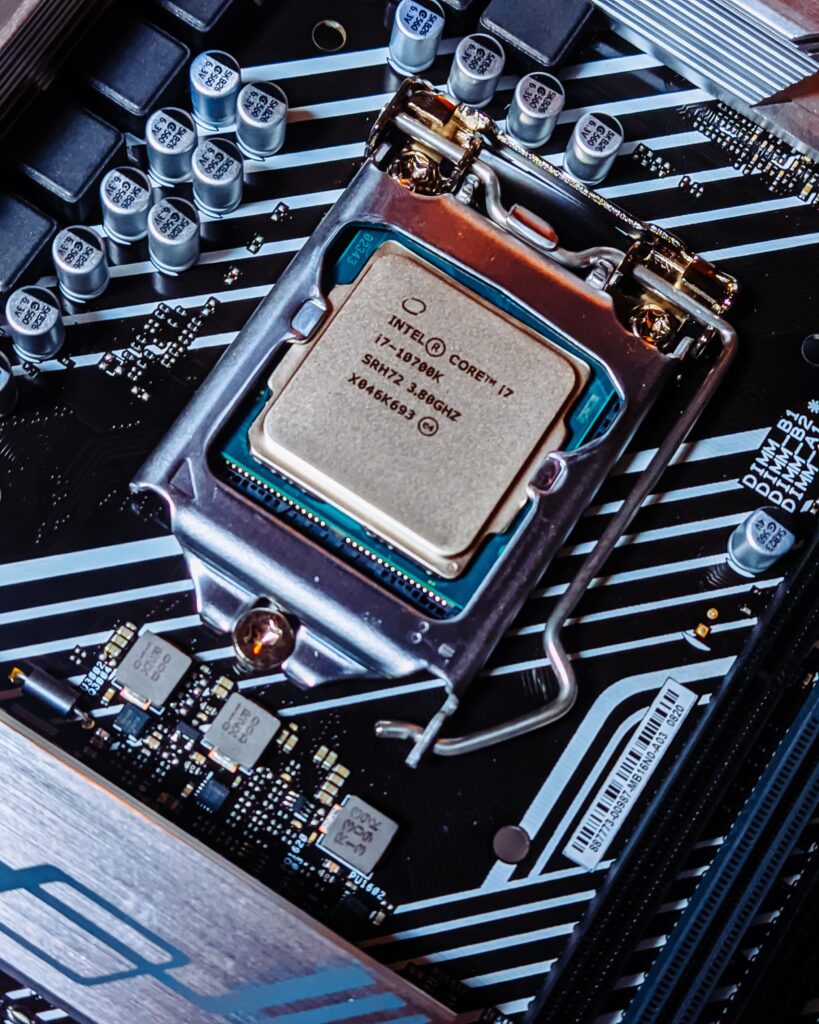
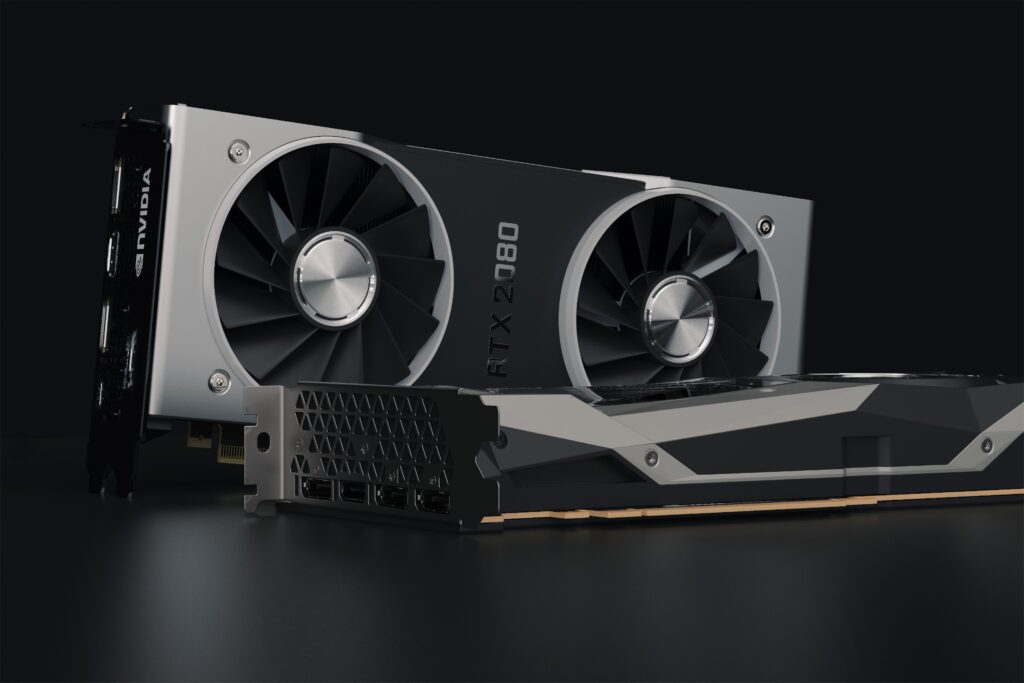
Every CPU and GPU has a maximum operating temperature a thermal junction limit above which the hardware reduces its clock speeds to bring temperatures back down. For most modern CPUs that threshold sits around 95–100°C. AMD’s Ryzen 9000 series starts throttling at 95°C. Intel’s Core Ultra chips protect themselves at similar temperatures. Nvidia GPUs typically throttle around 83–87°C depending on the card and AIB cooler. To watch these temperatures while you play, see our guide on how to monitor game performance.
When the temperature hits that ceiling the chip reduces its clock speed sometimes dramatically. A Ryzen 7 9800X3D that boosts to 5.2GHz under normal conditions might drop to 3.8GHz when thermally throttling. A GPU that runs at 2,800MHz boost might fall back to 1,800MHz, performance doesn’t drop linearly it collapses. That’s why throttling produces stutters rather than a smooth FPS reduction.
The hardware is doing exactly what it’s supposed to, the problem is whatever is causing the heat.
How to confirm you’re actually throttling
Don’t assume confirm. Thermal throttling has specific signatures in monitoring software that distinguish it from other performance problems.
Download HWiNFO64. It’s free, runs in the background, and logs more sensor data than any other monitoring tool available. Open it in sensors-only mode, find your CPU section, and look for a reading called “Thermal Throttling” or “TJ Max” this will show as a boolean value that turns true when the CPU hits its thermal limit. Our Ryzen Master and Intel XTU guide covers the tuning tools if you want to go further.
For GPU throttling, look for the GPU temperature sensor alongside the GPU clock speed. Run a demanding game or a stress test and watch both readings simultaneously. If the clock speed drops as the temperature approaches the throttle threshold, you’re throttling. If the clock speed holds steady while temperature climbs, the GPU is managing it correctly.
MSI Afterburner with RivaTuner Statistics Server is the alternative for GPU monitoring it overlays real-time clock speed, temperature, and power draw directly on screen during gameplay, which makes throttling events immediately visible as dips in the clock speed graph.
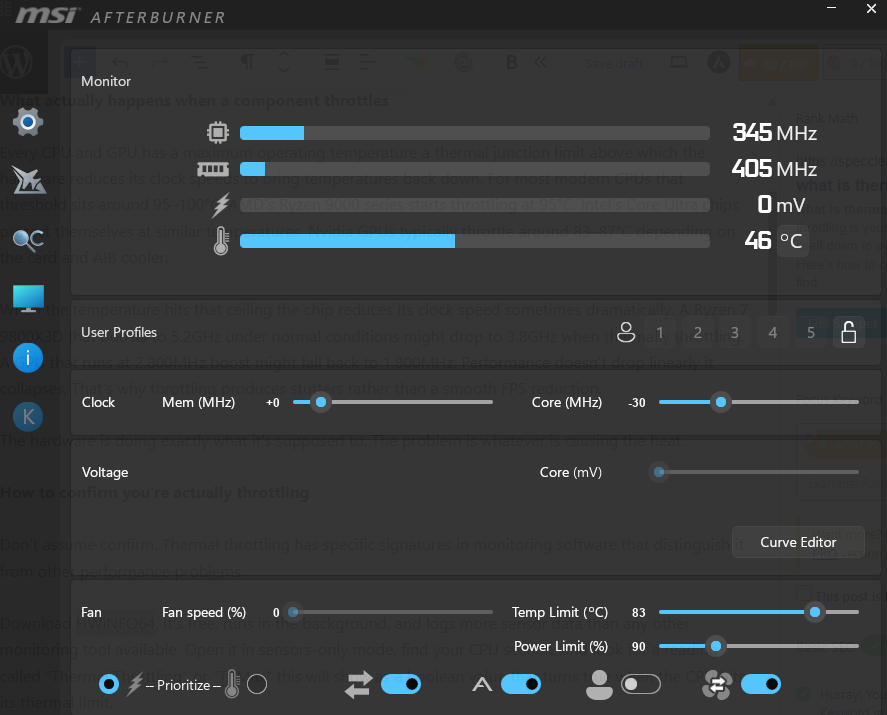
The stress test guide already published on SpecClear covers the full testing process in detail use it alongside HWiNFO64 to generate a sustained thermal load and confirm whether throttling is occurring before attempting any fixes.
The most common causes — and the most common fix
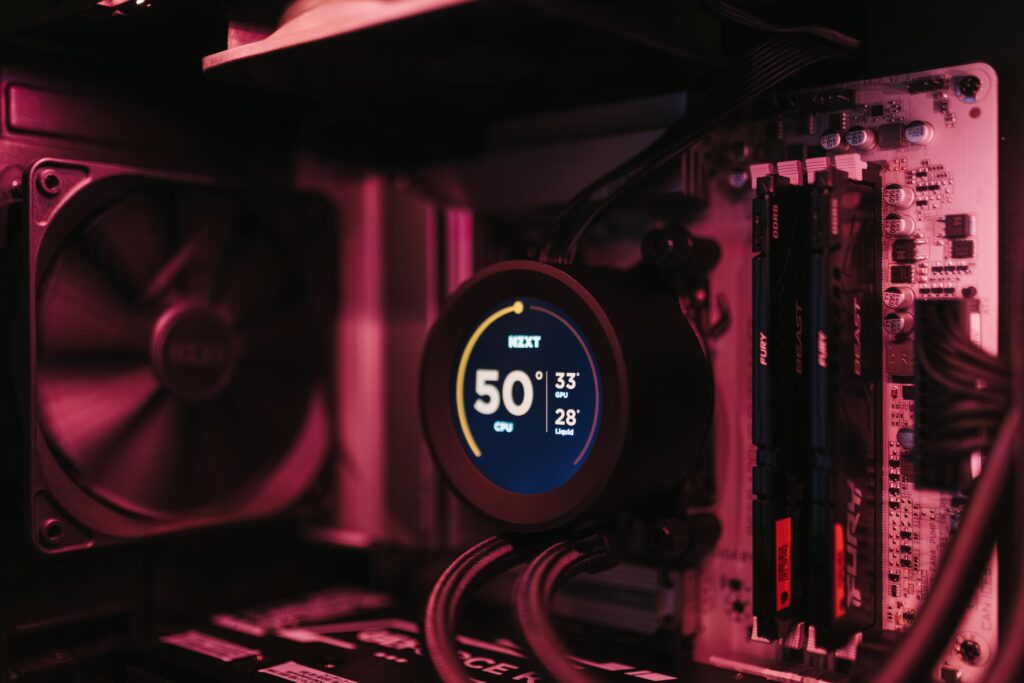
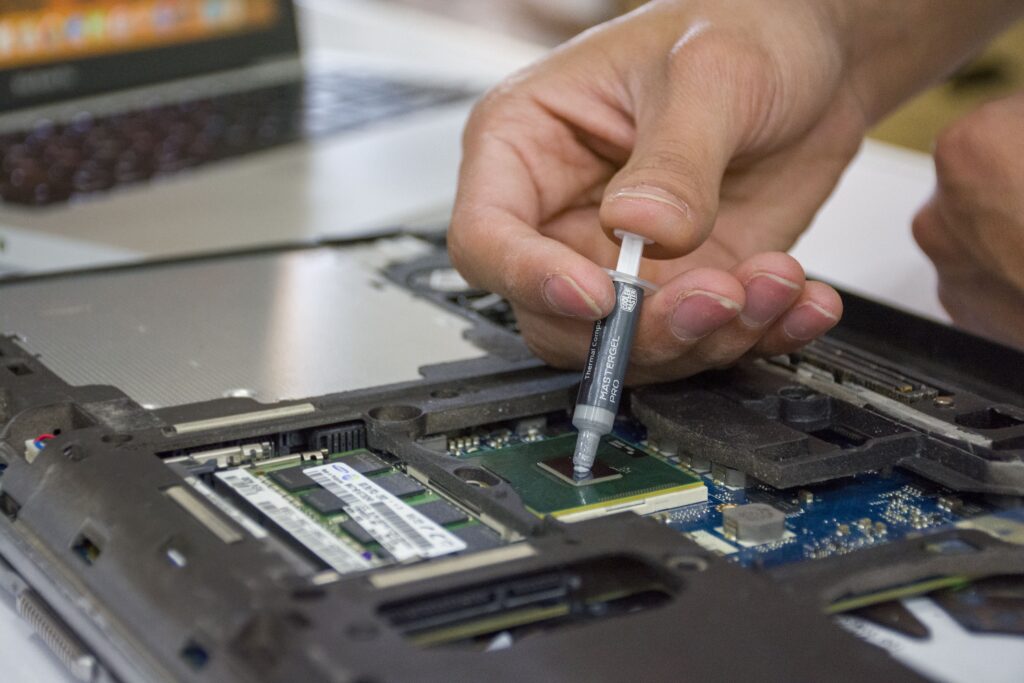
Dried thermal paste is responsible for a large proportion of throttling issues in PCs that are two or more years old. Thermal paste transfers heat from the CPU die to the cooler’s base plate. Over time it dries, cracks, and loses conductivity. A CPU that ran at 65°C under load in 2022 might hit 90°C under the same load today with the original paste still in place.
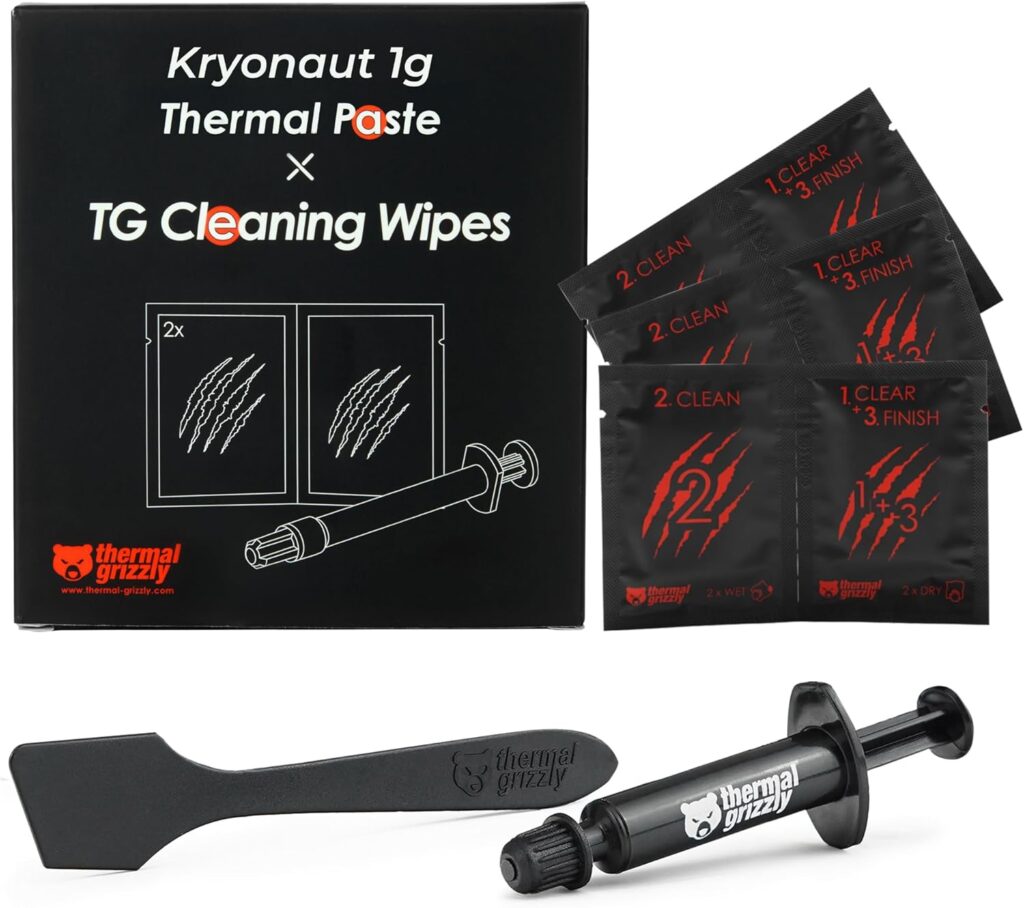
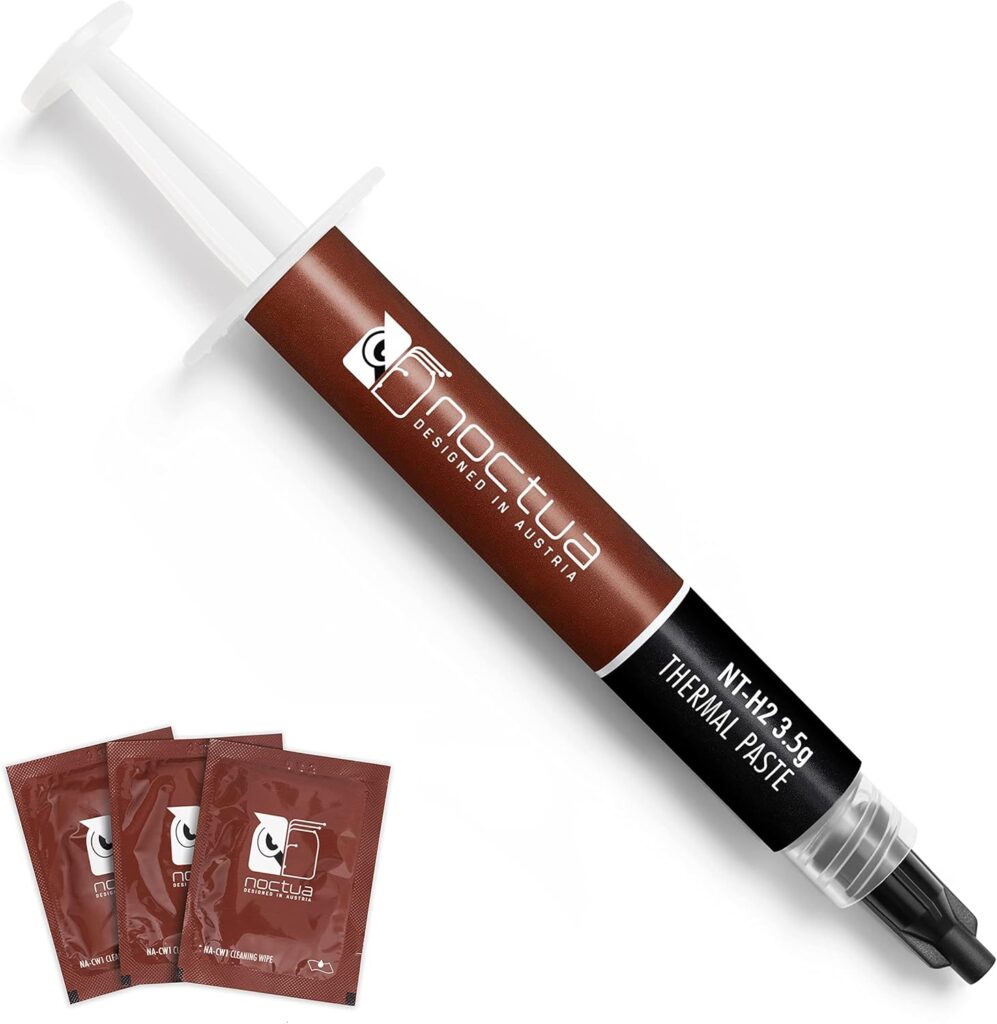
Replacing thermal paste costs under $10 and typically drops CPU temperatures by 10–20°C on older systems. Arctic MX-6, Thermal Grizzly Kryonaut, and Noctua NT-H2 are the standard recommendations all perform within a degree or two of each other in independent testing. Apply a pea-sized amount to the centre of the CPU die and let the cooler spread it. Don’t pre-spread it with a card or finger the mounting pressure handles distribution correctly.
On laptop CPUs the thermal paste situation is more severe. Laptop cooling solutions are smaller, run hotter, and were often applied with less paste than ideal from the factory. Laptops throttling after two to three years of use almost always benefit from repasting, though disassembly is more involved than on a desktop.
Dust — the second most common cause
Dust buildup on heatsink fins and radiator surfaces insulates the cooler from the airflow that’s supposed to carry heat away. A heavily dusted 360mm AIO radiator can lose 15°C+ of cooling capacity compared to the same radiator clean.
Compressed air is the tool. Remove the side panel, hold fans still while blowing so they don’t spin and generate back-EMF, and work from the intake filters inward. Pay particular attention to the CPU cooler fin stack or AIO radiator these accumulate the most dust in typical builds. If you haven’t cleaned your PC in over a year and it’s throttling, clean it before anything else.
Cooler mounting — the overlooked cause
A cooler that isn’t making full contact with the CPU die is a cooler that isn’t working properly. Poor mounting pressure leaves air gaps between the die and the base plate even with fresh paste, a badly mounted cooler can run 20°C hotter than a correctly mounted one.
Check the mounting screws on your CPU cooler. They should be tightened in a crosswise pattern top-left, bottom-right, top-right, bottom-left to even pressure across the die. On AM5 boards with AMD’s mounting hardware the correct tightness is snug-firm, not overtightened. Overtightening can actually reduce contact by bowing the cooler base.
If you removed and reseated your cooler recently and temperatures got worse rather than better, incorrect mounting is the likely cause.
Case airflow — the systemic cause
A CPU cooler that works perfectly in a well-ventilated case can throttle in a case with poor airflow. If the CPU cooler is exhausting heat into stagnant air, that stagnant air eventually gets recirculated back through the cooler. Ambient case temperature creeps up and the CPU struggles to dissipate heat efficiently.
The correct airflow configuration for most builds is positive pressure more intake than exhaust. Front intakes push fresh cool air toward the GPU and CPU. Top exhaust pulls hot air out of the case. A basic rule: intakes face toward the interior, exhausts face toward the exterior. Verify that your case fans are spinning in the correct direction before assuming the cooler is the problem.
If you’re in a case with a solid front panel rather than mesh, that’s worth investigating. Solid front panels restrict intake airflow dramatically and are a common cause of thermal issues that seem inexplicable until you compare temperatures with the side panel removed.
BIOS settings — the fixable cause nobody checks
Some motherboards ship with power delivery settings that allow CPUs to draw far beyond their rated TDP indefinitely, which generates heat that the cooler wasn’t designed to manage. Intel’s motherboards in particular have historically defaulted to removing power limits entirely a Ryzen 7 9800X3D has a 120W TDP, but an Intel Core Ultra 9 285K at unlimited power can exceed 250W in multi-core workloads.
Check your BIOS for PL1 and PL2 power limit settings. PL1 is the sustained power limit. PL2 is the boost power limit. If both are set to unlimited or significantly above the CPU’s rated TDP, the chip is drawing more power than the cooler can handle. Setting PL1 to the CPU’s rated TDP will reduce performance slightly in sustained workloads but eliminate throttling and in gaming workloads where the CPU rarely sustains full package power, you’ll see no frame rate difference.
On AMD platforms this is less common Ryzen 9000 series chips manage their own power states well and rarely need manual power limit adjustment. On Intel it’s worth checking, particularly on mid-range motherboards from brands known for aggressive default power settings.
The GPU-specific fix — fan curve adjustment
GPU throttling is often a fan curve problem rather than a hardware problem. By default, most AIB GPU coolers run fans at conservative speeds to minimise noise, which means the fans don’t ramp up until temperatures are already high. In a case with poor airflow, the GPU can hit its thermal limit before the fans have wound up enough to cope.
MSI Afterburner lets you set a custom fan curve a graph that maps fan speed percentage to GPU temperature. Setting the fans to 60% at 75°C and 80% at 83°C gives the cooler more headroom before the throttle threshold is reached. The trade-off is fan noise. In most mid-tower builds with decent airflow it’s a worthwhile exchange.
When the fix is the cooler itself
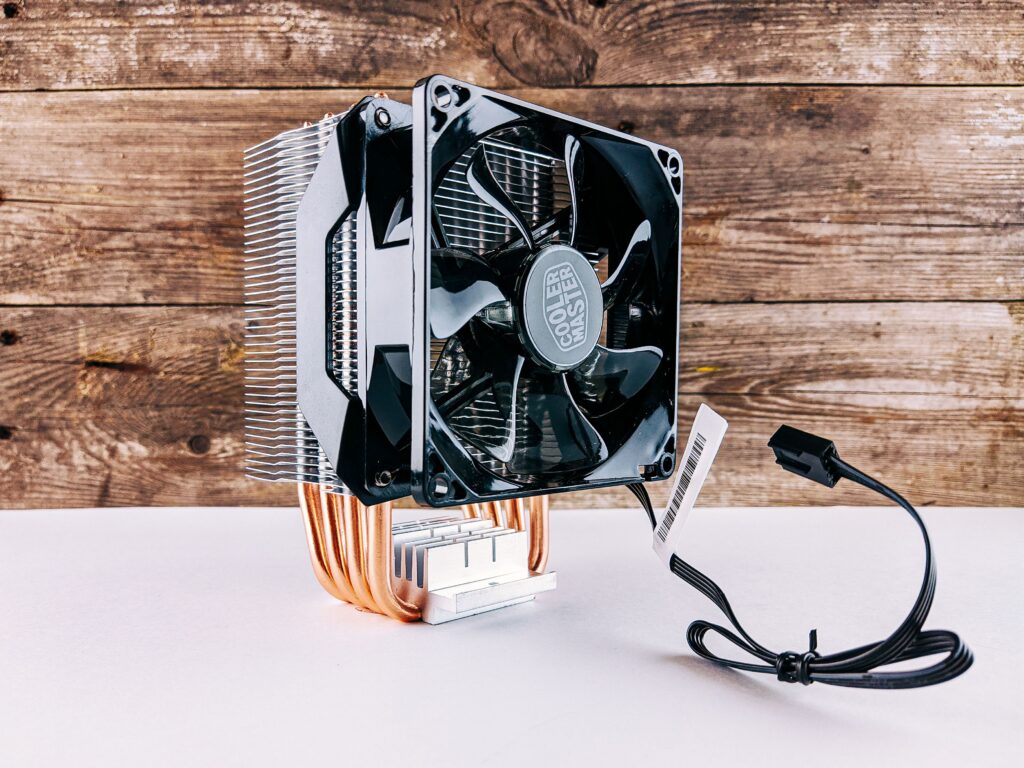
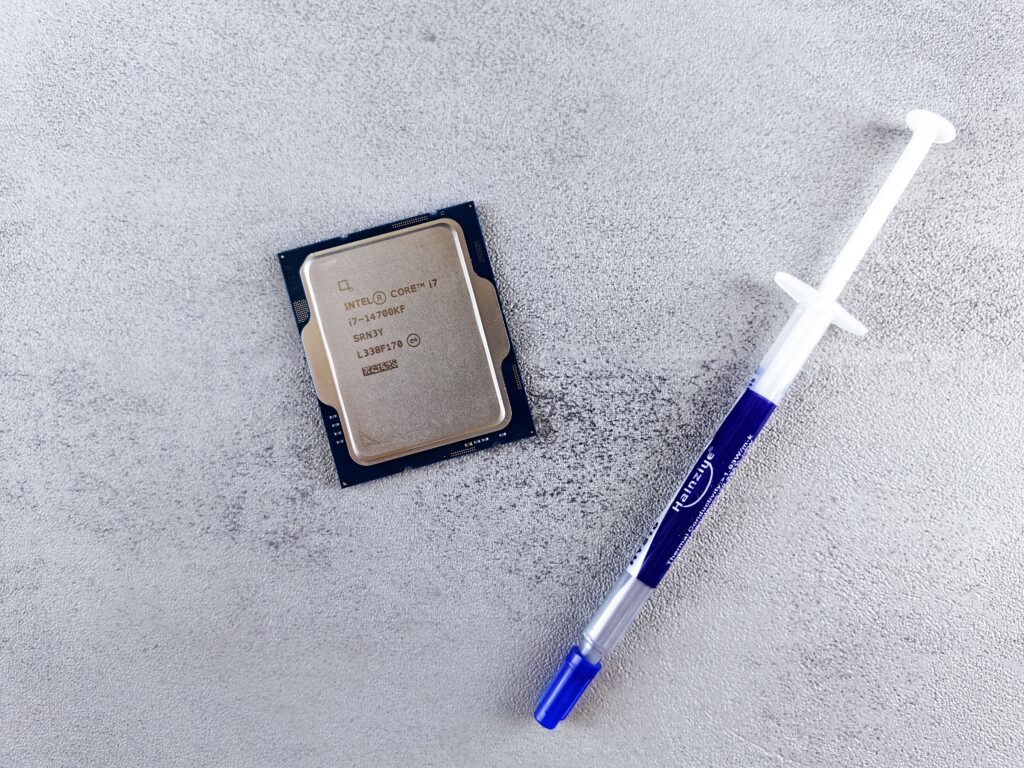
If you’ve replaced thermal paste, cleaned the system, verified mounting, checked airflow, reviewed BIOS settings, and adjusted fan curves and the CPU still throttle the cooler is undersized for the chip.
A 65W cooler on a CPU that draws 120W under sustained load will throttle. A 240mm AIO that was marginal at installation gets worse as pump efficiency degrades over time. If your chip is a Ryzen 7 9800X3D, Ryzen 9 9950X3D, or Core Ultra 9 285K and you’re running anything smaller than a quality 240mm AIO or dual-tower air cooler, the solution is a cooler upgrade.
The air cooler vs AIO guide covers every cooler recommendation by CPU tier- including the $35 Thermalright Peerless Assassin 120 SE that handles the Ryzen 7 9800X3D without issue and the Arctic Liquid Freezer III 360 for builds that genuinely need the thermal headroom.
The fix in order
Clean the system first compressed air, all intake and exhaust paths, cooler fins or radiator. Then check and replace thermal paste if the system is over 18 months old or temperatures dropped after cleaning but are still high. Then verify cooler mounting. Then check case airflow direction. Then review BIOS power limits. Then adjust GPU fan curve if the GPU is the throttling component. Only after all of those have failed is a cooler upgrade the answer.
Thermal throttling is almost always fixable without spending money. When it’s not, the cooler upgrade is usually under $40.