

Most upgrade advice gets the order wrong. People replace RAM when the GPU is the bottleneck. They buy a new CPU when the SSD is the problem. They spend $300 on components that produce no meaningful improvement because they didn’t identify the actual constraint first.
This guide tells you what to check before spending anything, the correct upgrade hierarchy for gaming, and the specific thresholds where each upgrade stops making sense.How to Monitor GPU and CPU Temperatures
Before You Buy Anything: Find the Actual Bottleneck
Upgrading without diagnosis is how money gets wasted. Two tools tell you what’s actually limiting your system.
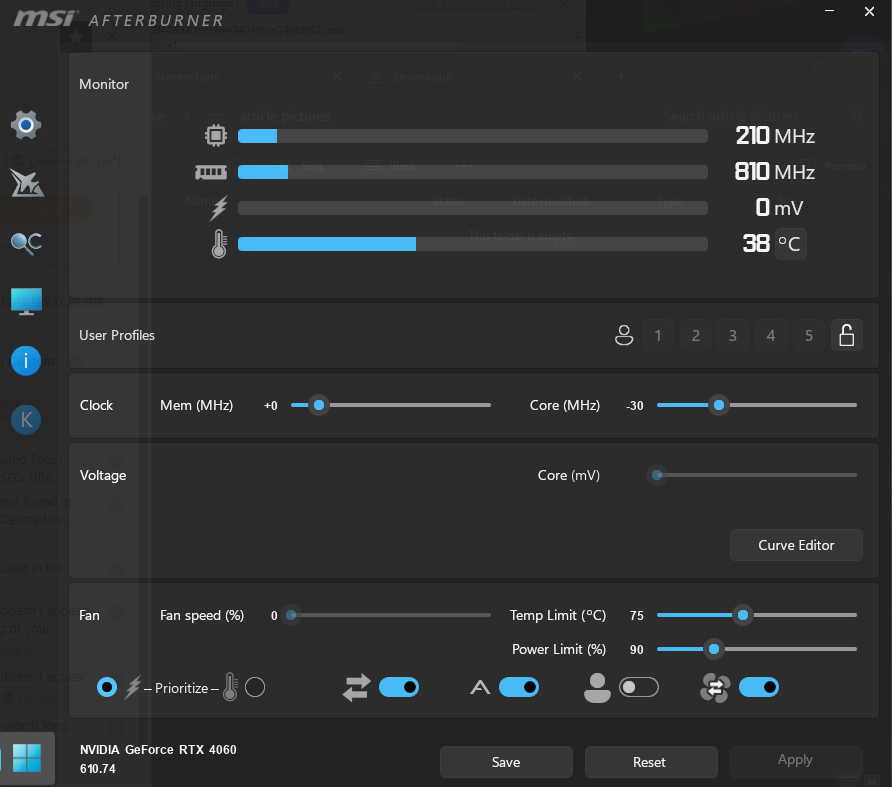
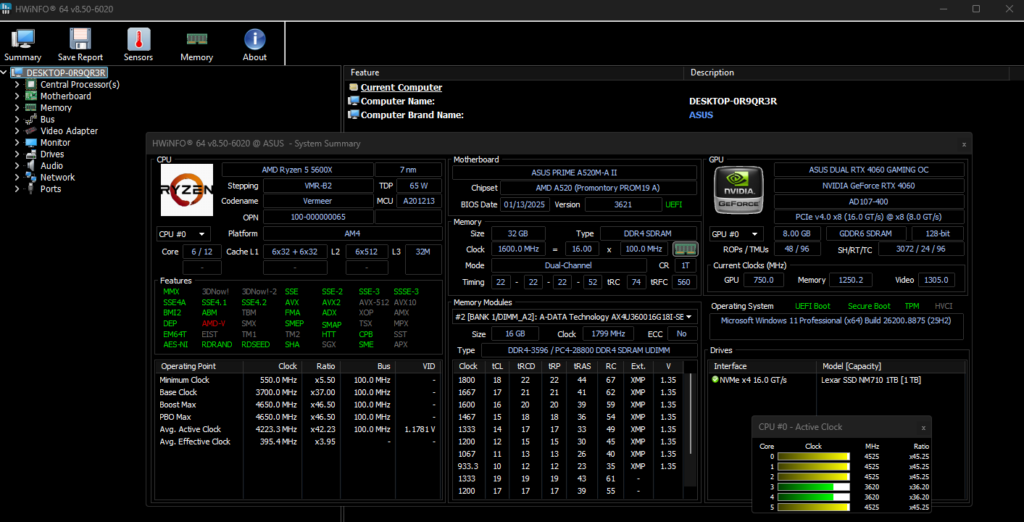
MSI Afterburner or HWiNFO64 overlays let you see GPU utilisation, CPU utilisation, RAM usage, and temperatures in real time while gaming. Run them for twenty minutes in a demanding game at your target resolution. What you see tells you where to spend money:
- GPU sitting at 95-100% utilisation, CPU at 50-70%: your GPU is the bottleneck. A GPU upgrade will produce meaningful gains.
- CPU sitting at 95-100%, GPU at 50-70%: your CPU is the bottleneck. A CPU upgrade may help, though check whether simply enabling XMP/EXPO on your existing RAM first closes the gap.
- Both GPU and CPU below 80%, game still stutters: check RAM usage. If you’re at or near 16GB used, RAM is the constraint.
- Load times are the main frustration, frame rates are fine: SSD upgrade is the fix, not a GPU.
Don’t upgrade based on how your system feels. Upgrade based on what the numbers show.
The Upgrade Hierarchy: This Order Matters
1. Enable XMP or EXPO first: cost: $0
Before spending anything, check your BIOS. If your RAM is running at 4800MHz on a DDR5 system or 2133MHz on a DDR4 system, you haven’t enabled the rated speed profile. Enabling XMP (Intel) or EXPO (AMD) takes thirty seconds and produces a 15-30% gaming performance improvement on Ryzen systems at no cost. It’s the most impactful free upgrade available and most people never do it.BIOS Settings Most People Never Check
Also check your GPU drivers are current, Windows is updated, and Resizable BAR is enabled if you have an Nvidia card. These are all free performance gains.
2. GPU: the upgrade that moves frame rates
In gaming, the GPU produces every frame. Low frame rates are almost always a GPU problem. A fast CPU with a slow GPU produces low frame rates. A moderately older CPU with a good GPU produces high frame rates.
The GPU upgrade makes sense when your GPU utilisation is consistently at 95-100% and your frame rates are below your target. It doesn’t make sense when your CPU is the bottleneck, in that case you’ll buy a new GPU and see disappointing gains because the CPU is limiting how fast frames can be produced.
Current upgrade thresholds for 2026:
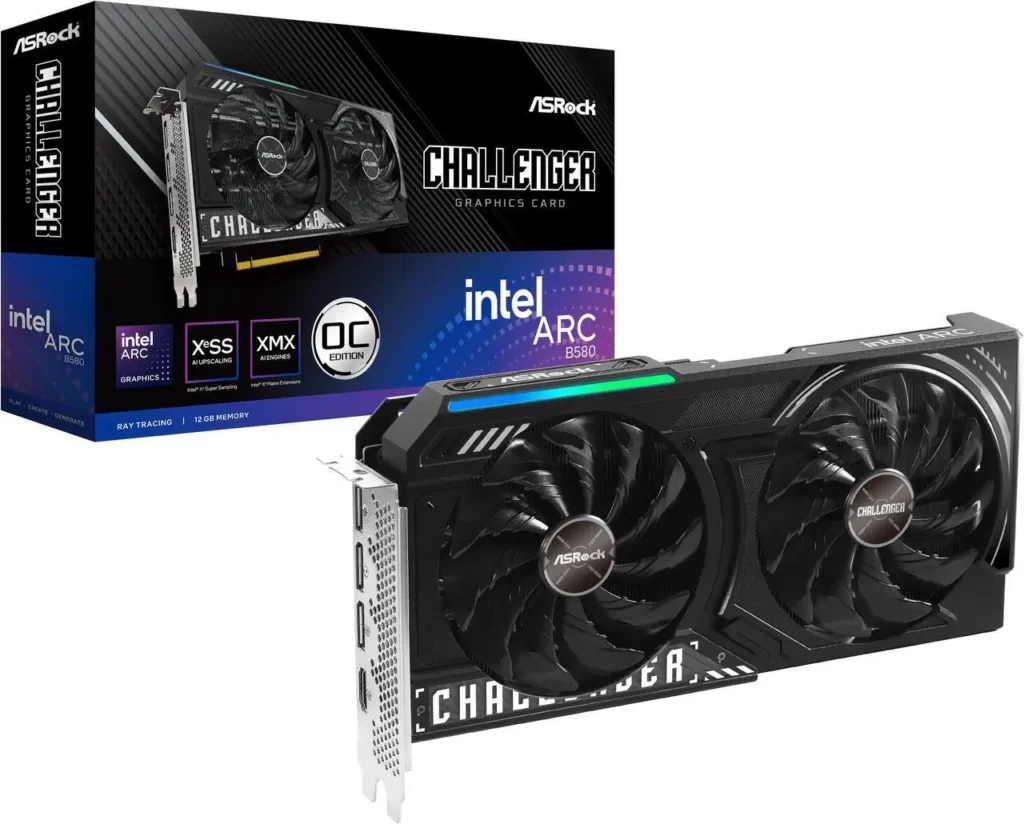

- On a GTX 1060, GTX 1070, or RX 580: these cards are genuinely limiting your gaming experience in modern titles. An upgrade to anything current-gen will be immediately noticeable. The Intel Arc B580 at $309 or RTX 5060 at $459 are the entry points worth considering.
- On an RTX 2070, RX 5700 XT, or similar: you’re feeling the limits in 2026 but haven’t hit a wall yet. An upgrade to an RTX 5060 Ti or RX 9060 XT 16GB produces meaningful gains. Whether it’s worth it depends on what you’re playing.
- On an RTX 3070, RX 6700 XT, or similar: you’re in a difficult position. These cards handle most current games adequately and the current generation upgrade options don’t represent a compelling value jump. Wait for better pricing or the next generation.
- On an RTX 3080 or RX 6800 XT: don’t upgrade. There is nothing in the current market that justifies spending money from this starting point. Your card is still competitive.


VRAM is the other threshold to watch. 8GB VRAM is showing its limit in some 2026 titles at 1440p with demanding settings. If you’re hitting VRAM-related stuttering rather than raw performance limits, upgrading to a card with 12GB or 16GB specifically fixes that problem, but confirm it’s the actual cause before spending.
3. SSD: if you’re still on a hard drive or an old SATA SSD
The jump from a mechanical hard drive to any NVMe SSD is one of the most dramatic performance improvements you can make to any PC. Windows boots in seconds instead of minutes, games load faster, and the entire system feels different.
The jump from an old SATA SSD to a modern NVMe PCIe 4.0 drive is a smaller but real improvement, 20-30% faster load times in games, noticeably snappier application launches.
The jump from a PCIe 4.0 NVMe to a PCIe 5.0 NVMe for gaming is essentially zero, so skip it.
If you’re on a hard drive, a Samsung 990 Pro 2TB at ~$388 on Newegg is the single upgrade that changes how your PC feels more than any other. Do this before the GPU upgrade if your drive is the obvious bottleneck.

4. RAM: but only when it’s actually the constraint
16GB is the floor for gaming in 2026, not the target. If you’re on 8GB, upgrade to 16GB immediately, it makes a meaningful difference in modern games and costs very little.Best SSD for Gaming in 2026
If you’re on 16GB and gaming is your primary use, upgrading to 32GB is only clearly beneficial if you regularly see your RAM usage near the ceiling in the monitoring tools. For most gaming workloads 16GB is workable, though 32GB is genuinely better for multitasking alongside gaming.
If you’re on DDR4 and considering switching to DDR5 for performance alone: don’t. Switching from DDR4 to DDR5 requires a new motherboard and CPU. The gaming performance difference between DDR4 and DDR5 at equivalent speeds is 3-5% in CPU-sensitive scenarios and negligible in GPU-limited scenarios. It’s not worth a platform change for RAM bandwidth alone. If you’re upgrading the CPU for other reasons, build on DDR5. Don’t build on DDR5 purely for the RAM.Best RAM for Gaming in 2026
DDR5 prices are elevated in 2026. A 32GB DDR5-6000 kit runs $150-$280. Budget accordingly if you’re planning an AM5 build.
5. CPU: last, and less often than people think
CPU upgrades for gaming are overrated. The GPU bottlenecks gaming performance in the vast majority of scenarios. A Ryzen 5 3600 paired with an RTX 5060 Ti will perform similarly to a Ryzen 9 9900X paired with the same GPU in most games at 1440p, because the GPU is doing the heavy lifting.
CPU upgrades make sense when: you’re doing work beyond gaming that is genuinely CPU-limited (rendering, streaming, compiling, video editing), your CPU utilisation is consistently at 95-100% while GPU usage is low, or you’re on a platform so old that the CPU genuinely can’t keep up with modern game demands (Core i5-7th gen or Ryzen 1000 series, for example).Intel Arc B580 in 2026
Don’t upgrade a Ryzen 5 5600X to a Ryzen 7 5800X3D to gain gaming performance if your GPU is a GTX 1070. Fix the GPU first. The 5800X3D’s V-Cache advantage only shows when the GPU is capable enough to make the CPU the constraint.RTX 5060 vs RX 9060 XT
What to Do If the Whole System Needs an Overhaul
If your CPU, motherboard, RAM, and GPU are all limiting you simultaneously, individual upgrades stop making economic sense. At that point the question is whether to build new or buy a capable used system.
The threshold: if fixing your PC properly requires a new CPU, motherboard, and GPU, three components, the cost approaches a new mid-range build. Run the numbers before committing to piecemeal upgrades on an aging platform.Should You Build a PC Now or Wait Until 2027
AM4 is end-of-life for new silicon but still a valid gaming platform with the right GPU. If your AM4 system has a Ryzen 5 5600 or better and you pair it with a capable GPU, it games well in 2026. Don’t rush the platform upgrade just because AM5 exists.
If you need a fresh platform, build AM5. It accepts Zen 4, Zen 5, and confirmed Zen 6 on the same socket through at least 2028. The DDR5 memory cost is painful right now but the platform longevity justifies it for a new build.