
You can build a $2,000 PC and put it on a wobbly 120cm desk with the monitor at the wrong height, cables tangled across the surface, and a headset hanging from the monitor stand. It’ll still play games, and it’ll also give you neck pain within a month and make the system look worse than it is, and be genuinely unpleasant to sit at for four hours.
The PC is the engine; the desk setup is everything you interact with. Getting the setup right around a good PC costs less than most people expect and makes a bigger daily difference than almost any component upgrade you could make once the PC itself is capable.
This guide covers everything outside the case, desk sizing, monitor placement, the monitor arm question, audio choices, cable management at the desk level, lighting, and the order to prioritise it all in when you’re working with a limited budget.
The Desk: Foundation of Everything
The desk determines what you can fit, how comfortable you are, and whether the setup looks clean or cluttered. Most people undersize their desk and spend the next two years frustrated by how cramped everything feels.
Minimum dimensions for a single-monitor gaming setup: 120cm (47 inches) wide, 60cm (24 inches) deep. At this size you can fit a 27-inch monitor at correct viewing distance with a full-size keyboard and a reasonable mouse movement area. Below 60cm depth the monitor ends up too close to your eyes and peripheral cable management becomes cramped.Best Gaming Monitor 2026
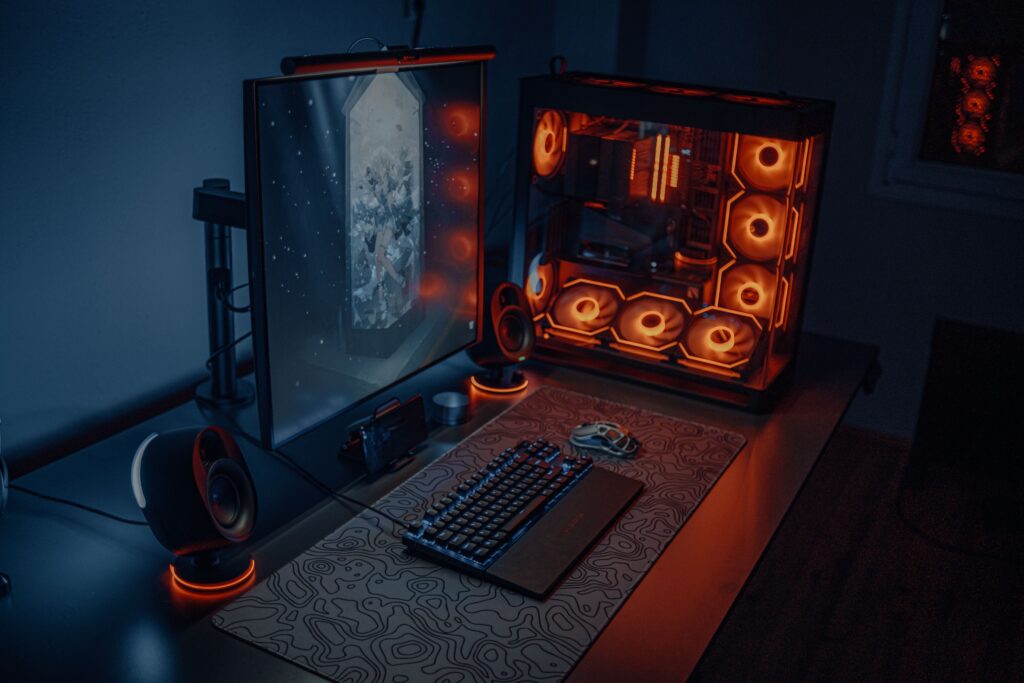
Recommended for most builds: 140-160cm (55-63 inches) wide, 70-80cm (28-32 inches) deep. This gives you genuine mousepad space, important if you play at lower DPI settings, room for a headset stand or small speakers on either side of the monitor, and enough depth that a 27-inch or 32-inch monitor can sit at the ergonomically correct 60-75cm distance from your eyes without the monitor overhanging the front edge.
For dual-monitor setups: 160cm minimum width, ideally 180cm+ (70+ inches). Two 27-inch monitors side by side take roughly 130cm of desk width at minimum, add cable runs, a PC tower if it’s desk-mounted, speaker placement and you’re at 160cm before you have any comfortable marginal space. Tight dual-monitor setups on undersized desks look cluttered and feel cramped. If the desk isn’t wide enough, a single ultrawide monitor at the same budget produces a better experience.

Desk depth and viewing distance are linked. A 27-inch monitor at 1440p needs to be approximately 60-75cm from your eyes for comfortable viewing. If your desk is only 55cm deep, the monitor sits at the very back edge and your eyes are 55cm away, too close for extended sessions, straining for anything but competitive gaming. Measure your current viewing distance before buying a monitor. Buy a desk deep enough to use the monitor correctly.How to Set Up a Second Monitor for Gaming

Sit-stand desks: genuinely useful if you split time between gaming and work at the same desk. A motorised height-adjustable desk from FlexiSpot or Autonomous runs $350-$600 for a good quality unit with reliable motors and weight ratings above 80kg, enough for monitors, a PC tower, and peripherals without stability concerns. A sitting-only desk that wobbles under a heavy dual-monitor setup is worse than a budget desk that’s stable. Stability matters more than adjustability for pure gaming setups. If you don’t plan to stand at the desk, save the money.

L-shaped desks: excellent for room corners and for setups where you need separate gaming and work zones. The return section (the shorter perpendicular arm) works well for a second monitor or a work laptop without encroaching on the main gaming surface. The quality range is enormous, a $150 IKEA Bekant L-desk wobbles noticeably under load while a $600 motorised L-desk from FlexiSpot is rock solid. Budget for stability first.Best Gaming Headset Under $100 2026

Monitor Placement: The Detail That Affects Your Health More Than Your Frames
The monitor stand that comes with your display is engineered to be cheap, not ergonomic. It adjusts height minimally if at all, doesn’t tilt or swivel meaningfully, and takes up 15-20cm of desk depth with its base. Most gaming monitors sit too low and too far back on stock stands.
The correct monitor position: top of the screen at or just below your natural eye level when seated upright. Screen centre approximately 10-15cm below eye level. Screen face perpendicular to your line of sight, not tilted backward toward the ceiling or forward toward the desk. Distance from eyes: 60-75cm for 27-inch panels, 75-90cm for 32-inch panels, 90-110cm for 32-inch panels at 4K.
Most people’s monitors sit 5-10cm too low. The result is a subtle but continuous forward head tilt, your chin drops, your neck bends forward, and after two hours the muscles at the back of your neck and across your upper shoulders start generating the familiar “gaming neck” tension that most people blame on their chair rather than their monitor.
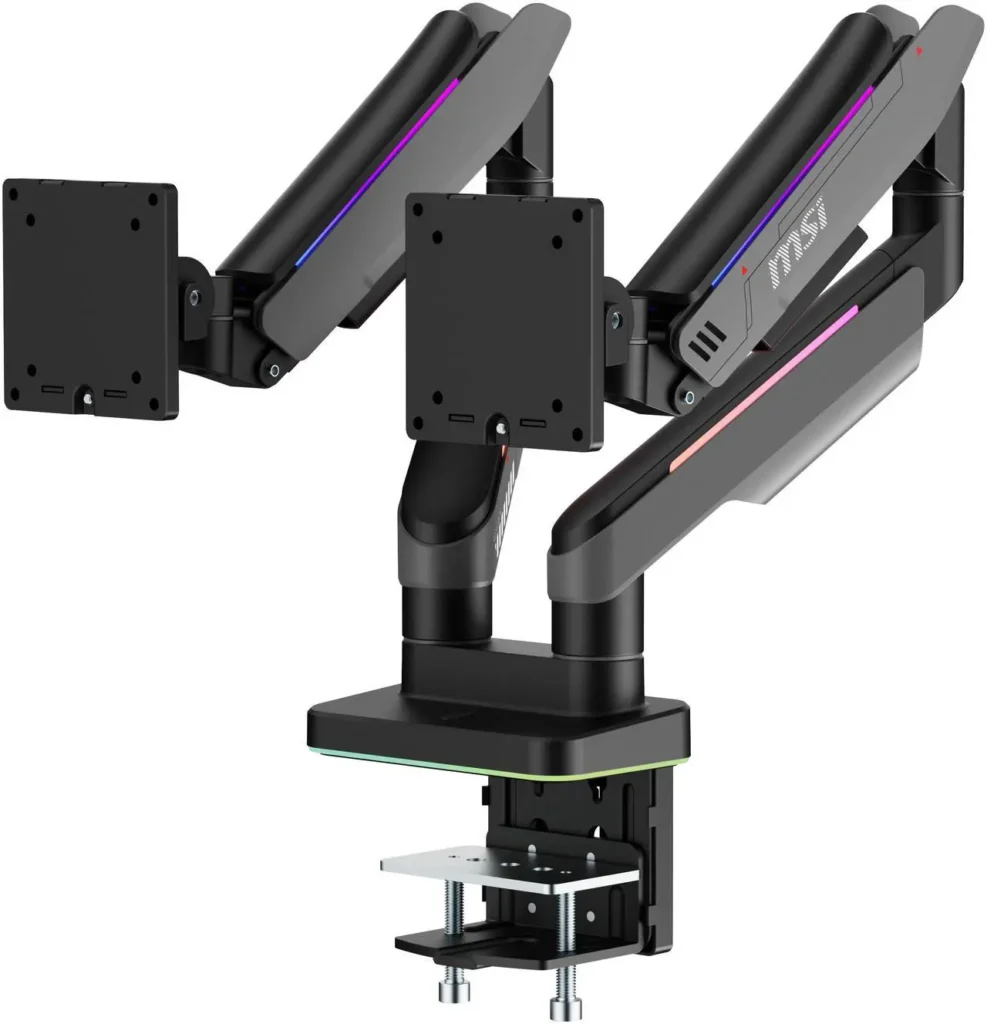
Monitor arm vs stock stand: buy the arm. A gas-spring monitor arm in the $40-$80 range from Ergotron, Amazon Basics, or Huanuo reclaims the footprint of the monitor’s stock stand, typically 15-20cm of desk depth and the lateral space of the stand base, and lets you position the screen precisely where it needs to be. Height adjustment is infinite within the arm’s range rather than the three or four fixed positions on a stock stand. The arm also swings the monitor out of the way when you need the full desk surface for something else.


The important caveat: check the monitor’s VESA mount compatibility before buying an arm. Most monitors have a 75x75mm or 100x100mm VESA pattern on the rear. Some budget monitors and ultrawide panels use proprietary stands without VESA mounts, an arm won’t work with those. Check your monitor’s spec sheet before buying.
For ultrawide panels (34-inch and above) and large 32-inch monitors above 8kg, check the arm’s weight rating. Standard single-arm mounts rated for 8kg struggle with heavy ultrawides and develop drift over months where the spring tension can’t maintain the position. A heavy-duty arm rated for 12-15kg handles these panels reliably.
Dual monitor arms: same principle applies, applied to both screens. A dual monitor arm holds both displays on a single desk clamp, reclaiming two monitor stand footprints simultaneously. The main screen faces you directly. The secondary screen angles in at 30-45 degrees to your left or right, close enough to glance at without turning your whole body, not so angled that it requires neck rotation to read. Secondary monitors used for Discord, stream chat, or reference material don’t need to be centred, slightly off-axis at 30 degrees is correct ergonomics for a supplementary display.

Audio: Speakers vs Headset and Why Both Have Legitimate Answers
The audio question isn’t which is better. It’s which fits your situation. People who live alone and game in a private space have different constraints than people who share walls, a room, or living space with others.
Headsets for gaming: the default choice because they’re self-contained, connect to the PC via USB or 3.5mm, and require no additional desk space or amplification. A gaming headset delivers directional audio (surround sound processing for spatial awareness), microphone integration, and isolation from ambient noise in one purchase. The tradeoff is comfort during long sessions and audio quality that rarely matches separate speakers at the same price.Logitech G325 LIGHTSPEED Gaming Headset Review
If you game for four or more hours at a time, weight and clamping force matter more than spec sheets suggest. A 350g headset with tight clamping pressure is genuinely uncomfortable after three hours regardless of how good it sounds at the 30-minute mark. The SteelSeries Arctis Nova Pro at around$279 and the Logitech G Pro X 2 at $229 are the consistent recommendations for extended gaming sessions, both under 340g with adjustable clamping and genuine audio quality. The Logitech G325 sits at $90.99 as the budget option that covers the basics without long-session discomfort.
Speakers for gaming: better audio quality at any given price, no head fatigue after long sessions, and the option to listen to music or content passively while doing something else at the desk. The downsides are desk space, the need for a clear listening position (speakers need to be equidistant from your ears at roughly 60 degrees off-centre for correct stereo imaging), and the fact that they share audio with anyone nearby.Logitech G305 X Superlight Review
The minimum speaker setup worth buying for a PC gaming desk is a 2.0 or 2.1 system from Edifier or Creative. The Edifier R1280DB (~$189 on Newegg) is two bookshelf speakers with a built-in amplifier, Bluetooth connectivity, and optical input, no separate amplifier required. Place them on either side of the monitor, tweeters at roughly ear height, and the stereo image snaps into focus for music and games. The Creative Pebble V3 (~$44 on Newegg) is the budget option for a compact setup, two small satellites on either side of the monitor, USB-C powered, surprisingly capable for the size and price.Creative Pebble V3 Edifier R1280DB
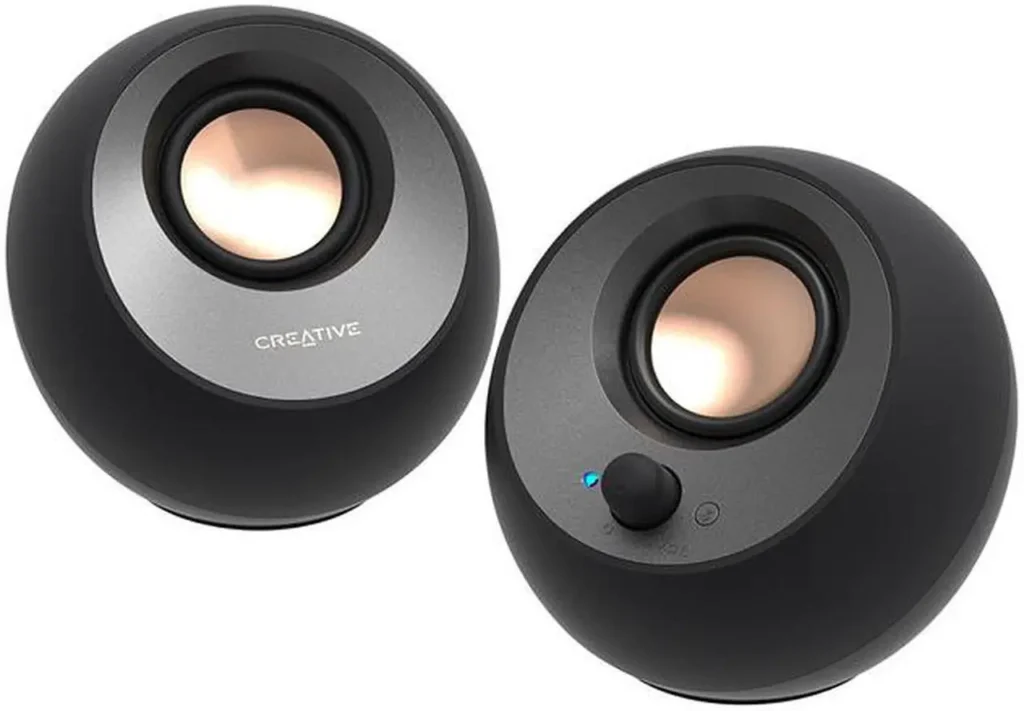

The honest answer: if you share your space, use a headset. If you have acoustic privacy, a good pair of 2.0 speakers paired with a separate headset for gaming sessions where spatial audio matters is the best of both. Speakers for ambient listening, headset for competitive play.
Microphone: if you communicate with teammates, stream, or use voice chat regularly, the microphone on a gaming headset is adequate but not great. A dedicated USB condenser microphone like the HyperX QuadCast (~$140 on Newegg) or the Blue Yeti Nano (~$99) produces noticeably cleaner voice quality that your teammates will immediately notice versus a headset boom mic. If streaming quality matters, a dedicated microphone on a desk arm is the correct solution. If you play casually with friends and don’t care about audio quality in voice chat, the headset mic is fine.

Cable Management at the Desk Level
Inside your PC, cables are managed behind the motherboard tray. At the desk level, the equivalent is an under-desk cable management system, and it makes a proportional impact on how clean the setup looks and feels.How to Set Up PC Audio
The starting point: a cable tray. An under-desk cable management tray, a metal or plastic rail that mounts below the desk surface and holds your power strip, excess cable length, and any adapters, keeps everything off the floor and out of sight. The VIVO under-desk cable management tray runs about $39 on Newegg. Screw it to the underside of the desk near the back, zip-tie cable bundles to the tray, plug the power strip into the tray. Immediately the floor space around your desk clears up and the visible cable count drops to only the runs that genuinely need to reach the surface.

Cable runs to the monitor: the DisplayPort or HDMI cable and USB hub cable are the two most visible runs from your desk surface to the monitor. If you’re using a monitor arm, route the cables through the arm’s integrated cable channel, most quality arms have a channel running the length of the arm specifically for this. The cable disappears from the mounting point to the monitor connection with no visible run. If the arm doesn’t have an integrated channel, use velcro cable ties to bind the display cable to the arm itself, it takes two minutes and produces a clean result.How to Cable Manage Your PC
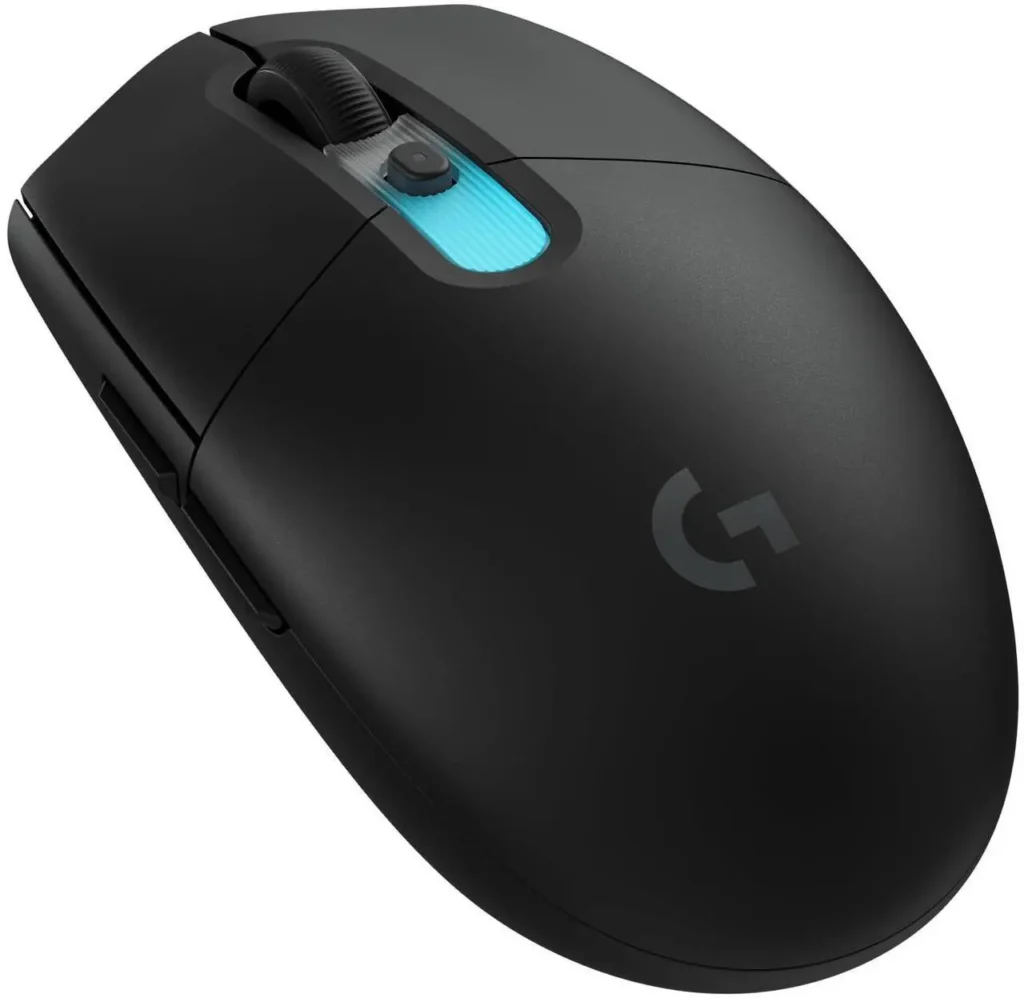
Wireless peripherals: the single most effective cable reduction for most desks. A wireless keyboard and mouse combination eliminates two USB cable runs from your desk surface entirely. The Logitech G Pro X TKL Wireless and Logitech G305 X Superlight ($74) combination is around $260 total, both run on Logitech’s LIGHTSPEED 2.4GHz dongle with battery life measured in weeks and months respectively. At $50 entry level, the Logitech G305 wireless mouse alone removes the most visible cable from most gaming setups for minimal cost.

The one cable you can’t eliminate: power. Even with a fully wireless keyboard and mouse setup, the monitor, speakers if you have them, and any desk lighting all need power. A quality power strip mounted under the desk via the cable tray with one short power cable running up to the desk surface is the cleanest solution. One visible cable, everything else hidden.
Lighting: Useful and Overrated in Equal Measure
Desk lighting serves two purposes: preventing eye strain and setting mood. The first is practical. The second is personal.Best Gaming Chair in 2026
Monitor bias lighting: a strip of LED lighting behind the monitor that illuminates the wall. It reduces eye strain significantly during long sessions by reducing the contrast between the bright monitor surface and the dark room behind it. Govee, Philips Hue, and Elgato all make dedicated monitor bias lighting kits for $20-$60. The Govee TV BackLight 3 Lite at around $30 is the entry-level option that works well for monitors up to 55 inches. This is the one form of desk lighting that has a measurable functional benefit.
RGB ambient lighting: strip lights behind the desk, under the desk, around the room, entirely aesthetic. They look great in setup photos and make the gaming space feel more considered. They also require cable management of their own and USB power. If you want them, great. Don’t buy them before you have the fundamentals (cable management, monitor arm, audio) sorted. They’re the icing, not the cake.
Monitor arm screen bar: a small light bar that clips to the top of the monitor and illuminates the desk surface without light reaching your eyes or reflecting off the screen. The BenQ ScreenBar at $109 or the Xiaomi Monitor Light Bar at $40 mount to any monitor and provide adjustable warm/cool white illumination for the keyboard and desk area. For builders who work at the PC as well as game, a screen bar replaces a desk lamp cleanly without taking up surface space.
The Order to Prioritise It All In
If budget is a constraint, here’s the order that produces the most improvement per dollar:
First: cable tray and velcro ties ($39 total). The single cheapest improvement to how any desk looks. Under-desk cable tray plus velcro ties clears floor cables, organises power runs, and makes the whole setup look more deliberate, so do this before anything else.

Second: monitor arm ($49-$80). Correct monitor height eliminates neck pain, reclaims desk depth, and makes the setup look cleaner by removing the stock stand’s footprint. The ergonomic impact is felt within the first session.
Third: wireless mouse ($50 minimum, $130 for good). Eliminates the most visible cable on most desks immediately. The Logitech G305 X Superlight at $74 is the entry point that doesn’t compromise gaming performance.
Fourth: audio that matches your situation ($50-$200 depending on direction). Headset if you share space. Speakers if you have acoustic privacy. Don’t buy both at once unless the budget genuinely allows it.
Fifth: bias lighting ($25-$40). Functionally useful for eye strain, immediately noticeable improvement to how the setup feels during evening sessions.
Then: everything else. RGB strips, desk mat, headset stand, cable sleeves, keyboard upgrade. All worthwhile but none urgently functional.