
SpecClear earns a commission if you buy through Newegg links on this page, at no extra cost to you.
A vertical GPU mount turns the graphics card into the centrepiece of a glass showcase build. The catch is airflow. Turn the card 90 degrees and its fans usually end up facing the side glass instead of the bottom intake fans, so the real question isn’t whether vertical is bad, but how much room the card has to breathe. Below: what published tests show, why the result depends on your case, the PCIe 5.0 riser problem and the fixes that help.
Last checked: 4 October 2026. Sources and Newegg prices below were checked that day.
The short answer: the gap to the glass decides it
Does a vertical GPU mount affect temperature? Usually a little, sometimes a lot. Corsair’s own guide says a vertical card will usually run warmer, by anything from a few degrees to 10 degrees, and that the result is impossible to predict without knowing the card and the case.
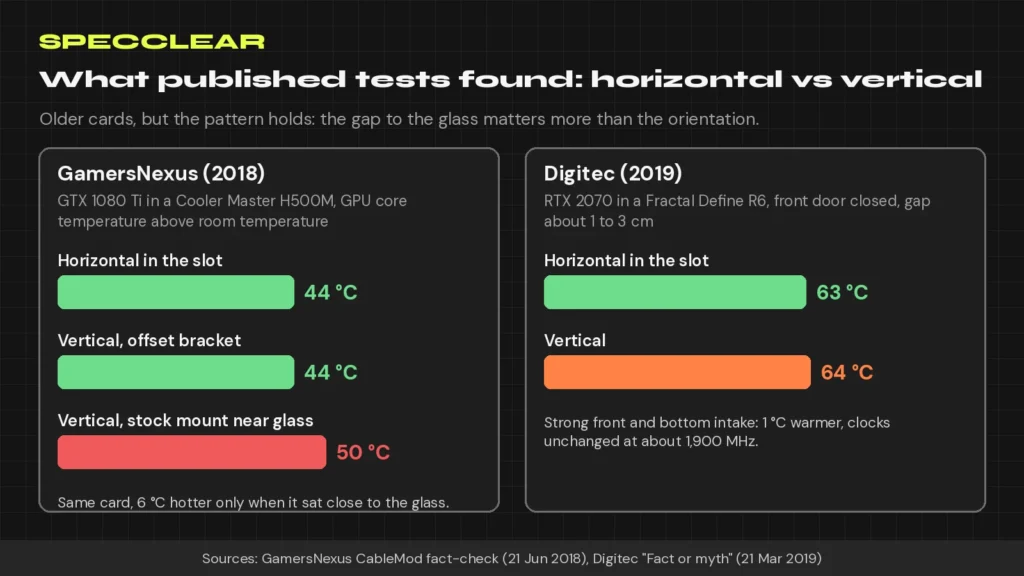
The best controlled data comes from GamersNexus, which tested a GTX 1080 Ti in a Cooler Master H500M. Measured as degrees above room temperature, the GPU core ran at 44 °C in the normal horizontal slot and 50 °C on the case’s stock vertical mount, which keeps the card close to the glass. On a CableMod bracket that moved the card back towards the motherboard, it ran at 44 °C again. Only the gap changed.
Digitec found almost nothing. Its RTX 2070, with roughly 1 to 3 cm between the fans and the glass but strong front and bottom intake, ran at 63 °C horizontal and 64 °C vertical with the front door closed, and held about 1,900 MHz both ways. Together, the results say the space in front of the fans and the fresh air reaching them matter more than which way the card points.
Why a vertical card can run hotter
The fans end up facing the glass
In a horizontal slot, an open-air card’s fans point down towards the bottom intake fans. Mounted vertically, they face the side panel. Corsair notes that the riser cable needs room to flex, which pushes the card away from the motherboard and towards the glass, and that leaves the fans less fresh air to pull in.
Hot air has nowhere to go
A card pressed against the glass also struggles to get rid of its own exhaust, so warm air can loop back into its fans. Our fish tank case fan setup guide explains this recirculation problem, and why matching bottom intake and top exhaust to the card matters in glass cases. It also lists a vertical GPU mounted tight against the glass as one of the most expensive mistakes, because no fan layout makes up for it.
Thick cards make it worse
Corsair points out that bigger cards suffer more, and case makers say the same in their spec sheets. HYTE lists a 105 mm maximum card thickness for the Y70 but recommends under 90 mm for best cooling, and a 94 mm maximum for the Y40 with 80 mm or less recommended. Measure your card against the recommended figure, not the maximum.
Why the result depends on your case
The two published tests above used different cards in different cases, and four factors explain most of the spread.
- The fan-to-glass gap. GamersNexus changed only the card’s distance from the glass, and the core went from 44 °C over room temperature to 50 °C and back. HYTE’s lower recommended card thickness for best cooling points the same way.
- Case fans below the card feeding its intake. Digitec’s card had only about 1 to 3 cm of clearance but ran just 1 °C warmer, because strong front and bottom intake kept fresh air reaching its fans.
- Side-panel vents. Behind sealed glass, the fans can only pull air from the gap. A mesh or vented panel lets them draw air from outside, which is why the NR200P V3 pairs its vertical mount with mesh side panels.
- Riser length. Corsair notes the riser needs room to flex, which tends to push the card towards the glass. The CableMod bracket GamersNexus tested worked because it seated the card further back, so pick a riser that reaches that spot without extra slack.
In my experience this is very case dependent. In my own case, I see at most a 3 degree difference, with the card running cooler when it’s installed horizontally. A case with fans below the GPU blowing straight into its intake fans can show a much bigger gap, and the same goes for vertical mounts: how well it works depends on the case.
So the same card can show almost no difference in one case and a clear one in another. If you compare horizontal and vertical yourself, keep the fan settings the same, watch fan speed and boost clock as well as temperature, and check the results against our guide to safe GPU temperatures.
Riser cables: PCIe 4.0 vs PCIe 5.0
A vertical mount normally relies on a riser cable between the slot and the card, and RTX 50 series cards run PCIe 5.0. Bandwidth is not the worry. In TechPowerUp’s scaling test, an RTX 5090 on PCIe 4.0 x16 lost about 1% of its gaming performance compared with PCIe 5.0 x16, which matches what our PCIe 5.0 vs PCIe 4.0 gaming guide found.
Stability is the worry. Tom’s Hardware reported that PCIe 5.0 doubles the signalling rate to 32 GT/s, which makes signal integrity critical, and noted that with a riser on these cards you may have to step down to PCIe 4.0 for stability. Experience varies by riser: HYTE says its PCIe 4.0 risers run RTX 50 cards at full PCIe 5.0 speed in its own testing. Corsair’s advice is to match the riser to your board and card, so a Gen 5 setup gets a Gen 5 riser.
Signs your riser isn’t coping
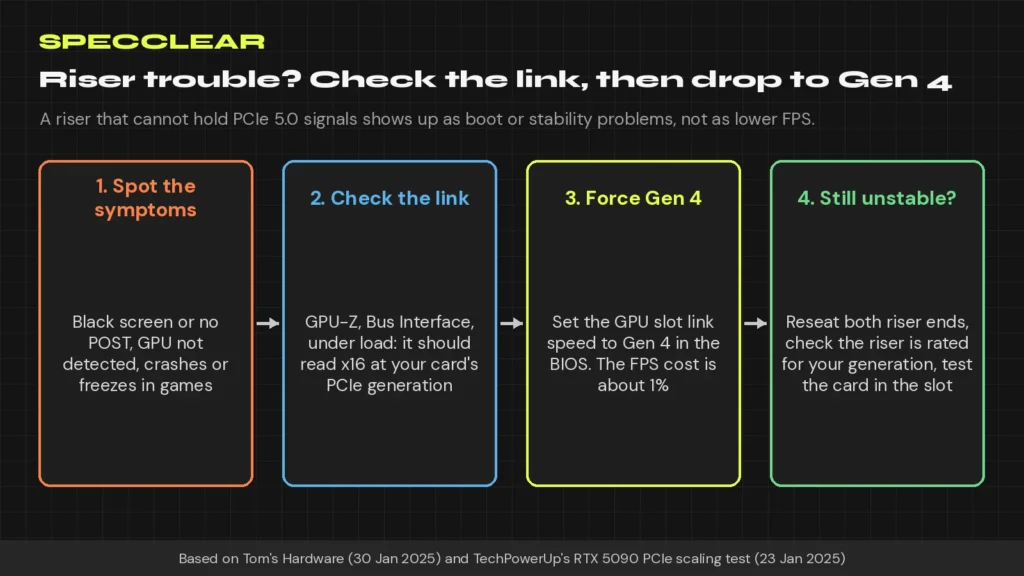
- A black screen or no POST, or the card not being detected after a reboot.
- The link training at a lower speed. In the RTX 5080 case Tom’s Hardware described, the card came up at PCIe x8 Gen 1.1.
- Crashes or freezes in games that run fine with the card in the slot.
How to check the link and force Gen 4
Open GPU-Z and read the Bus Interface field while the card is under load, because cards drop to a slower link at idle to save power. It should show x16 at your card’s PCIe generation. If it shows fewer lanes or a lower generation, or you get the symptoms above, set the graphics slot’s link speed to Gen 4 in the BIOS. The setting name varies by board maker. Tom’s Hardware describes forcing Gen 4 as the simple fix, with only a minor loss in performance. When the card is rotated, also leave at least 35 mm of straight power cable before any bend, as our 12V-2×6 connector guide explains, and follow our GPU upgrade guide for the rest of the install.
How to fix a hot vertical GPU, biggest wins first
- Move the card away from the glass. This is the GamersNexus fix. Corsair’s FRAME 4000D, for example, has two vertical mounting positions, and Corsair recommends the one that leaves maximum space between a 4-slot card and the side panel. An offset bracket does the same job in other cases.
- Feed the card fresh air. Bottom or side intake fans aimed at the card give it a steady supply of cool air. Our fan airflow guide covers fan direction, and our case fan guide covers which fans to buy.
- Swap glass for mesh where you can. Some cases offer a mesh side panel, which lets the fans pull air straight through.
- Adjust the fan curve. A steeper curve trades some noise for lower temperatures, and our fan curve guide shows how to set one.
- Undervolt. Less heat means less impact from a tight gap. Our GPU undervolting guide walks through it, and our thermal throttling guide explains what happens if you ignore the heat.
Cases and brackets that do vertical properly
A case designed for vertical mounting leaves room in front of the fans and puts intake fans where the card can use them, and our case design guide covers the airflow trade-offs. These were in stock at Newegg, sold by Newegg, when we checked the product pages on 7 October 2026:
- HYTE Y70 ($199.99): four vertical slots and a PCIe 4.0 x16 riser in the box, with up to three bottom fans blowing into the card. Keep the card under the 90 mm HYTE recommends.
- HYTE Y40 ($118.99): the cheaper HYTE, also with a PCIe 4.0 riser included and an intake fan under the shroud feeding the card. HYTE recommends cards of 80 mm or thinner.
- Cooler Master NR200P V3 ($163.99): a Mini-ITX case with a PCIe 5.0 riser included, vertical support for cards up to 361.5 mm long and large mesh side panels.
- Phanteks NV5 MK2 ($99.99): a showcase case with a dedicated bottom fan for the GPU. Phanteks lists vertical support for 3-slot cards, and the riser is sold separately.
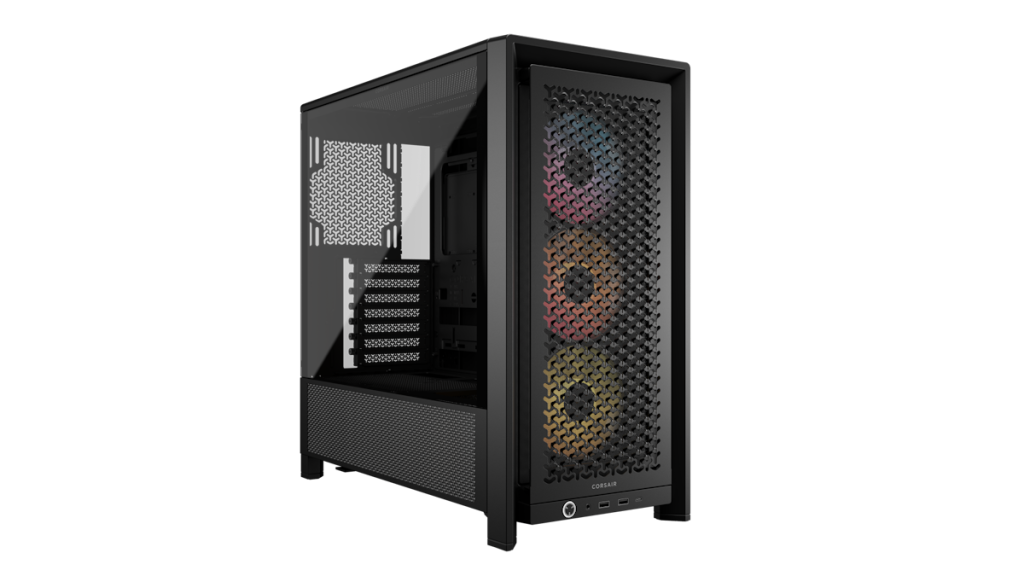
- CORSAIR FRAME 4000D RS ARGB ($75.98): a mesh-front airflow case with a rotating PCI bracket and two standoff positions. The riser is not included.
- Phanteks Premium Gen5 Vertical GPU Bracket ($69.99): an add-on bracket with a 220 mm PCIe 5.0 riser, for cards up to 365 mm long. It needs a case with seven open slots, and its 15 to 30 degree tilt angles the fans away from the glass.
Some cases are built around a vertical card: the Maestro 900R in our MSI MEG Maestro 900R review ships with its vertical mount fitted and a PCIe 5.0 riser in the box. Don’t bother where the only vertical position leaves a thick card almost touching the glass with no intake underneath. Keep it horizontal, or pick the airflow version of the chassis, as we suggested in our MSI Vixta 300R review.
Verdict: who should go vertical
Go vertical if you want to show the card off, your case was designed for it and the card leaves a real gap in front of its fans, ideally with an intake fan feeding it. In that setup, the published data says the temperature cost can be close to zero.
Think twice with a thick card that already runs warm horizontally. Corsair’s rule of thumb is that a card at 65 °C has room to absorb a 10 °C rise, while one already at 75 °C may end up hotter than you’d like. Measure the gap before you buy anything, and check the riser link once the card is in.